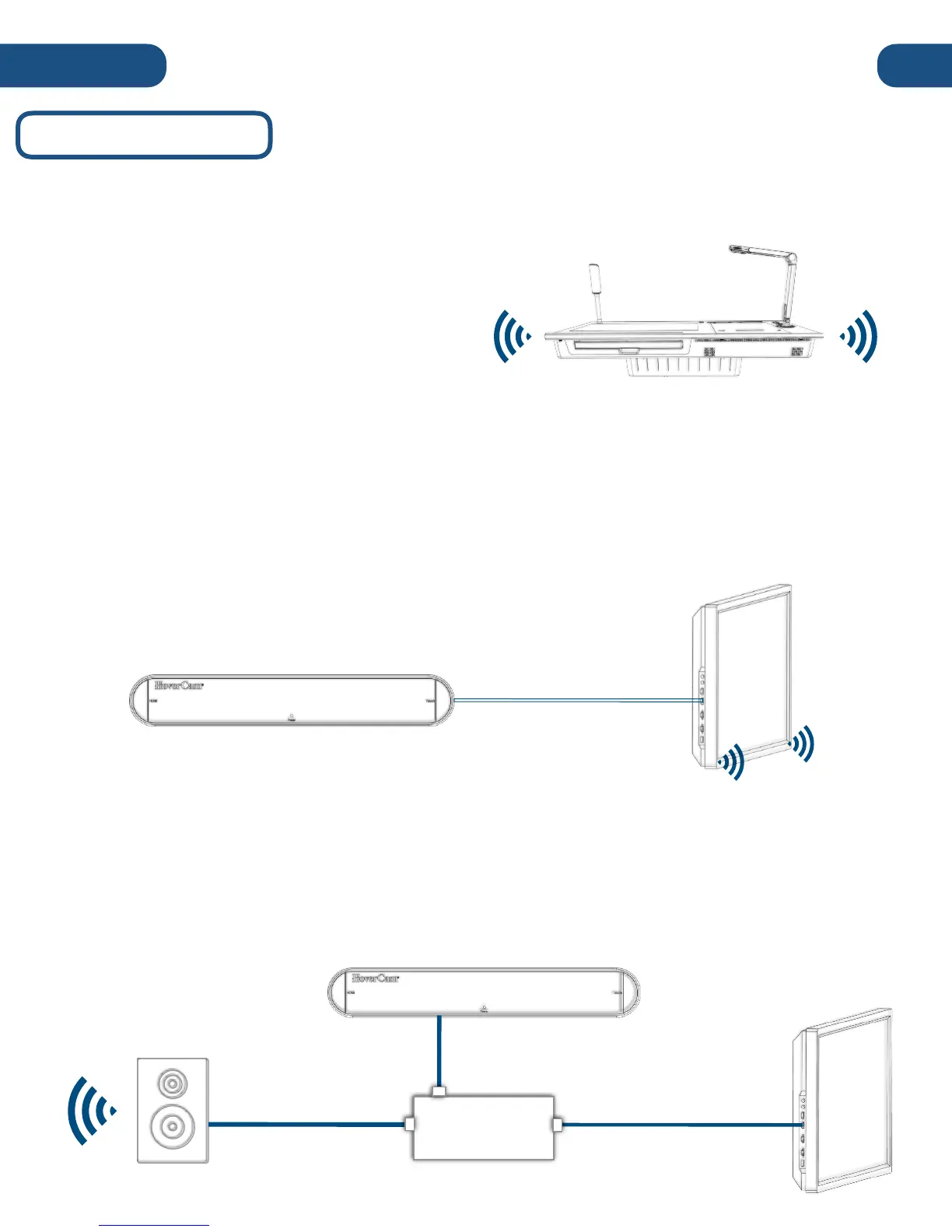
There are several options available for outputting audio from the Pilot:
3. HDMI Audio De-Embedder (not included)
For use with a separate audio system, the audio signal can be separated from the HDMI signal by
using an HDMI de-embedder and connecting it to HDMI-Out on the HoverCast or Pilot. This is usefully
when using an audio system separate from the display. Many flat panel displays contain an HDMI de-
embedder internally, so the panel’s 3.5mm audio-out can be used to send a separate signal.
2. Output Display’s Speakers
When using HoverCast or the HDMI-Out to connect to an external display with speakers, audio can
output through the external display’s speakers. In the Windows playback device list, the HoverCast’s
audio output should be listed as “MStar Demo”. If MStar Demo does not appear in the list of Playback
Devices, unplug the HoverCast receiver from its current HDMI port and re-plug into another. Refresh the
Playback Device list and reconnect.
1. Built-In Speakers
By default, the Pilot outputs audio through its
internal speakers. In the Windows playback device
list, the Pilot’s internal speakers should be listed as
“Realtek High Definition Audio.”


 To Next Page