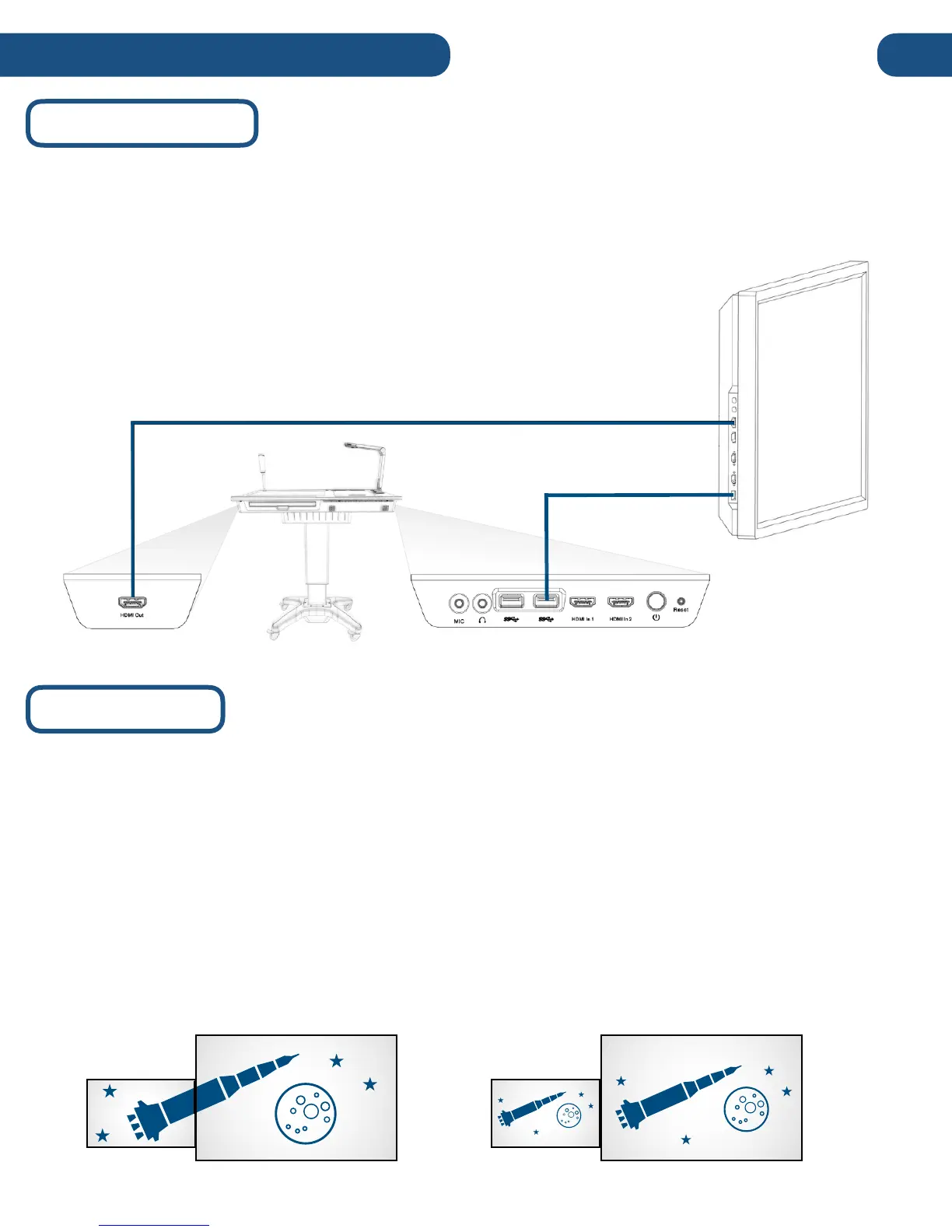
The Pilot can also output to an external display using an HDMI cable. Simply connect the display to
the Pilot’s HDMI-Out on the left side of the Pilot with an HDCP-compatible HDMI cable.
The Pilot’s default output display mode is “Extended Display”. In Extended Display mode, the external
display acts as an extension to the Pilot’s main display, showing only the windows placed in the
extended area. This area can be oriented to the right, left, top, or bottom of the Pilot’s main display
area.
You can easily switch to “Mirrored Display” mode, in which the external display will show the exact
mirror image of what appears on the Pilot’s screen. To set the Pilot to Mirrored Display mode, switch
the display preferences in the Windows display settings menu.
For detailed instructions on switching display modes, consult the Windows 10 manual:
www.windows10-guide.com
If you are using a Touch-USB enabled interactive display, you can control
the Pilot from that display by additionally connecting a USB cable between
the Touch-USB port on the display, and one of the Pilot’s USB 3.0 ports.


 To Next Page