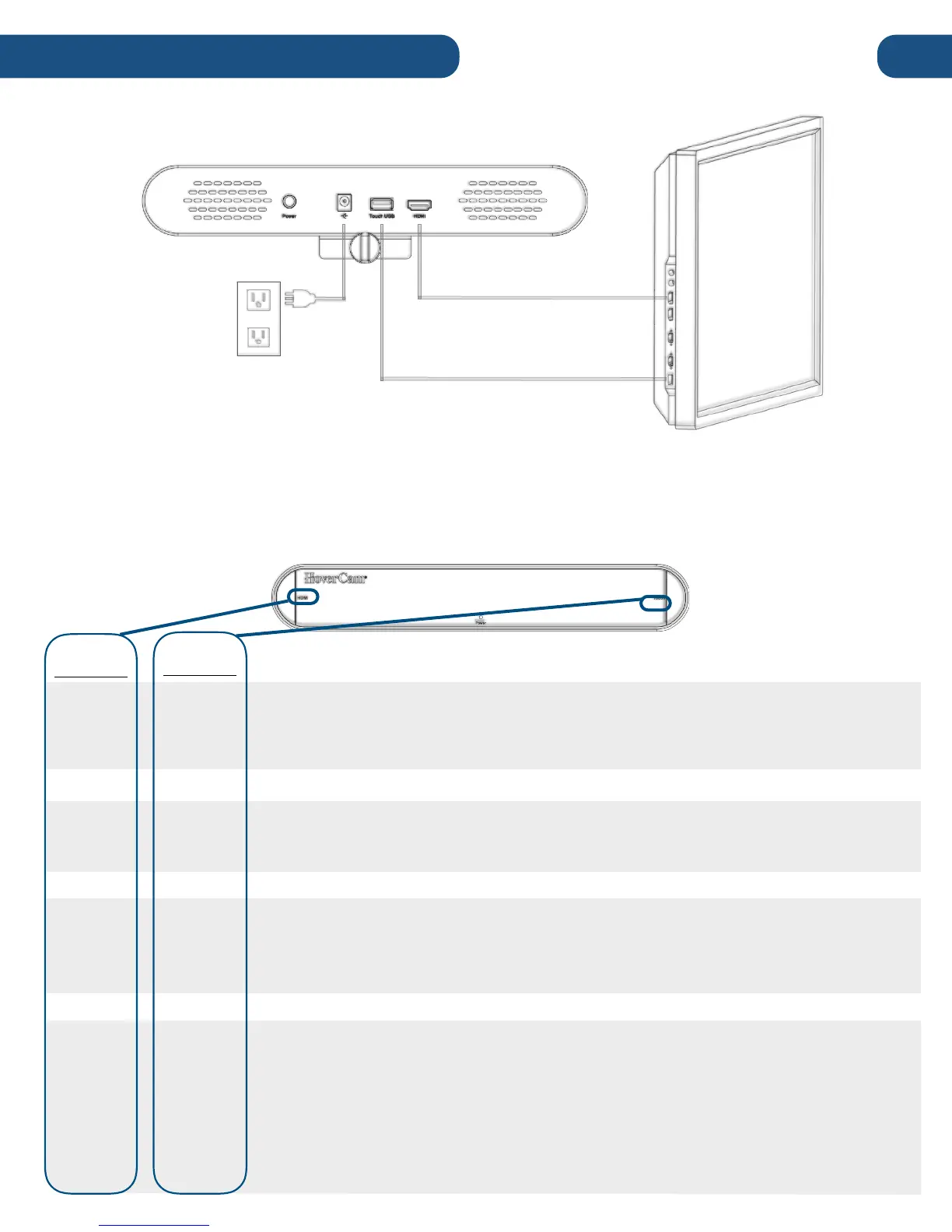
5) Turn-On the Reciever. With the paired Pilot powered-on and within range, press the power button on
the back of the HoverCast receiver. While connecting, the receiver’s status indicator light will flash blue
behind the corresponding connection. The following light actions indicate the unit’s pairing status:
Rapid Flashes - HoverCast is searching for a unit to pair. Ensure the Pilot is
powered on and has Bluetooth enabled. Under the “Add a Bluetooth
Device” option, select “CS-MTouch” and initiate pairing.
Solid Indicator Light - The connection is established and communicating
with the output device. #
Short Flash, Long Off - The HoverCast is paired but cannot detect the
known PC signal. The known PC is likely off or has Bluetooth disabled. Turn
on Bluetooth to successfully connect the units.#
Long Flash, Short Off - The HoverCast is paired and connected to the PC,
but there is an issue connecting USB touch to the current input state of the
output device. To stabilize, make sure the output device is on the correct
HDMI channel and all cables are properly connected to the HoverCast and
output device. If the HDMI connection is processing, the HDMI icon will
illuminate. If the USB touch is processing, the Touch icon will illuminate.#


 To Next Page