EasyManua.ls Logo

HP 48G - The Command Line and the Stack

HP 48G
84 pages
Print Icon
To Next Page IconTo Next Page
To Previous Page IconTo Previous Page
Loading...
THE
CommAND
LINE
AND
THE
STACK
Entering
Objects
onto
the
Stack
To
perform
arithmetic
and
other
operations
on
an
ob-
ject
(of
most
any
type),
you
must
put
the
object
onto
the
stack.
To
accomplish
this,
you
first
build
it
on
the
command
line,
then
press
[ENTER),
which
puts
it
onto
the
stack
atthe
bottom
(level
1)
pushing
all
other
stack
objects
up a
level,
and
clearing
the
command
line
for
the
next
building
session.
If
you
err
while
typing
on
the
command
line,
use
(«4)or
(»]to
move
to
the offending
character(s),
then
or
(«)to
erase them.
Or
abort
the
whole
thing
via
(CANCEL)
((©oN)).
Or,
use
the
menu
and
its
various
other
cursor
movement
tools
and
editing
options:
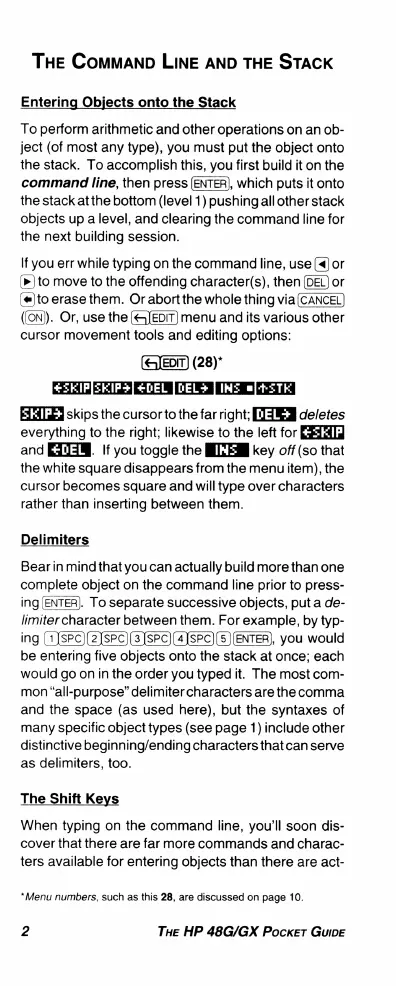
(28)"
£5KIP[SKIP
3
£DEL
|DEL*
INS
+2TK
skips
the
cursor
to
the
farright;
deletes
everything
to
the
right;
likewise
to
the
left
for
and
EJTIM.
If
you
toggle the
key
off
(so
that
the
white
square
disappears
from
the
menu
item),
the
cursor
becomes
square
and
will
type
over
characters
rather
than
inserting
between
them.
Delimiters
Bearin
mind
that
you
can
actually
build
more
than
one
complete
object
on
the
command
line
prior
to
press-
ing
(ENTER).
To
separate
successive
objects,
put
a
de-
limiter
character
between
them.
For
example,
by
typ-
ing
(1JsPC)(2]sPC](3]sPC)(4ISPC]
(5]
(ENTER),
you would
be
entering
five
objects
onto
the
stack
at
once;
each
would
go
on
in
the
order
you
typed
it.
The
most
com-
mon
“all-purpose”
delimiter
characters are
the
comma
and
the
space
(as
used
here),
but
the
syntaxes
of
many
specific
object
types
(see
page
1)
include
other
distinctive
beginning/ending
characters
thatcan
serve
as
delimiters,
too.
The
Shift
Keys
When
typing
on
the
command
line,
you'll
soon
dis-
cover
that
there
are
far
more
commands
and
charac-
ters
available
for
entering
objects
than
there
are
act-
*Menu
numbers,
such
as
this
28,
are
discussed
on
page
10.
2
THe
HP
48G/GX
Pocket
GuIDE

Related product manuals