EasyManua.ls Logo

HP Compaq Elite 8300 - User Manual

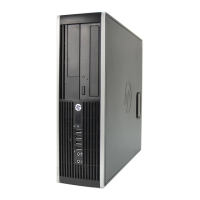
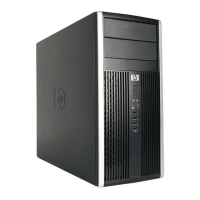
HP Compaq Elite 8300
195 pages
Print Icon
To Next Page IconTo Next Page
Loading...
Maintenance & Service Guide
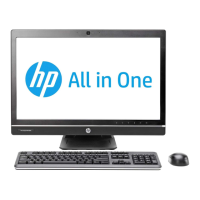
HP Compaq Elite 8300 Touch All-in-One
Business PC
HP Compaq Elite 8300 All-in-One Business PC
HP Compaq Pro 6300 All-in-One Business PC

Table of Contents

Other manuals for HP Compaq Elite 8300

Questions and Answers

  • M
    Mary PetersonAug 22, 2025
    How to troubleshoot no sound on HP Desktop?
    • S
      Suzanne TrujilloAug 22, 2025
      If there is no sound or the sound volume is too low on your HP Desktop, the system volume may be set low or muted. Check the Computer Setup settings to ensure the internal system speaker is not muted. Also, make sure the external speakers are properly connected and powered on, and that their volume control is set correctly. Finally, use the system volume control available in the operating system to ensure the speakers are not muted and to increase the volume.
  • H
    hendrixamandaAug 25, 2025
    Why does my HP Compaq Elite 8300 power off automatically and the Power LED flashes Red?
    • T
      Tiffany CoxAug 25, 2025
      If your HP Desktop powers off automatically, the Power LED flashes red two times, and the computer beeps two times, it indicates the processor thermal protection has activated. This could be due to a blocked fan or a heat sink that is not properly attached to the processor. Ensure that the computer air vents are not blocked and the processor cooling fan is running. Open the access panel, press the power button, and see if the processor fan (or other system fan) spins. If the fan does not spin, make sure the fan cable is plugged onto the system board header. If the fan is plugged in and not spinning, replace it.
  • P
    parkerchristopherAug 26, 2025
    How to fix HP Desktop unable to connect to the Internet?
    • J
      jenniferherreraAug 26, 2025
      If your HP Desktop is unable to connect to the Internet, the Internet Service Provider (ISP) account may not be set up properly. Verify Internet settings or contact your ISP for assistance.
  • A
    Ariel LeeAug 27, 2025
    What to do if HP Compaq Elite 8300 appears locked up and won't turn off?
    • R
      Rodney FerrellAug 28, 2025
      If your HP Desktop appears locked up and the power button doesn't work, it might be due to software control issues. Try pressing and holding the power button for at least four seconds until the computer turns off. As an alternative, disconnect the power cord from the electrical outlet.
  • R
    Ray PerezAug 29, 2025
    What to do if my HP Compaq Elite 8300 Desktop will not respond to keyboard or mouse?
    • S
      Sandra HernandezAug 29, 2025
      If your HP Desktop is unresponsive to the keyboard or mouse, the computer may be in Sleep state. To resume from Sleep state, press the power button. If that doesn't work, the system may have locked up, in which case you should restart the computer.
  • R
    roycaseySep 2, 2025
    Why does the power supply on my HP Desktop shut down intermittently?
    • D
      deckerchristopherSep 2, 2025
      An HP Desktop power supply that shuts down intermittently may be due to the voltage selector switch on the rear of the computer chassis not being switched to the correct line voltage (115V or 230V). Select the proper AC voltage using the selector switch. It can also be caused by an internal power supply fault, in this case replace the power supply.
  • A
    allennatashaSep 4, 2025
    How to correct incorrect date and time on HP Compaq Elite 8300?
    • B
      breanna91Sep 4, 2025
      If the date and time display is incorrect on your HP Desktop, the RTC (real-time clock) battery may need to be replaced. Reset the date and time under Control Panel (Computer Setup can also be used to update the RTC date and time). If the problem persists, replace the RTC battery.
  • A
    amanda11Sep 6, 2025
    What to do if a hard drive error occurs on HP Compaq Elite 8300?
    • E
      Emily GloverSep 6, 2025
      If a hard drive error occurs on your HP Desktop, the hard disk may have bad sectors or has failed. In Windows 7, click Start, click Computer, and right-click on a drive. Select Properties, and then select the Tools tab. Under Error-checking click Check Now. In Windows 8, on the Start screen type e, and then select File Explorer from the list of applications. In the left column, expand Computer, right-click on a drive, select Properties, and then select the Tools tab. Under Error checking click Check.
  • J
    Jessica DavisSep 8, 2025
    Why won't the cursor move with arrow keys on my HP Compaq Elite 8300?
    • D
      Derek LopezSep 8, 2025
      If the cursor will not move using the arrow keys on the keypad of your HP Desktop, the Num Lock key is likely turned on. Press the Num Lock key to turn it off. The Num Lock light must be off to use the arrow keys. You can also disable or enable the Num Lock key in Computer Setup at Advanced > Device Options.
  • S
    Stacey HamiltonSep 10, 2025
    Why is my USB flash drive not recognized as a drive letter in Windows on my HP Compaq Elite 8300 Desktop?
    • R
      rachel67Sep 10, 2025
      If a USB flash drive is not seen as a drive letter in Windows on your HP Desktop, the drive letter after the last physical drive may not be available. Change the default drive letter for the flash drive in Windows.

Summary

Product Features

Overview

Provides a general description of the HP Compaq All-in-One Business PC's features.

Front Components

Details and diagrams of components located on the front of the computer.

Side Components

Identifies and explains the components situated on the sides of the computer.

Rear Components

Illustrates and describes the various ports and connectors on the back of the PC.

Stand Adjustments

Instructions on how to adjust the tilt and swivel features of the computer stand.

Height Adjustable Stand

Information on the optional height-adjustable and reclining stand for the PC.

Activating and Customizing the Software

Windows 7 Software Setup

Steps for activating and customizing software for Windows 7, including OS activation.

Windows 8 Software Setup

Instructions for activating and customizing software for Windows 8, including OS activation.

Computer Setup (F10) Utility

Computer Setup Overview

Explains the functionalities and purposes of the F10 Computer Setup utility.

Accessing Computer Setup

Step-by-step guide on how to enter and navigate the Computer Setup utility.

Setup Utility Sections

Details on the 'File', 'Storage', 'Security', 'Power', and 'Advanced' sections within Computer Setup.

Recovering Configuration Settings

Procedure for restoring computer configuration settings from saved media.

HP PC Hardware Diagnostics

Diagnostics Overview and Benefits

Explains the purpose and benefits of using HP's UEFI-based hardware diagnostic tool.

Accessing and Running Diagnostics

Instructions on how to start and execute the HP PC Hardware Diagnostics tool.

Downloading Diagnostics to USB

Guide on obtaining and installing the HP PC Hardware Diagnostics on a USB drive.

Serial ATA (SATA) Drive Guidelines

SATA Drive Characteristics

Technical specifications and features related to SATA hard drives used in the computer.

SATA Drive Cables

Information on the proper handling and specifications of SATA data cables.

SMART ATA Drive Technology

Explanation of the Self-Monitoring, Analysis, and Reporting Technology (SMART) for ATA drives.

Routine Care and Disassembly Preparation

Electrostatic Discharge (ESD) Precautions

Essential information and steps to prevent damage from static electricity to components.

Grounding and Work Area Safety

Guidelines for proper grounding techniques and maintaining a safe work environment for service.

Operating Guidelines

Best practices for operating the computer to ensure longevity and prevent overheating.

Routine Cleaning Procedures

Step-by-step instructions for cleaning various parts of the computer safely.

Service Tools and Considerations

Lists necessary tools and important considerations before performing disassembly and assembly.

Removal and Replacement Procedures

Disassembly Preparation Steps

Crucial initial steps to take before disassembling the computer to avoid injury or damage.

Chassis Component Removal

Procedures for removing external chassis parts like the rear port cover and access panel.

Stand and Panel Replacement

Instructions for removing and replacing the computer stand and lower panel.

Drive Replacement

Detailed steps for removing and installing hard disk drives and optical drives.

Memory and Battery

Guide on how to properly remove and install memory modules and replace the battery.

Internal Component Replacement

Procedures for replacing serial port, webcam, converter board, touch sensor, heat sinks, processor, SSD, WLAN, graphics board, speakers, fan, side panels, power supply, system board, card reader, power button, front bezel, antenna, display panel, hood sensor.

System Board and Power Supply

Instructions for removing and replacing the system board and the computer's power supply unit.

Front Panel and Display Assembly

Procedures for replacing the front bezel, antenna, display panel, and hood sensor.

Troubleshooting Without Diagnostics

Safety and Comfort Guidelines

Information on establishing a safe and comfortable work environment while using the computer.

Pre-Support Troubleshooting Steps

Recommended actions to take before contacting technical support to diagnose issues.

General Problem Solving

Common causes and solutions for general computer problems like system lockups or incorrect date/time.

Power and Hard Drive Issues

Troubleshooting steps for power supply problems and hard drive errors.

Display, Audio, and Printer Issues

Solutions for common problems related to the display, audio output, and printer functionality.

Peripheral and Connectivity Problems

Troubleshooting steps for keyboard, mouse, USB devices, and internet access issues.

Software and System Errors

Guidance on resolving software-related problems and system errors like POST failures.

Backup and Recovery

Restoring and Recovering in Windows 7

Procedures for system restore and recovery operations specific to Windows 7.

System Recovery Methods

Details on performing system recovery using the recovery image or recovery media.

Creating Recovery Media

Instructions for creating system recovery discs or USB flash drives.

Backup and Recovery in Windows 8

Steps for backing up data and performing system recovery using Windows 8 tools.

Performing System Recovery

Guidance on using Windows recovery tools and f11 recovery options for system restoration.

POST Error Messages

POST Numeric Codes and Text Messages

Lists and explains POST error codes and text messages with recommended actions.

Interpreting Front Panel LEDs

Guide to understanding front panel LED codes and audible alerts for diagnosing startup issues.

Password Security and Resetting CMOS

Establishing System Passwords

Instructions for setting up setup and power-on passwords for computer security.

Resetting Passwords and CMOS

Procedures for clearing system passwords and resetting CMOS settings to factory defaults.

Appendix A Power Cord Set Requirements

General Power Cord Requirements

Specifies general requirements applicable to power cord sets in all countries.

Country-Specific Requirements

Details additional power cord requirements specific to various countries and their agencies.

Appendix B Specifications

8300 Models Specifications

Technical specifications including dimensions, weight, temperature, and power for 8300 model PCs.

6300 Models Specifications

Technical specifications including dimensions, weight, temperature, and power for 6300 model PCs.

HP Compaq Elite 8300 Specifications

General IconGeneral
Operating temperature (T-T)10 - 35 °C
Memory slots typeDIMM
Number of memory slots4
Supported memory typesDDR3-SDRAM
Maximum internal memory32 GB
HDD size3.5 \
Dimensions (WxDxH)178 x 445 x 448 mm
Microphone inYes
HDMI ports quantity0
PS/2 ports quantity2
USB 2.0 ports quantity6
PCI slots3
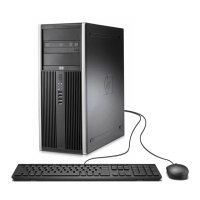
Chassis typeMini-Tower
Product typePC barebone
Product colorGray
Audio systemHD
Motherboard chipsetIntel® Q77 Express
Compatible processor seriesIntel Core i3, Intel Core i5, Intel Core i7
Power supply320 W
Operating system installedNo
Processor model-
Processor familyIntel
Weight and Dimensions IconWeight and Dimensions
Weight11200 g

Related product manuals