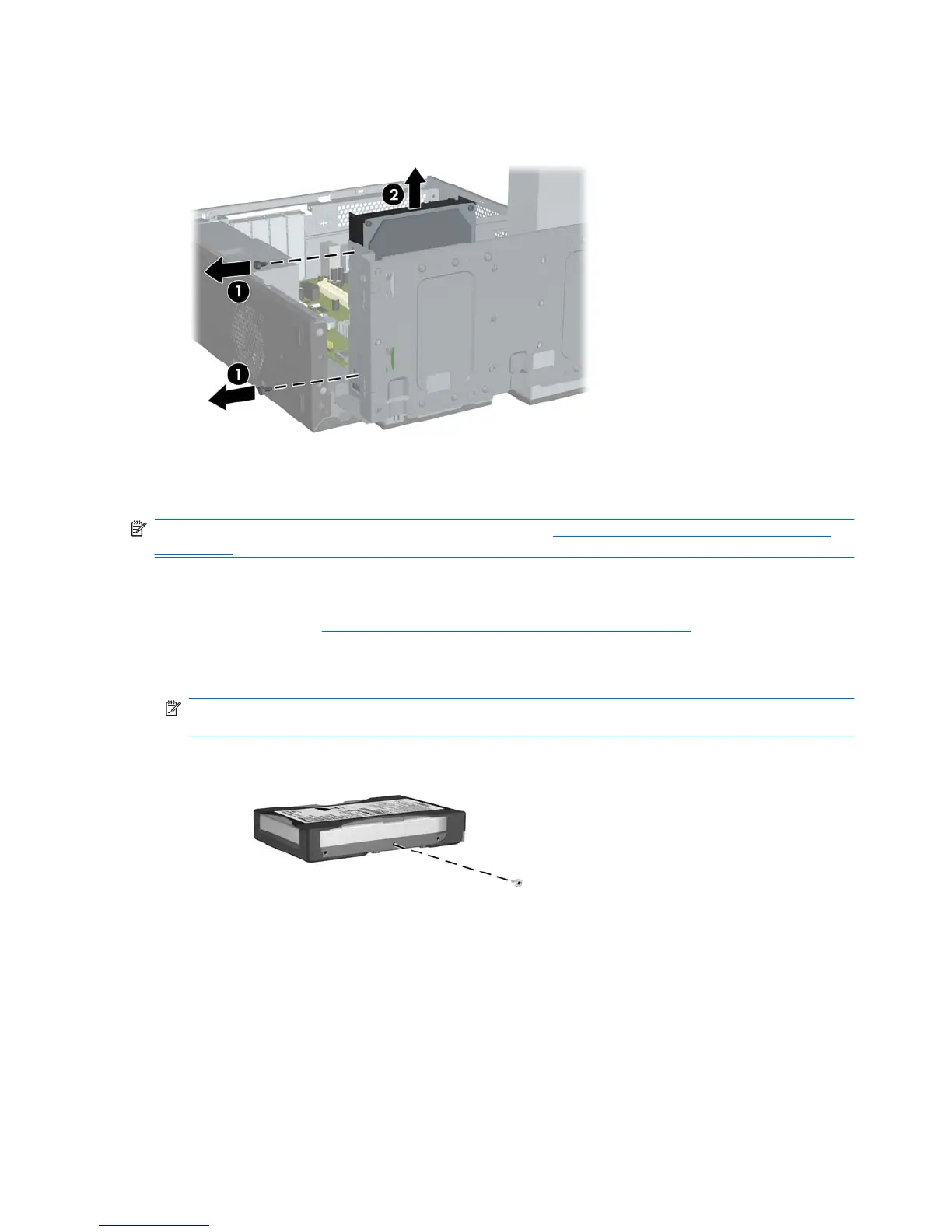
8. Remove the two retainer screws that secure the drive to the bay (1) then slide the drive back and
out of the bay (2).
Figure 2-37 Removing an Internal Hard Drive
NOTE: To install an internal 3.5-inch hard drive, refer to Installing an Internal 3.5-inch Hard Drive
on page 38.
Installing an Internal 3.5-inch Hard Drive
1. Follow the steps in Removing an Internal 3.5-inch Hard Drive on page 36 to remove the old hard
drive.
2. Install the guide screw in the middle hole on the right side of the drive.
NOTE: When replacing a hard drive, remove the guide screws from the old drive for use with the
new drive.
Figure 2-38 Installing the Guide Screw in the Hard Drive
3. Align the guide screw on the drive with the slot on the chassis. Slide the hard drive into the drive
bay from the back until the two screw holes on the left side of the drive line up with the two screw
holes on the left side of the drive cage (1).
38 Chapter 2 Hardware Upgrades ENWW




 To Next Page