Hardware options installation 22
2.
Extend the server from the rack, if applicable.
3. Remove the access panel ("Access panel" on page 6).
4. Access the removable media cage.
5. Remove the bezel blank.
NOTE: HP recommends that you remove all bezel blanks to facilitate drive installation.
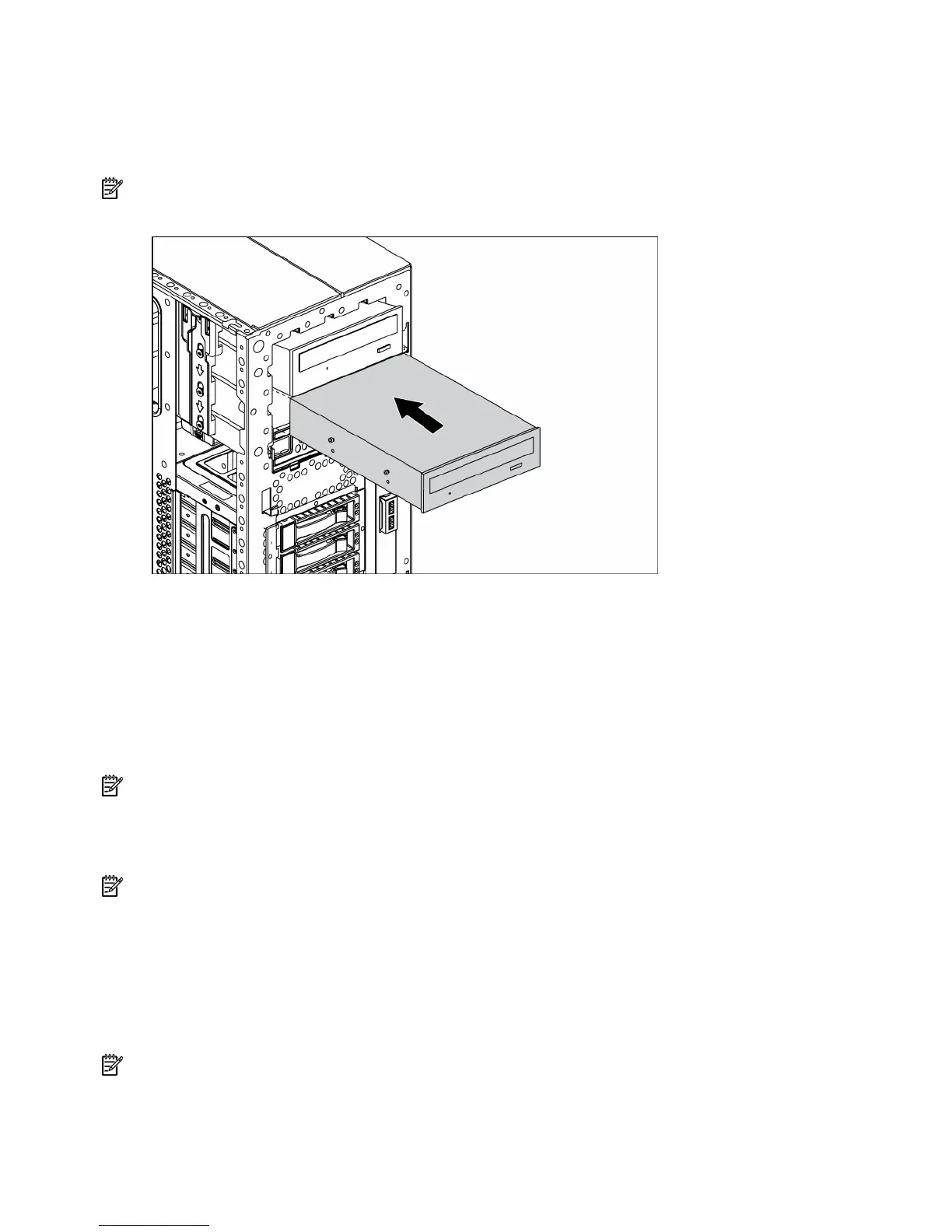
6. Slide the media device into the bay until it clicks.
7. Connect the four-pin power cable to the media drive.
8. Connect the device cable to the device and the system board or to an expansion board, as directed
by the option documentation.
9. Slide the media drive fully into the bay until it is seated securely.
Installing media devices with wire retainers
You can install one full-height or up to two half-height removable media devices in the removable media
cage.
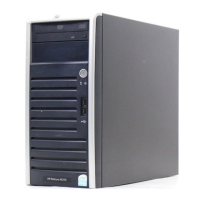
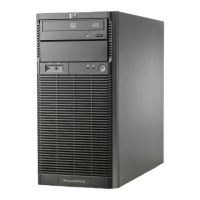
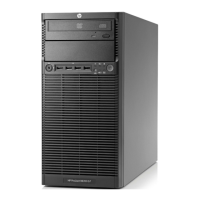
NOTE: The HP ProLiant ML150 Generation 2, the HP ProLiant ML110 Generation 3, and the HP ProLiant
ML110 Generation 4 Servers do not support full-height media devices.
Installing a full-height media device
NOTE: This process only represents one installation method. For specific instructions for installing the media
device into the server, refer to the installation sheet for your specific server.
1. Power down the server (on page 6).
2. Extend the server from the rack, if applicable.
3. Remove the access panel ("Access panel" on page 6).
4. Access the removable media cage.
5. Remove the bezel blank.
NOTE: HP recommends that you remove all bezel blanks to facilitate drive installation.




 To Next Page