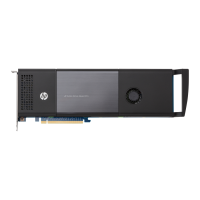
This document outlines the installation procedure for the HP Z Turbo Drive in various HP Z series Workstations, including the Z230, Z420, Z440, Z620, Z640, Z820, and Z840 models. The HP Z Turbo Drive is a high-performance storage solution designed to enhance the speed and efficiency of these workstations.
Function Description:
The HP Z Turbo Drive serves as a solid-state drive (SSD) that connects to the workstation's system board via a PCIe slot. Its primary function is to provide significantly faster data access and transfer speeds compared to traditional hard disk drives (HDDs), thereby improving overall system responsiveness, application loading times, and large file handling. It can be used as a primary drive for the operating system or as a data drive for high-demand applications and files. The installation process involves physically inserting the drive into an available PCIe slot and, in some cases, connecting an LED cable for activity indication. For optimal performance and compatibility, specific BIOS revisions are required for certain workstation models, and particular PCIe slots are recommended for installation, especially when installing an operating system image.
Important Technical Specifications:
- Compatibility: HP Z230, Z420, Z440, Z620, Z640, Z820, and Z840 series Workstations.
- Interface: PCIe (Peripheral Component Interconnect Express). The drive is designed to fit into specific PCIe slots within each workstation model, with recommendations provided for primary and secondary installations.
- BIOS Requirements:
- HP Z230 Workstation: Minimum BIOS revision 1.20.
- HP Z420, Z620, and Z820 Workstation: Minimum BIOS revision 3.69.
- HP Z440, Z640, and Z840: No minimum BIOS revision specified; the drive is automatically enabled.
- Physical Form Factor: The drive comes with a full-height bracket, but a half-height bracket is included for use with the HP Z230 SFF (Small Form Factor) only. This indicates a standard PCIe card form factor that can be adapted for different chassis sizes.
- Multi-Drive Support:
- HP Z420 and Z440: Support two drives.
- HP Z620 and Z640: Support two drives.
- HP Z820 and Z840: Support four drives.
- When installing multiple HP Z Turbo Drives, a J2 jumper on one of the drives must be moved to a different position to ensure unique identification. Eight drives can be uniquely identified using three jumpers, implying a system for addressing multiple drives within a workstation.
- LED Cable: An LED cable is included to connect the drive's HDD activity header (HDDACT1) to the system board's HDD LED connector, providing visual feedback on drive activity.
Usage Features:
- Performance Enhancement: The primary benefit is a significant boost in storage performance, crucial for professional applications that demand high-speed data access, such as video editing, 3D rendering, and scientific simulations.
- Operating System Drive: Can be used as the primary drive for the operating system. When doing so, it is recommended to remove all other storage devices during the OS installation to prevent conflicts and ensure the OS is installed on the correct drive and in the preferred PCIe slot.
- Data Drive: Can also function as a secondary data drive, storing large files and applications without the need to remove other storage devices.
- Plug-and-Play (with BIOS updates): For newer workstation models (Z440, Z640, Z840), the drive is automatically enabled. For older models, ensuring the minimum BIOS revision is met is crucial for the computer to recognize the drive.
- Slot Prioritization: Specific PCIe slots are recommended for installation, particularly for the primary drive, to optimize performance and compatibility. The manual provides detailed instructions for each workstation model regarding which slots to use.
Maintenance Features:
- Electrostatic Discharge (ESD) Precautions: The manual emphasizes the importance of ESD precautions during installation to prevent damage to the computer's electronic components. This includes working on a static-free mat, wearing a static strap, and creating a common ground for all equipment.
- Physical Installation: The installation involves opening the computer chassis, removing slot covers, aligning connectors, and securing the drive with retention clips or screws. This is a physical maintenance task that requires careful handling.
- BIOS Updates: For older workstation models, maintaining an up-to-date BIOS (meeting the minimum revision requirement) is a key maintenance aspect to ensure the drive is recognized and functions correctly.
- Defragmentation (SSD Specific): The document notes that some operating systems automatically schedule defragmenting sessions, which offer no benefit for SSDs and can be disabled to save energy. This is a software-level maintenance tip specific to SSDs.
- Safety Warnings: The manual includes warnings about hot surfaces, electrical shock hazards, and proper lifting techniques for heavy products, highlighting safety as an important aspect of maintenance and installation.
- Documentation Reference: Users are directed to the service guide for their computer (http://www.hp.com/support/manuals) for detailed removal and replacement procedures of internal components, and to QuickSpecs (http://www.hp.com/go/productbulletin) for product compatibility information. This emphasizes the reliance on comprehensive documentation for maintenance.

 Need help?

 To Next Page
 General