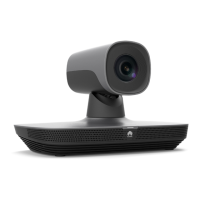
HUAWEI TE80 Videoconferencing Endpoint
Administrator Guide
Huawei Proprietary and Confidential
Copyright © Huawei Technologies Co., Ltd.
While the endpoint
is not in use during
a conference, the
video displayed on
the display device is
too bright or too
dark.
The video settings of the
endpoint are inappropriate.
Retain the default values for the
video parameters on the endpoint
and display device.
The video settings of the
display device are
inappropriate.
Retain the default values for the
video parameters on the endpoint
and display device.
Send the endpoint to the local
distributor for maintenance.
While the endpoint
is in use during a
conference and a
remote site is
sharing its computer
desktop, the local
VGA display cannot
display the shared
computer desktop.
The resolution of the remote
computer exceeds the
maximum resolution
supported by the endpoint.
Ask the remote site administrator
to change the resolution and
refresh rate of the remote
computer to those the endpoint
supports.
The local VGA display is not
supported.
Replace the local VGA display
with a supported display.
The presentation sharing
function is not enabled at your
site.
Choose Advanced > Settings >
Conference > Advanced and
select Presentation.
A computer is
connected to the
endpoint, but the
local VGA display
does not show the
computer desktop.
The capability of the VGA
display is limited. The
resolution or refresh rate of
the local SXGA output is too
high to be supported by the
VGA display.
Set the resolution and refresh rate
of the local SXGA output to those
the VGA display supports.
The endpoint supports only
certain combinations of
resolutions and refresh rates.
The combination of the
resolution and refresh rate set
on the computer, however, is
not supported by the endpoint.
In this case, the local site
cannot display or properly
display the computer desktop.
Set the resolution and refresh rate
of the computer used for the VGA
input to those the endpoint
supports.
The presentation source is not
set as the computer desktop.
Choose Advanced > Settings >
Video > Common Settings >
Video Input. Set Presentation
Source to the input port connected
to the computer desktop.
The dual screen function is not
enabled.
Choose Advanced > Settings >
Video > Common Settings >
Video Output and set
Presentation display to Enable.
The camera you want to
control is not selected.
Access the camera control screen
and select the camera you want to



 To Next Page