Leo Proudcts Online Help-es
Leo Proudcts Online Help-es
Huawei Proprietary and Confidential
Copyright © Huawei Technologies Co., Ltd.
If you disable Always-on Scr een in Set ti ngs > Display, you can turn off the screen by simply
covering the watch with your palm.
The screen automatically turns off if there are no operations for a specified period.
If you enable Always-on Scr een in Set ti ngs > Disp l a y , the watch will switch to ambient
mode after you cover your watch with your palm or perform no operations for 5 seconds. The
screen automatically turns off if there are no operations for 30 minutes.
Lowering your wrist to turn off the screen
When you lower your wrist, your watch screen automatically turns off. In Set t i ngs > Display:
z
Enable Always-on Scr een, and when you lower your wrist, the screen switches to
ambient mode.
z
Disable Always-on Scr een, and when you lower your wrist, the screen turns off.
0/5'H?"-$2D$'4%#D'
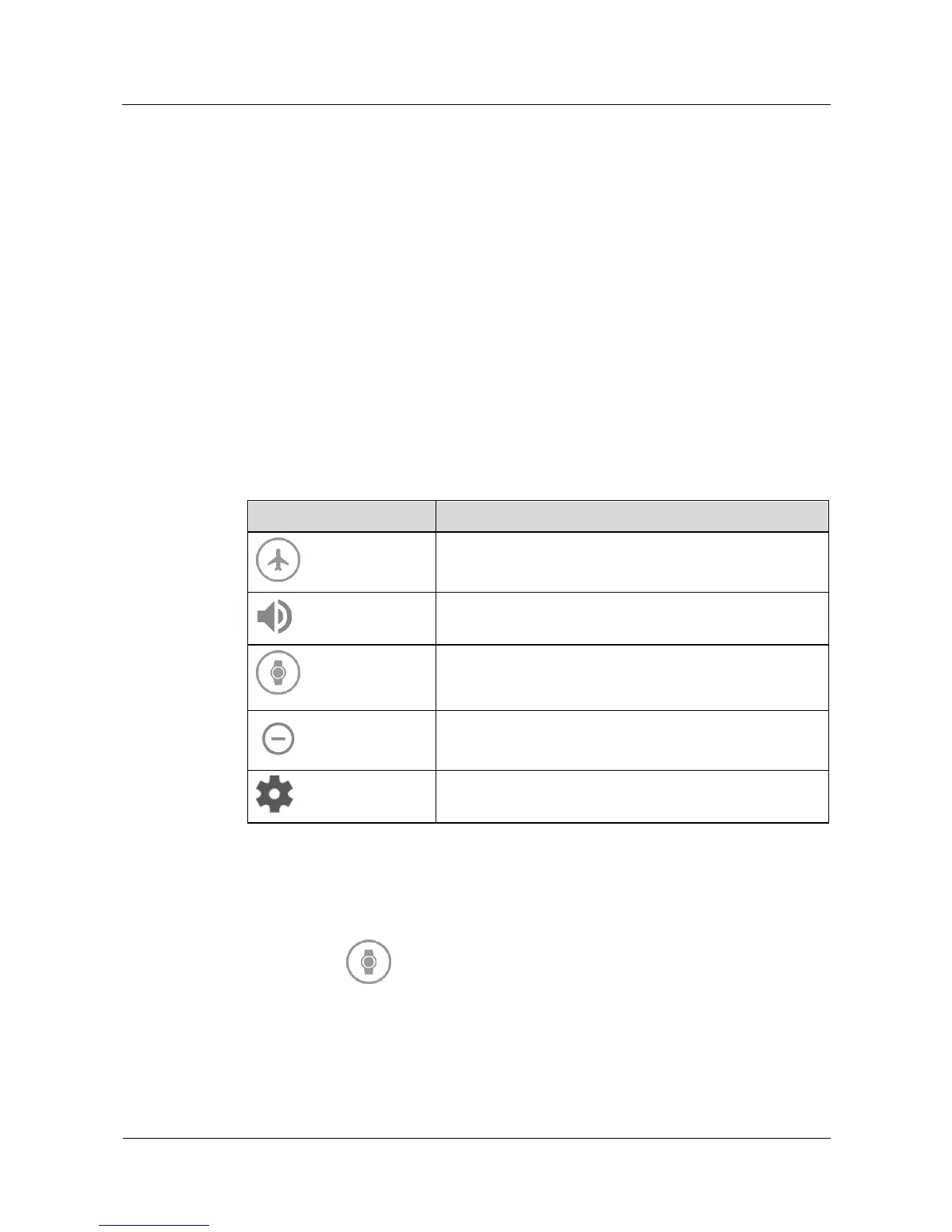
Swipe down on the watch screen to view the shortcut menu and access the following settings.
Enable or disable Airplane mode.
Enable or disable the notification sound.
In Theater mode, the screen is off and cannot be turned on
by your wrist moving, screen touching, or incoming calls or
messages.
Enable Do not disturb mode.
Access the settings screen.
0/8'9".%&'
Theater mode
Enable Theater mode in quiet and dark environments, such as theaters and cinemas to avoid
bothering other people. The Theater mode keeps the watch screen off. You cannot turn on the
screen by moving your wrist or touching the screen. The screen will remain off even when
there is an incoming call or new message.





 To Next Page