7'B,$2?'3,2%'
8.1 Adding, changing, and hiding the watch face
8.2 Downloading watch faces
8.3 Customizing the watch face
7/('K..*#+X'2?,#+*#+X',#.'?*.*#+'$?%'F,$2?'3,2%'
K..*#+'F,$2?'3,2%&'
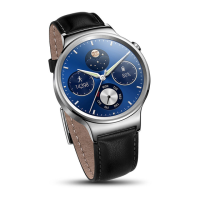
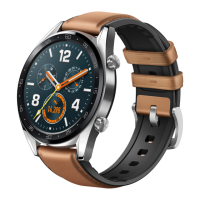
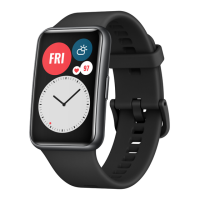
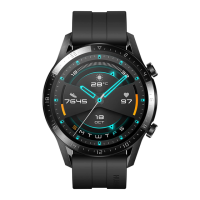
Your watch provides you with multiple watch faces in a range of colors and styles. You can
add more watch faces for even more options.
To add watch face, swipe left on your watch's home screen and touch Add more watch faces.
!?,#+%'F,$2?'3,2%&'
Choose one of the following two methods to change your watch face.
Method 1: Swipe left on your watch's home screen. Swipe left or right to scroll through the
watch faces and then touch to apply the desired face.
Method 2: Touch MORE in Watch faces on the Android Wear app home screen to view the
watch faces, and then touch to apply the desired face.
I*.*#+'F,$2?'3,2%&'
Hide some of the watch faces and display only your personalized watch face.
To do this, swipe left on your watch's home screen to view the existed watch faces. Swipe up
or down the watch faces you wish to hide, and they will no longer be listed in the watch face
list.
7/0'V"F#6",.*#+'F,$2?'3,2%&'
Method 1: You can download watch face apps from Google Play
TM
.





 To Next Page