35
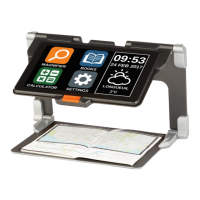
Prodigi will announce “Main Carousel” and display the current application.
Swipe left or right in the Carousel menu to select an application.
To launch a selected application, tap it.
To return to the Carousel menu, tap Back icon.
Tip: You can access the Carousel menu from anywhere in the system by double
tapping with two fingers anywhere on the screen.
DOWNLOADING BOOKS
Prodigi’s Books application allows you to download eBooks, magazines and other
periodicals provided by various libraries.
Select and tap the Books icon in the Carousel menu.
When launching Books, you must select one of the Books or Subscriptions
providers from a list. To do so, select Manage libraries, then select Book
providers or Magazine providers.
Tap any library and authenticate with the username and password that you
have been provided with by that organization. First, enter your username
and tap the blue button on the right side of the keyboard. Then, enter your
password and tap the blue button again. Your login information will be
saved.
Note: Your password will be hidden by default. Tap the Eye icon at the right of
the password field to show your password in clear text. Tap again to hide your
password.
After authentication, tap the Back button twice until you return to the main
Books menu. Each library for which you have established a successful login
will appear on the list.
Note: Each library has different search fields, they can offer look-ups by Title,
New releases, Author, Keyword, Category, Content, ISBN number, etc.


 To Next Page