EasyManua.ls Logo

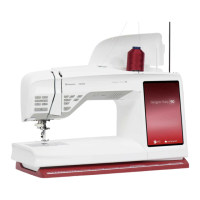
Husqvarna VIKING Designer Epic 3 - User Manual

Husqvarna VIKING Designer Epic 3
170 pages
Print Icon
To Next Page IconTo Next Page
Loading...
User’s Guide
KEEPING THE WORLD SEWING™

Table of Contents

Questions and Answers

  • U
    usanchezSep 23, 2025
    What to do if the screen is not responding on my Husqvarna VIKING Designer Epic 3?
    • A
      Andrew BeckerSep 23, 2025
      The sockets and function buttons on the machine can be sensitive to static electricity. If the screen does not respond to touch, turn the machine OFF and then ON again. If the problem persists, contact your authorized retailer.
  • J
    James StewartAug 23, 2025
    What to do if my Husqvarna Sewing Machine does not feed fabric properly?
    • C
      Cindy WalkerAug 25, 2025
      If your Husqvarna sewing machine isn't feeding fabric properly or is feeding irregularly, try these steps: remove the thread completely and rethread the machine. Remove the needle plate and clean the feed teeth with the brush. Ensure that the Free-Motion setting is turned off in sewing mode and that the feed teeth are not set to the down position in the settings menu. Also, make sure that the correct presser foot is attached.
  • D
    David HillAug 25, 2025
    Why is my Husqvarna VIKING Designer Epic 3 Sewing Machine fabric not feeding?
    • R
      Richard LutzAug 26, 2025
      If the fabric isn't feeding through your Husqvarna sewing machine, ensure the machine isn't set for Free-Motion sewing and that the feed teeth are not set to down in the settings menu.
  • A
    Alexis RomeroAug 27, 2025
    Why does the needle thread keep breaking on my Husqvarna Sewing Machine?
    • J
      Joseph TrevinoAug 27, 2025
      Needle thread breakage on your Husqvarna Sewing Machine can occur due to several reasons. Ensure the needle is correctly inserted and is system 130/705 H. Try inserting a new needle. Also, completely remove and rethread the machine. If you're using thread with slubs or thread that has become dry, switch to a new, high-quality thread. If using a spool cap, make sure it's slightly larger than the thread spool. You can also try a different spool pin position or lower the thread tension.
  • T
    Tracy WigginsAug 27, 2025
    How to connect my Husqvarna VIKING Designer Epic 3 to WiFi?
    • M
      Michael CruzAug 27, 2025
      To connect your Husqvarna sewing machine to WiFi, first ensure that WiFi is enabled on your machine via the WiFi button or settings. Verify that the machine detects a signal from your WiFi network; if not, move it closer to the router. Also, confirm that your WiFi router has internet access. Finally, double-check that you've selected the correct WiFi network and entered the correct password. If you're unsure of the password, contact your network administrator.
  • H
    harrisonmariaSep 15, 2025
    What to do if the automatic needle threader is blocked on my Husqvarna Sewing Machine?
    • S
      stevengarciaSep 15, 2025
      If your Husqvarna sewing machine displays a pop-up message stating that the automatic needle threader seems to be blocked and cannot return to its home position, and you are using thread that is too thick for the needle, touch OK to go to manual cleaning. A new pop-up message with further instructions will appear. If you cannot identify the problem or are unable to remove the thread, touch cancel.
  • V
    vaughnreneeSep 12, 2025
    How to fix thread loops forming under embroidery on my Husqvarna VIKING Designer Epic 3 Sewing Machine?
    • M
      mitchellscottSep 13, 2025
      To fix thread loops forming on the underside of your embroidery design when using your Husqvarna sewing machine, attach the Sensor Q Foot. If using the Embroidery/Darning Foot R, increase the embroidery pivot height in the settings menu in small increments until the problem is solved.
  • K
    Kristen HardinSep 14, 2025
    What to do if I am using a specialty thread on my Husqvarna Sewing Machine?
    • S
      Sandra DavisSep 14, 2025
      If you're using a specialty thread on your Husqvarna sewing machine and experiencing issues, try using the automatic needle threader again or thread the needle manually, as specialty threads may not be caught correctly by the hook on the automatic needle threader.
  • T
    Tammy BarrettSep 5, 2025
    What to do if my Husqvarna Sewing Machine says the automatic needle threader is not in its home position?
    • T
      Tony ConnerSep 5, 2025
      If your Husqvarna sewing machine displays a pop-up message stating that the automatic needle threader is not in its home position, it may have shifted due to something snagging on it. Touch OK to calibrate the needle threader and continue sewing or embroidering.
  • D
    Dawn MartinSep 2, 2025
    Why is the embroidery design distorted on my Husqvarna Sewing Machine?
    • P
      peterssheriSep 3, 2025
      If the embroidery design is distorted on your Husqvarna sewing machine, ensure the fabric is tightly hooped and use hoop clips for larger hoops. Hoop the fabric so the inner hoop exactly matches the outer hoop. Clear the area around the embroidery unit. Also, make sure the hoop is securely attached in the hoop connector on the embroidery arm; if using a hoop adapter, ensure the hoop connector is fully inserted into it.

Summary

IMPORTANT SAFETY INSTRUCTIONS

DANGER - TO REDUCE THE RISK OF ELECTRIC SHOCK

Critical safety warning regarding electric shock when using the sewing machine.

WARNING -TO REDUCE THE RISK OF BURNS, FIRE, ELECTRIC SHOCK, OR INJURY TO PERSON

Critical safety warnings for burns, fire, electric shock, and personal injury.

1 Introduction

Machine Overview

Description of the sewing machine's components and parts.

Function Buttons

Explanation of the machine's control buttons and their operations.

Accessories

List and description of included accessories with the sewing machine.

Presser Feet

Details on different presser feet and their specific uses.

Stitch Overview

Summary and categorization of available utility stitches.

2 Preparations

Connecting the Power Cord and Foot Control

Steps to connect the power supply and foot control to the machine.

Threading

Detailed procedure for threading the upper thread correctly.

Bobbin Winding

Instructions for the process of winding a bobbin.

Inserting the Bobbin

Correct method for placing the bobbin into the bobbin case.

Changing the Presser Foot

Procedure for safely swapping presser feet on the machine.

3 Embroidery Preparations

Embroidery Unit Overview

Description of the embroidery unit's components and parts.

Connecting the Embroidery Unit

Steps to properly attach the embroidery unit to the sewing machine.

Hooping the Fabric

Proper fabric preparation and hooping for embroidery.

4 The Multi-Touch Screen

Main Functions

Overview of primary screen features and modules like Home and JoyOS Advisor.

Top Bar

Description of navigation and status indicators on the screen.

Secondary Top Bar

Information on recommendations and active features displayed on screen.

5 WiFi & mySewnet Services

Firmware Updates

Process for updating machine firmware via WiFi or USB.

mySewnet Services

Overview of cloud-based services like mySewnet Cloud and Library.

6 Home Screen

Home Screen- Overview

Introduction to the main user interface and its elements.

JoyOS ADVISOR

Feature providing interactive tutorials and guidance for sewing and embroidery.

7 Sewing

Sewing Mode - Overview

Explanation of the sewing interface and its functions.

Stitch Settings

Adjusting stitch parameters like width, length, and density.

Sewing Techniques

Guides for common sewing methods like seams and overcasting.

Buttonholes

Specific instructions for sewing manual and automatic buttonholes.

8 Stitch Creator Feature

Stitch Creator Feature - Overview

Introduction to the feature for creating custom stitches.

Edit Stitch in Stitch Creator

Detailed functions for modifying and editing stitches.

9 Embroidery Edit

Embroidery Edit - Overview

Introduction to the embroidery editing interface and its tools.

Color Edit

Tools for changing and managing design colors.

Edit Functions

Manipulating designs: move, rotate, scale, and group/ungroup.

Embroidery Text

Adding and formatting text within embroidery designs.

10 Embroidery Stitch-Out

Embroidery Stitch-Out - Overview

Interface for the embroidery stitching process.

Review the Embroidery Stitch-Out Settings

Checking and adjusting stitch-out parameters before starting.

Exact Position

Tool for precise design placement on fabric without re-hooping.

11 Sequence

Sequence - Overview

Introduction to creating and managing stitch sequences.

Edit and Adjust Your Sequence

Modifying stitch sequences by adjusting, duplicating, or deleting.

12 Settings

Sewing Settings

Adjustments for sewing operations like presser foot and thread cutter.

Embroidery Settings

Adjustments for embroidery operations like hoop and thread cut.

WiFi Settings

Configuring wireless network connections and searching for networks.

13 File Manager

File Manager - Overview

Interface for managing design, font, and stitch files.

Organize

Instructions for creating, renaming, and organizing files and folders.

14 Maintenance

Cleaning the Machine Exterior

Routine cleaning procedures for the machine's exterior and screen.

Removing the Needle Plate and Cleaning the Bobbin Area

Detailed cleaning instructions for the needle plate and bobbin area.

Troubleshooting

Guide for resolving common machine issues and problems.

Husqvarna VIKING Designer Epic 3 Specifications

General IconGeneral
BrandHusqvarna
ModelVIKING Designer Epic 3
CategorySewing Machine
LanguageEnglish

Related product manuals