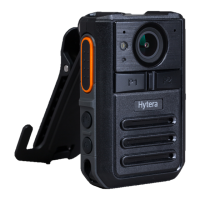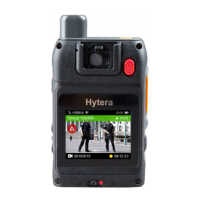
What to do if my Hytera VM580D gives no response?
- OOlivia StephensonAug 2, 2025
If your Hytera Digital Camera is unresponsive, it may have crashed. To resolve this, press and hold the Power On/Off key for 10 seconds to forcibly turn off the device.

What to do if my Hytera VM580D gives no response?
If your Hytera Digital Camera is unresponsive, it may have crashed. To resolve this, press and hold the Power On/Off key for 10 seconds to forcibly turn off the device.
How to fix a Hytera VM580D that will not turn on?
If your Hytera Digital Camera won't turn on, there are a few potential causes: 1. The battery might not be properly attached. Try removing it and reattaching it. 2. The battery could be completely drained. Recharge or replace the battery. 3. The battery contacts might be dirty or damaged, leading to poor contact. Clean the battery contacts to ensure a good connection.
What to do if Hytera VM580D cannot record video or audio?
If your Hytera Digital Camera is not recording video or audio, the TF card might be full. To fix this, switch to disk mode and delete all the data from the TF card after exporting it.
Why my Hytera Digital Camera cannot take photo?
If your Hytera Digital Camera does not take photos, it might be because the TF card is full. To resolve this, switch to disk mode and delete all data from the TF card after exporting them.
Why Hytera VM580D gives no alert tone?
If your Hytera Digital Camera isn't producing any alert tones and the indicator light isn't illuminating, the Silent Mode may be enabled. Disable the Silent Mode to restore these functions.
How to fix low volume on Hytera Digital Camera?
If the volume is low when playing back audios or videos on your Hytera Digital Camera, the microphone and speaker may be blocked or damaged. Try cleaning the microphone and speaker.
Why Hytera VM580D Digital Camera IR LED does not turn on automatically?
If your Hytera Digital Camera does not turn on the IR LED automatically when recording video in dark environment, the IR LED feature may not be enabled. Enable the IR LED feature to resolve this.
| Image Sensor | CMOS |
|---|---|
| GPS | Yes |
| Video Resolution | 1080p |
| Storage | 32GB |
| Display | 2.0 inch LCD |
| Connectivity | Bluetooth |
Identifies and labels the physical parts of the body worn camera.
Explains the function and default operations of programmable keys A and B.
Details the meaning of different colors and states of the LED indicator.
Instructions for inserting the Nano SIM card into the device.
Provides instructions and a caution for attaching the battery.
Details how to attach and remove the belt clip accessory.
Explains when and how to charge the battery, referring to LED indicator.
Instructions on how to power the product on and off.
Overview of the device's display and home screen.
Explains common status icons shown on the device's status bar.
Describes how notifications and shortcut switches are accessed and managed.
Explains how the device enters and exits sleep mode.
General introduction to connecting the device to the internet.
Instructions and considerations for using the cellular network.
Details how to connect to and use WLAN networks.
Manages Wi-Fi, Bluetooth, and Cellular network configurations.
Configures video resolution, pre/post-recording, strike sensitivity, and split time.
Adjusts photo resolution and quality, and enables night vision.
Configures PTT, emergency call priority and numbers.
Controls brightness, sleep mode, volume, and display language.
Manages notifications, antibanding, location service, and silent mode.
Displays device information like name, ID, version, and certification.
Explains how to start, stop, and tag video recordings.
Details how to start, stop, and tag audio recordings.
Instructions for taking photos in preview mode.
How to capture photos while recording video.
Instructions to turn the flashlight on and off.
How to enable and disable emergency mode for critical situations.
Explains the concept and functionality of group calls.
Explains one-to-one voice calls between BWCs or with a dispatcher.
Describes one-way voice calls initiated by an LDS to a group.
Explains initiating emergency calls for help in critical situations.
Describes how an LDS initiates a video call to pull video from the BWC.
Explains dynamic group number assignment for temporary grouping.
How a BWC joins an ongoing group call if it was initially unavailable.
Allows a subscriber to merge into a group call.
How an LDS can listen to designated BWCs or groups.
How an LDS can terminate an ongoing voice call.
How an LDS can interrupt a speaking subscriber.
How an LDS can disable BWC functions remotely.
How an LDS can restore a stunned BWC.
How location information is obtained and reported.
How LDS subscribes to device, group, and call information.