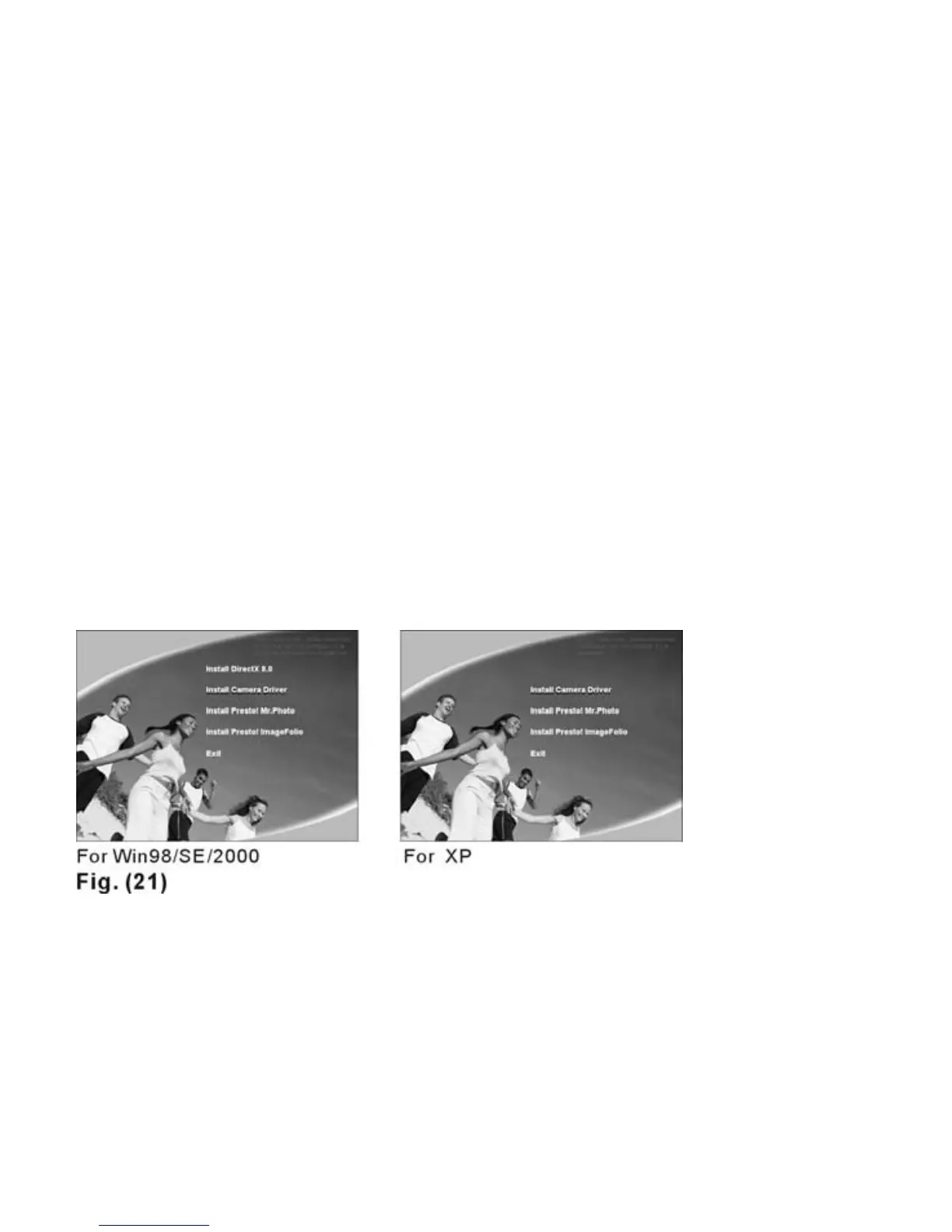
Installing the Driver & Application Software
1. Turn on your computer.
2. Place the software disk to your computer’s CD-ROM drive.
3. You MUST check and install the “Twain Driver ” first. After that, check “Presto! Mr.
Photo” or “Presto! Image Folio” photo editing programs.
4. Follow the instructions to complete the software installation. You can select the
“NEXT” icon to use the default setting to go to the next installation step.
5. Restart your computer after finishing the installation.
6. After rebooting your computer, use the USB cable to connect the camera to your
computer. Windows will display “Found New Hardware” after 3 seconds.
If the installer wizard does not display automatically, open the folder on the
CD-ROM and double-click the “Setup.exe” file.
17



 To Next Page