15
12. Flip
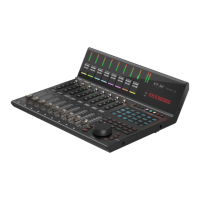
Use this button to 'ip' the functions of your fader and the given channel's
rotary controller. This is ideal when you need to make very intricate changes to
PAN or plug-in parameter values using the fader, rather than the rotary encoder.
13. Master/Assign button
14. Lock
15.
Pressing this button will ensure that the unit's fader levels will not change
regardless of the movement of the physical faders. The user must press this
button to 'unlock' the faders again in order to aect a change. If using V1-X
extenders, the Lock button will communicate in real time via the iMAP
TM
-
which acts as a 'bridge' between the units - faders on the V1-X will be similarly
aected.
Color display
Lower ‘bar’ display showing color modes of the DAW channels. This is useful
if you wish to group instrument tracks according to a certain color, i.e. guitar
tracks as purple, drum tracks as yellow etc.). *
* only a few DAWs support this at the moment.
Select this button to toggle between the Master fader and a pre-selected
channel which has been assigned via the iMAP
TM
software or the MIDI learn
functionality of the chosen DAW. CC, Note, Pitch-bend values as well as MIDI
channels can also be assigned to the fader via the iMAP
TM
. When the button
is lit, the fader is in 'Assigned' mode. When disengaged, it is in Master fader
mode.


 To Next Page