NaviTEK NT 153800 Iss 1
User Guide Page 9
Menu Navigation
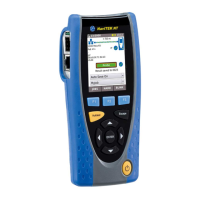
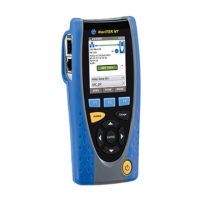
Cursor and ENTER keys. The arrowed cursor keys
are intuitively marked to move the highlighted field
between all menu icons, and settings fields.
To select
a value from a field that offers a list of values, use the
LEFT and RIGHT cursor keys. To move to the
previous or next field on the screen use the UP or
NTER will move to the next
Escape key. Returns to previous screen. Note that
when a value in a settings field is changed, if the
Escape key is pressed before the soft key ‘APPLY’, the
value will not be stored.
. Immediately runs pre-stored tests. A
new tester will have factory stored tests in memory.
These are easily changed using the SETUP menu.
Function keys. F1 to F3 are to select the
corresponding soft keys at
Soft Keys
The soft keys appear along the bottom edge of the display. Their function changes and is
dependent on the screen currently shown on the display.
Data entry
When you navigate to and select a field that requires a
value or text to be entered, such as a customer’s name or
a URL, a QWERTY keyboard will be shown on the display
(
Fig 5). All data is entered using the QWERTY
Move the key that is highlighted on the keyboard using the
tester’s c
ursor keys. ENTER selects the currently
highlighted key which will now appear in the text window
directly
above the keyboard. Key stroke errors are
corrected using the backspace key ( <− ). Press the UP
cursor key to move the cursor into the text window for
editing.
Press the QWERTY
keyboard’s SHIFT key to change the
display from lower to upper case. Press SHIFT a second
time to display symbols and punctuation characters.
When the text or value has been entered, press the soft
key OK (F1). The display will return to the previous screen
which is now populated with the required data. You must
press the soft key APPLY to save the changes.


 To Next Page
 Loading...