EasyManua.ls Logo

iHome iD85 - User Manual

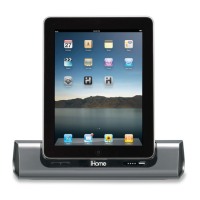
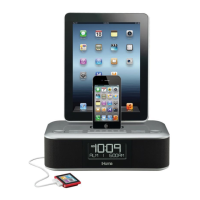
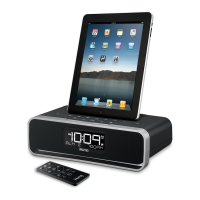
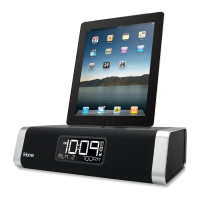
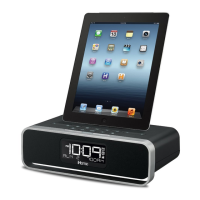
iHome iD85
14 pages
Print Icon
To Next Page IconTo Next Page
Loading...
Model iD85
The Home System
For Your iPad
®
Questions? For latest instructions, visit www.ihomeaudio.com/support
iD85 IB_US version
Size: 178 x 178 mm (16 pages)
Printing color: Black
Mat’l: 100gsm book paper
Oct. 25, 10.
iHome + Sleep
works with
iHome + Radio
alarm clock app
internet radio app
Note: iHome+Sleep and iHome+Radio apps are not covered in detail in this booklet. To learn more about how
these apps can enhance your experience, please download the free iHome+Sleep app from the App Store and
review the Start Guide.

Other manuals for iHome iD85

Questions and Answers

  • R
    Richard RogersAug 20, 2025
    What to do if iHome Docking Station iD85 doesn’t respond?
    • M
      mcomptonAug 20, 2025
      If your iHome Docking Station iD85 is plugged in but not responding, try resetting it. First, remove your iPhone/iPod from the dock. Then, unplug the unit from the power source and remove the backup batteries. Wait a few minutes before resuming use. Also, remove your iPhone/iPod from the dock and inspect the connectors in the dock and on your iPhone/iPod for any obstructions. Then, reseat it in the dock.
  • T
    Troy CarterAug 22, 2025
    What to do if the alarm is not working on my iHome iD85?
    • M
      Miss Deborah Smith MDAug 22, 2025
      If the alarm on your iHome Docking Station is not working, make sure to set the alarm time and source for the alarm icon 1 or 2 that is shown on the clock display. Also, when setting the clock or alarm time, take note of the AM/PM indicators. Check that the 7-5-2 days setting is correct: 7 days is every day, 5 days is Monday-Friday, and 2 days is Saturday-Sunday.
  • M
    Michael RiveraAug 25, 2025
    What to do if the AM band radio has no sound but others are OK on my iHome Docking Station?
    • H
      hayeschristopherAug 25, 2025
      If there is no sound from the AM band radio on your iHome Docking Station, but other bands are working, it could be that the AM loop antenna is not connected to the unit. Plug the AM loop antenna connector into the jack on the back of the unit.
  • M
    Mrs. Melissa Scott MDAug 26, 2025
    Why is there no sound from my iHome iD85 Docking Station?
    • P
      powersjamesAug 26, 2025
      If you are not getting any sound from your iHome Docking Station, ensure that the volume is turned up.
  • D
    David OconnorAug 28, 2025
    Why didn't the time sync work on my iHome iD85?
    • N
      noah99Aug 28, 2025
      Time sync may not work on your iHome Docking Station if you are using older iPod models such as the iPod mini, as they do not support the time sync function. Make sure you are using an iPhone or newer iPod such as touch, nano, or classic. If time sync is not available, set the time manually.
  • M
    Mary BrownAug 30, 2025
    What to do if my iHome iD85 iPhone/iPod does not respond to the unit/iPod is playing but no sound comes out?
    • K
      Kelli MooneyAug 30, 2025
      There are several reasons why your iPhone/iPod may not be responding or producing sound when docked in your iHome Docking Station. First, remove your iPhone/iPod from the dock and check for any obstructions on the connectors, then reseat it. Second, the software on your iPhone/iPod may be outdated, so upgrade it via iTunes. Third, check the volume setting and ensure your iPhone/iPod is working properly before docking. Finally, be aware that the iD85 cannot control 1st or 2nd generation iPod, iPod Shuffle or other devices.
  • B
    Brian PatelSep 1, 2025
    What to do if my iHome iD85 Docking Station iPhone/iPod didn’t charge up?
    • W
      William RossSep 1, 2025
      If your iPhone/iPod isn't charging on the iHome Docking Station, first, remove your iPhone/iPod from the dock and check for any obstructions on the connectors, then reseat it. Secondly, make sure your iPhone/iPod is working properly before docking it into the unit.
  • P
    Paul DavisSep 2, 2025
    What to do if my iHome iD85 doesn’t respond?
    • J
      Jenny AndersonSep 3, 2025
      If your iHome Docking Station is plugged in but not responding, it may require a reset. Remove your iPhone/iPod from the dock, unplug the unit from the power source, remove the backup batteries, wait a few minutes, and then resume use. Also, remove your iPhone/iPod from the dock and check for obstruction on the connectors in the dock and on your iPhone/iPod. Then reseat it in the dock.
  • R
    Ricky WoodardSep 5, 2025
    Why is the AM band radio very noisy on my iHome iD85?
    • K
      Kelly EatonSep 5, 2025
      If the AM band radio on your iHome Docking Station is very noisy, the AM loop antenna may not be located properly. Try moving the AM loop antenna away from the main unit AC adapter and rotate it for the best reception.
  • P
    Patricia BarnesSep 7, 2025
    Why is the sound distorted on my iHome iD85 Docking Station?
    • M
      Melinda MercadoSep 7, 2025
      Sound distortion on your iHome Docking Station can occur for several reasons. First, decrease the volume if it is set too high. Second, if the original sound source (MP3) is of poor quality, try a different audio source. Third, lower the EQ settings, if they are too high.

Summary

Quick Start Guide

Power Connection

Connect the AC adaptor cable to the DC jack on the back of the iD85 and plug into a wall socket.

Antenna Setup

Snap AM antenna into stand, plug FM antenna cable into socket, and extend FM antenna.

Docking Your Device

Gently dock iPad, iPhone, or iPod into the 30-pin dock. Remove rubber dock pad if device has a cover.

Time Synchronization

Dock your device and press the Time Sync Button. The display will show 'TIME UPDATED' on success.

Radio Operation

Press Mode Button to select AM/FM band. Use +/- buttons to tune stations. See page 7 for presets.

Controls and Indicators

Top Panel Controls

Details controls on the top panel including buttons for alarms, volume, nap, and snooze.

Rear Panel Connections

Identifies rear panel ports like AC Adaptor Jack, Line-in Jack, and antenna sockets.

iD85 Display Indicators

Explains indicators on the display, such as time, alarm, AM/PM, and battery status.

Setting Up the iD85

Firmware Update

Update iD85 firmware by downloading the free iHome+Sleep app from the App Store.

Power Source Connection

Connect the AC adaptor to the unit and a 120V AC wall socket for operation.

Time Zone Setting

Manually set the DST Switch and use +/- buttons to select time zone via the Time Zone Button.

Syncing Time with iPhone;iPod

Use Time Sync Button to sync iD85 time with docked iPhone, iPad, or recent iPod models.

Manual Time and Calendar Setting

Set time, date, and year manually using the Time Set Button and +/- buttons.

Using the iD85 Features

Alarm System Overview

The iD85 has a dual alarm system with adjustable times, sources, and frequencies.

Setting Alarms

Configure alarm time, frequency, wake source (iPod, Radio, App), and volume.

Alarm Review and Control

Review, arm, or disarm alarms by pressing the alarm button. Active alarms show icons.

Resetting Alarms for Next Day

Press the button to stop a sounding alarm and reset it for the next scheduled day.

Snooze Operation

Program custom snooze time (1-29 min) or activate snooze by pressing Snooze/Dimmer button.

Sure Alarm Feature

Ensures buzzer alarm sounds during power failure if back-up batteries are installed.

Charging Your Device

Docked iPad/iPhone/iPod charges when unit is connected to AC power (except iPod Classic).

Listening to iPad;iPhone;iPod

Play music from docked device using Play/Pause, track skip, and volume controls.

Listening to Radio

Extend FM antenna and snap AM antenna. Use Mode button to select AM/FM and +/- to tune.

Aux-in Jack Usage

Play audio from external devices via standard 3.5mm headphone jack using the Line-in Jack.

Sleep Operation

Set gradual volume decrease for sleep timer (15-120 min). Independent sleep volume setting available.

Nap Operation

Set a nap alarm timer (5-120 min) or OFF. Nap wake source defaults to buzzer or docked device.

Dimmer Control

Adjust the brightness of the LCD display by pressing the Snooze/Dimmer Button.

International Radio Frequency Settings

Select the correct FM radio frequency steps and ranges for your region (USA, Europe, Japan, etc.).

Installing Back-up Batteries

Install 2 AA alkaline batteries for continuous alarm operation during power failures.

Battery Warning Guidelines

Follow precautions for battery handling, disposal, and usage to prevent damage or hazards.

A Consumer Guide to Product Safety

Important Safety Instructions

Covers safety guidelines for water, ventilation, heat, power sources, cleaning, and damage.

Limited 1 Year Warranty Information

Warranty Coverage and Limitations

Details the 1-year warranty, exclusions, service fees, and requirements for claims.

Disclaimer of Warranty

Outlines warranty validity, limitations on liability, and user acknowledgement of terms.

iHome iD85 Specifications

General IconGeneral
Product TypeDocking Station
Power SourceAC Adapter
Connector Type30-pin dock connector
Compatible DevicesApple iPhone, iPod
FeaturesAlarm Clock, FM Radio

Related product manuals