EasyManua.ls Logo

iHome iDL91 - User Manual

iHome iDL91
13 pages
Print Icon
To Next Page IconTo Next Page
Loading...
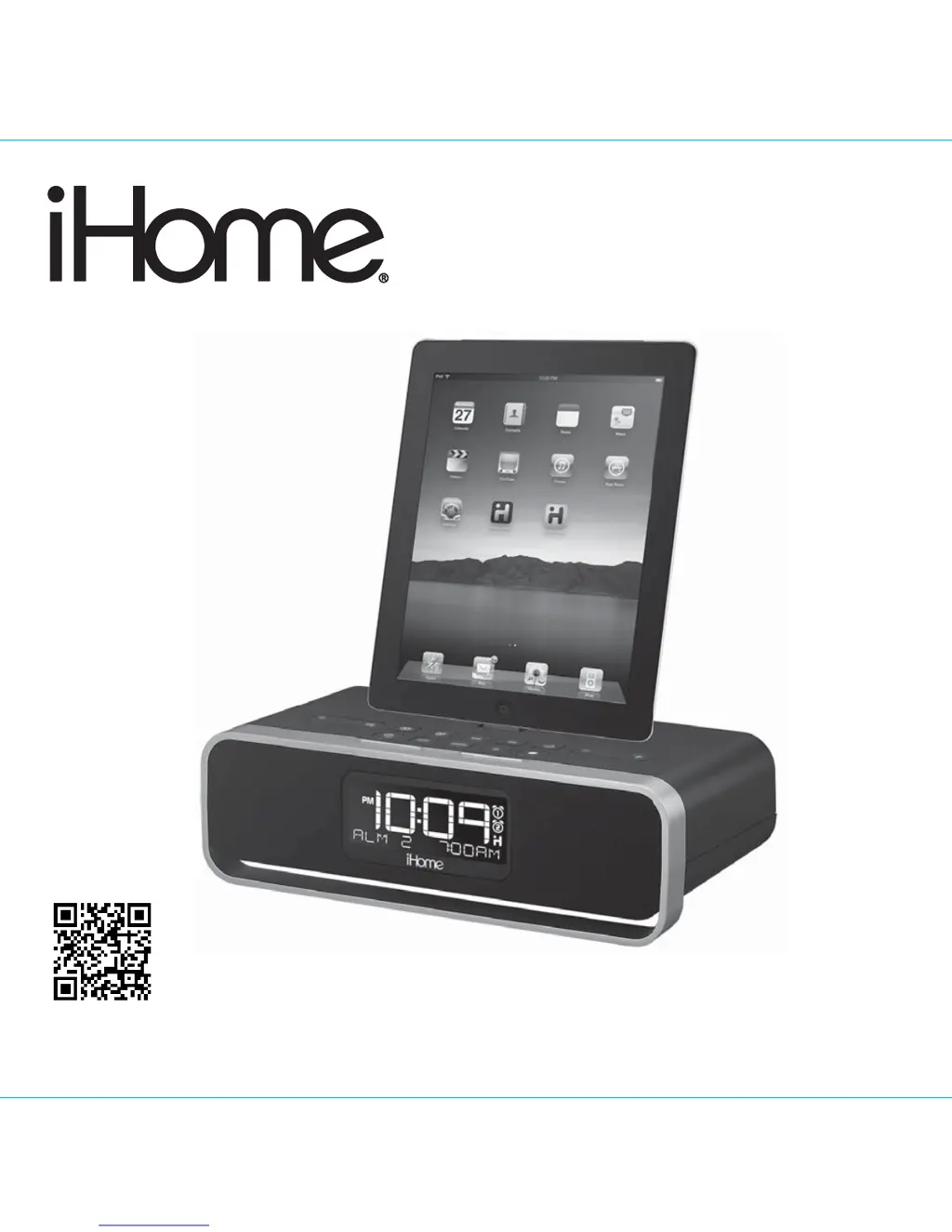
Model iDL91
Dual Charging Stereo
Clock Radio with
Lightning Dock and USB Port
Questions? For latest instructions, visit www.ihome.com/support
iDL91 IB_US version
Size: 178 x 178 mm (16 pages)
Printing color: Black
Mat’l: 90gsm book paper
May 16. 2013.
6
download QR code
reader app and scan

Questions and Answers

  • E
    Elizabeth MarshJul 30, 2025
    Why didn't my iHome iDL91 iPad/iPhone/iPod charge up?
    • A
      alechuntJul 31, 2025
      First, remove your device from the dock, check for obstructions on the connectors, and reseat it, trying without a case. Ensure your device is working properly before docking. If you're using a later model iPad, note that the USB port can only charge iPad 1 and iPad 2 models.
  • C
    Chris SummersAug 4, 2025
    What to do if my iHome iDL91 doesn’t respond?
    • M
      Megan VangAug 4, 2025
      If your iHome docking station is plugged in but not responding, it may need a reset. To reset it, remove your device from the dock, unplug the unit from the power source, remove the backup batteries, wait a few minutes, then replace the batteries and plug the unit back in. Also, remove your device from the dock and check for any obstructions on the connectors, then reseat it. Try removing the case from your device before docking.
  • C
    Christy MendozaAug 8, 2025
    How to turn on iHome Docking Station?
    • J
      Joshua MartinezAug 8, 2025
      Ensure the AC adapter is plugged into a working wall socket and that the connector is securely plugged into the supply jack on the iHome unit.
  • F
    Frederick RussoAug 12, 2025
    Why didn’t time sync work on my iHome iDL91 Docking Station?
    • W
      Wendy GilmoreAug 12, 2025
      Time sync may not work if you are using older iPod models like the iPod mini, which do not support this function. Ensure you are using a properly docked iPad, iPhone, or newer iPod such as touch, nano, or classic. Also, check that Autosync is turned on by pressing and holding the Clock Button, then the + or – Button to select Autosync On.
  • J
    Jessica WheelerAug 16, 2025
    What to do if my iHome iDL91 iPod is playing but no sound comes out?
    • B
      Brianna GallowayAug 16, 2025
      First, ensure your iPod, iPhone, or iPad is correctly docked and that there are no obstructions on the connectors. Reseat the device in the dock. Also, check the volume setting to ensure it's not muted or set too low. Make sure your device is working properly before docking it into the iHome unit. If the issue persists, upgrade the software on your device via iTunes. Note that 1st or 2nd generation iPod, iPod Shuffle or other devices are not supported.
  • S
    Suzanne BrownAug 21, 2025
    Why is my iHome iDL91 performance erratic?
    • M
      Margaret LittleAug 21, 2025
      Erratic performance of your iHome unit may be due to external interference. Try moving the unit away from potential sources of interference such as computers, modems, wireless devices (routers), or fluorescent lights.
  • J
    Jennifer GriffithAug 26, 2025
    Why is the battery low icon always flashing on my iHome iDL91 Docking Station?
    • L
      Lisa StevensAug 26, 2025
      If the battery low icon is always flashing on your iHome Docking Station, it likely means the batteries are weak and need replacing with new ones. Also, ensure the batteries are installed correctly, matching the polarity (+ and – ends) with the diagram in the battery compartment.

Summary

Product Safety & Maintenance

Consumer Safety Guidelines

Essential safety instructions for proper unit operation and user protection.

Unit Maintenance Procedures

Guidelines for placement, protection, and cleaning to maintain unit condition.

iHome iDL91 Controls & Display

Top Panel Controls

Key buttons and the Lightning dock connector located on the top surface.

Rear Panel Ports

Connections for power, USB, Aux-in, and antenna on the back of the unit.

Unit Display Features

Understanding time, alarm, and indicator lights on the unit's display.

Quick Start: Getting Started

Initial Power & Docking

Connect power, install backup batteries, and dock your Apple device.

Automatic Time Synchronization

How the unit automatically sets the clock from your connected device.

Basic Radio Setup

Steps to extend the antenna and tune to FM radio stations.

Setting Up Your iHome iDL91

Power & Firmware Updates

Connect the AC adapter and update the unit's firmware for optimal performance.

Turning Unit On and Off

Methods for powering the unit on, off, and managing device charging.

AutoSync Clock Configuration

Enable automatic time synchronization with docked or USB-connected devices.

Manual Clock Setting Procedure

How to manually set the clock and calendar if AutoSync is disabled.

Alarm Setup and Management

Configuring Alarm Settings

Set alarm times, wake sources (Dock, USB, Radio, Buzzer), and daily schedules.

Active Alarm Monitoring

Reviewing armed alarms and understanding alarm icons on the display.

Alarm Reset Functionality

Stopping a sounding alarm and resetting it for the next scheduled occurrence.

Audio Playback Features

Snooze & Sure Alarm Modes

Utilize snooze for temporary silence and Sure Alarm for power outages.

Dock & USB Audio Playback

Play music and charge your Apple devices using the Lightning dock or USB port.

Sound & EQ Adjustments

Control volume and fine-tune audio with EQ settings like Treble, Bass, and 3D.

Radio, Aux Input & Sleep Timer

FM Radio Operation

Tune stations, scan for signals, and save presets for easy radio access.

Regional Radio Frequency Settings

Select appropriate FM frequency steps for different geographic regions.

Auxiliary Audio Input

Connect external audio devices via the 3.5mm Aux-in jack.

Sleep Timer Function

Set a timer for gradual volume reduction and automatic unit shutdown.

Nap Mode, Dimmer & Charging

Nap Alarm Setting

Configure a separate, temporary alarm with a custom wake-up duration.

LCD Dimmer Control

Adjust the brightness level of the unit's display screen.

USB Device Charging

Use the USB port to charge your compatible mobile devices.

Backup Battery Installation Guide

Properly install AA backup batteries for power failure protection.

Important Safety Instructions

Environmental & Electrical Safety

Precautions regarding water, ventilation, heat, and power sources for safe use.

Cord & Attachment Safety Rules

Guidelines for power cord protection, avoiding overloads, and using attachments.

Lightning & Service Safety

Protect against surges, handle damage safely, and know when to seek professional service.

Troubleshooting: Unit Issues

Power & Responsiveness Problems

Solutions for the unit not turning on or responding to commands.

Battery & Docking Connectivity

Fixes for battery low icon, weak batteries, and docking detection issues.

Playback & Sound Output

Troubleshooting no sound, device not responding, or software glitches.

Time Sync & Interference Solutions

Resolving automatic time sync failures and performance issues caused by interference.

Troubleshooting: Audio & Alarms

Sound Quality & Volume Issues

Addressing sound distortion, low volume, and EQ setting problems.

Warmth, Snooze & Alarm Malfunctions

Normal unit warmth, custom snooze times, and alarm setting errors.

Docking Device Compatibility

Resolving issues related to device cases preventing proper docking.

Limited One-Year Warranty

Warranty Terms and Disclaimer

Details the product warranty period, coverage, exclusions, and limitations.

iHome iDL91 Specifications

General IconGeneral
ModeliDL91
TypeDocking Station
ChargingYes
CompatibilityiPhone, iPod
Power SourceAC Power
FeaturesFM Radio
DisplayLED Display
Alarm FunctionDual Alarm

Related product manuals