3
Setting Up the Unit
Connect Unit to Power Source
Plug the AC adaptor cable into the DC Jack and the other end into a standard 120V AC wall socket. Adaptor must be
plugged in to operate unit. The unit does not operate on batteries (a battery back up system maintains clock settings
during power failures).
Updating firmware on the Unit
For best performance, make sure to update the unit’s firmware. To do so, download the free iHome Set app from the App
Store. Launch the app, scroll to “Search for Update”, then follow directions to update the firmware.
Turning the Unit ON or OFF
Press the on the unit at any time to turn the unit On or Off. Note that a docked iPad, iPhone or iPod will continue to
charge when the unit is turned off as long as the AC adaptor is plugged in. You can also turn the unit ON automatically
by docking a playing device (or connecting one to the USB port), and turn the unit OFF by disconnecting a playing device
from the dock OR USB port.
Setting the Clock Time Using AutoSync
The AutoSync feature automatically syncs the time setting on the unit to the time on your iPad, iPhone or recent model
iPod (iPod touch, iPod nano and iPod Classic; older iPod models such as iPod mini do not support this feature).
AUTOSYNC SETTING
By default, the unit is set to AUTO SYNC mode and will attempt to autosync the time whenever a capable iPad, iPhone
or iPod is docked OR connected to the USB port.
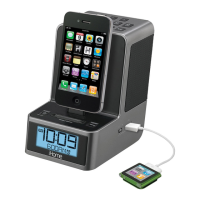
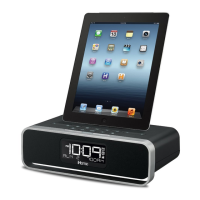
1. Dock your Lightning-capable iPad/iPhone/iPod in the Lightning Dock on top of the unit. In about 3 seconds, the unit will
sync to your device. You can also sync by connecting an iPad, iPhone or iPod to the USB port.
2. The unit will now autosync every time a capable iPhone, iPod or iPad is docked, and at 2AM each day.
To manually time sync at any time to a docked device, press and release the Clock Button.
NOTE: iPhone time is automatically updated to the correct time via cell phone towers. The time on your iPad or iPod is
accurate only to the time on the computer the last time the iPad/iPod was synced to it. It’s possible to have up to 59 seconds
difference between the unit and a synced iPad/iPhone/iPod.
Setting Time and Calendar Manually
Autosync must be OFF to set the clock manually.
1. Press and hold the Clock Button located on the top of the unit until “AUTOSYNC ON” or “AUTOSYNC OFF” flashes
on the display,(if AUTOSYNC ON appears, press the + or – Button to toggle to AUTOSYNC OFF setting).
2. Press and release the Clock Button. The time display will flash. Press the + or – Button to adjust the time (hold for
a few seconds to advance or reverse rapidly). Remember to set the correct AM or PM hour. An icon to the left of the
time display indicates AM or PM.
Note: At any time during time setting, you can switch the time display from the 12-hour format to 24-hour format by
pressing and releasing either the Button or Button before clock setting times out.
3. Press and release the Clock Button again. The year will flash in the lower part of the display. Press and release the
+ or – Button until the current year is displayed.
4. Press and release the Clock Button again. The month and date will flash. Press and release the + or – Button until
the current month and date is displayed.
5. Press and release the Clock Button once more. Two beeps will sound to confirm your settings and you will exit Time
and Calendar Setting mode.
6


 To Next Page