26 27
Commands Function
IN_PV_2 Read the internal actual temperature
IN_SP_1 Read the internal setting temperature
OUT_SP_1 xxx Set the internal setting temperature XXX
OUT_SP_12@n Set the WD safety temperature with echo of the set (defined) value.
OUT_WD1@n Start the watchdog mode 1 and set the time for the watchdog to n (20...1500)
seconds.
Echo of the Watchdog time.
During a WD1-event, the tempering and pump functions are switched off.
This command needs to be sent within the watchdog time.
OUT_WD2@n Start the watchdog mode 2 and set the watchdog time to n (20...1500) seconds.
Echo of the watchdog time.
During a WD2-event, the set temperature is changed to the WD safety
temperature and the pump set speed is set to the WD safety speed.
This command needs to be sent within the watchdog time.
RESET Reset the PC control and stop the device functions.
START_1 Start the tempering function.
STOP_1 Stop the tempering function.
/// Connections between device and external devices
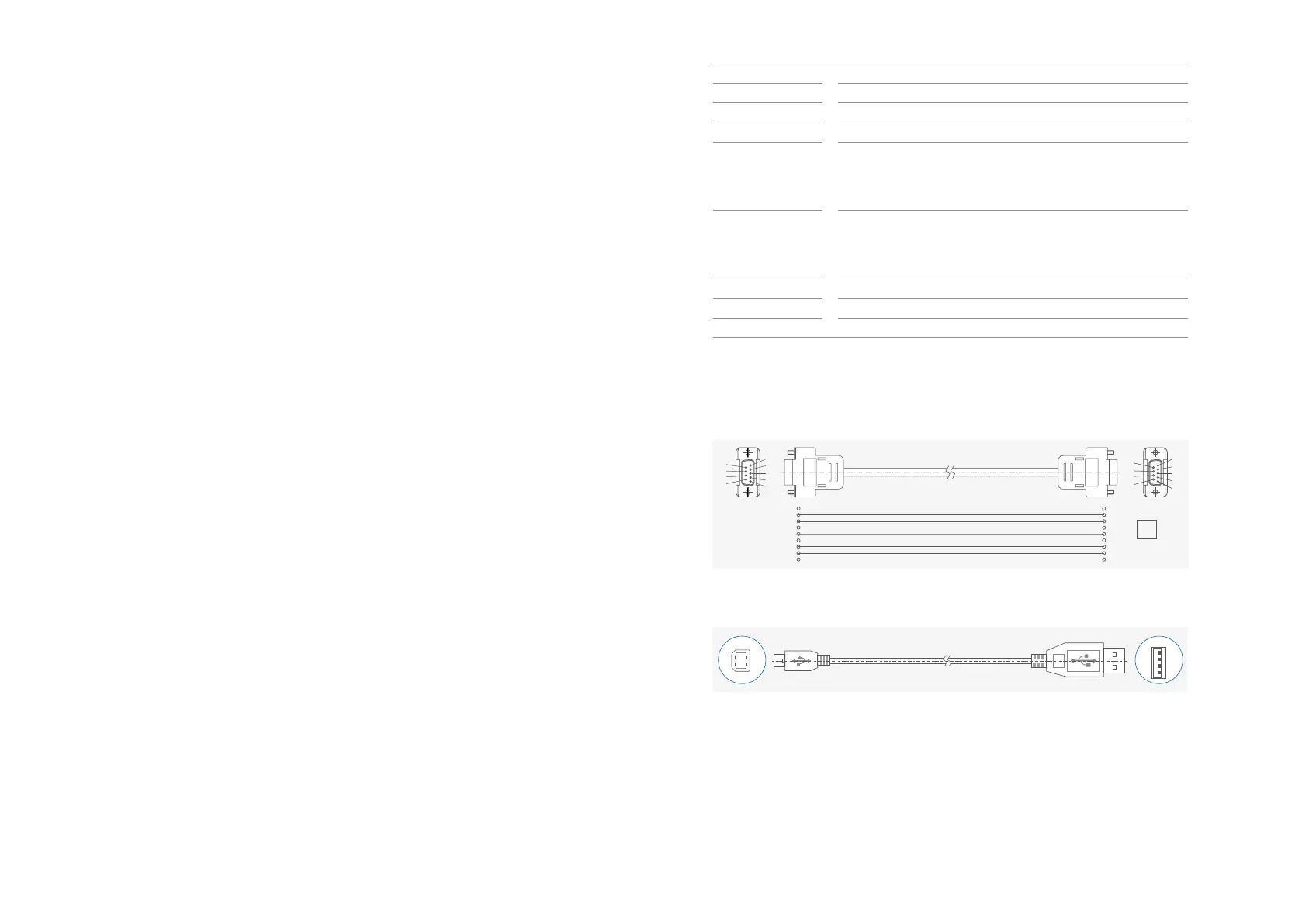
PC 1.1 Cable:
This cable is required to connect RS 232 interface to a PC.
1
2 RxD
3 TxD
4
5 GND
6
7 RTS
8 CTS
9
1
RxD 2
TxD 3
4
GND 5
6
RTS 7
CTS 8
9
PC
1
2
3
4
5
6
7
8
9
9
8
7
6
5
4
3
2
1
USB 2.0 Cable (A - B):
This cable is required to connect USB interface to a PC.
The above details correspond as far as possible to the recommendations of the NAMUR working
party (NAMUR recommendations for the design of electrical plug connections for analogue and
digital signal transmission on individual items of laboratory control equipment, rev. 1.1).
The NAMUR commands and the additional specific IKA commands serve only as low level
commands for communication between the device and the PC. With a suitable terminal or
communications program these commands can be transmitted directly to the device. The IKA
software labworldsoft
®
, provides a convenient tool for controlling the device and collecting
data under MS Windows.
/// Command syntax and format
The following applies to the command set:
› Commands are generally sent from the computer (Master) to the lab device (Slave).
› The lab device only sends at the computer’s request. Even fault indications cannot be sent
spontaneously from the lab device to the computer (automation system).
› Commands are transmitted in capital letters.
› Commands and parameters including successive parameters are separated by at least one
space (Code: hex 0x20).
› Each individual command (incl. parameters and data) and each response are terminated with
CR LF (Code: hex 0x0d hex 0x0A) and have a maximum length of 80 characters.
› The decimal separator in a number is a dot (Code: hex 0x2E).
/// Device software update
Keep your device up-to-date with the IKA Firmware update tool.
The firmware update can be done with a computer connected through USB-Interface.
For this, you need register on our website MyIKA first.
After registering your device IKA will inform you about available updates for your devices.
Please download the software "FWUToolSetup.zip" from our IKA service website www.ika.com.
/// RS 232 interface
Configuration:
›
The functions of the interface connections between the device and the automation system are
chosen from the signals specified in EIA standard RS 232 in accordance with DIN 66 020 Part 1.
› For the electrical characteristics of the interface and the allocation of signal status, standard
RS 232 applies in accordance with DIN 66 259 Part 1.
› Transmission procedure: asynchronous character transmission in start-stop mode.
› Type of transmission: full duplex.
› Character format: character representation in accordance with data format in DIN 66 022 for
start-stop mode. 1 start bit; 7 character bits; 1 parity bit (even); 1 stop bit.
› Transmission speed: 9600 bit/s.
› Data flow control: none
› Access procedure: data transfer from the device to the computer takes place only at the
computer’s request.


 To Next Page