Windows NT 4.0/NT 3.51 (with SP5)
1) On the Control Panel, double-click on System and then click on
the Device Manager icon. A list of all the drivers used by the
system appears.
2) Select the ATAPI device driver and change its setting to Started
at boot.
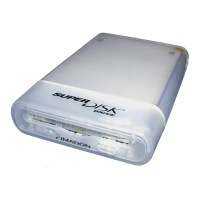
3) Restart your computer. The SuperDisk drive is now recognized as
the logical A or B drive within My Computer.
✔ NOTE
For new NT installations, install the SuperDisk drive BEFORE
installing Windows NT. As you install Windows NT, your system
automatically identifies the SuperDisk drive and loads the
appropriate drivers. After you restart your computer, the system
recognizes the SuperDisk drive as the logical A or B drive.
Testing the Installation
After you install the SuperDisk drive and device driver (as needed),
make sure the system has correctly assigned the SuperDisk drive a
drive letter or icon. Follow the testing procedures below for your
specific operating system.
✔ NOTE
If you have a CD-ROM, the SuperDisk drive may have taken its drive
assignment. To make sure your CD-ROM functions properly, either
change its drive letter, as described in the Troubleshooting section of
this manual, or reinstall certain CD-ROM programs.
Testing Procedures
DOS/Windows 3.1
The SuperDisk drive is automatically assigned to the next available
drive letter after the hard drive. Perform the following steps:
1) nsert a SuperDisk diskette into the SuperDisk drive.
2) At the C:\> prompt, enter the assigned directory letter (ie: dir D).
After a few seconds, the diskette’s directory appears. This
confirms the drive was installed successfully.
Testing the Installation
16
Hardware Installation Procedure
11
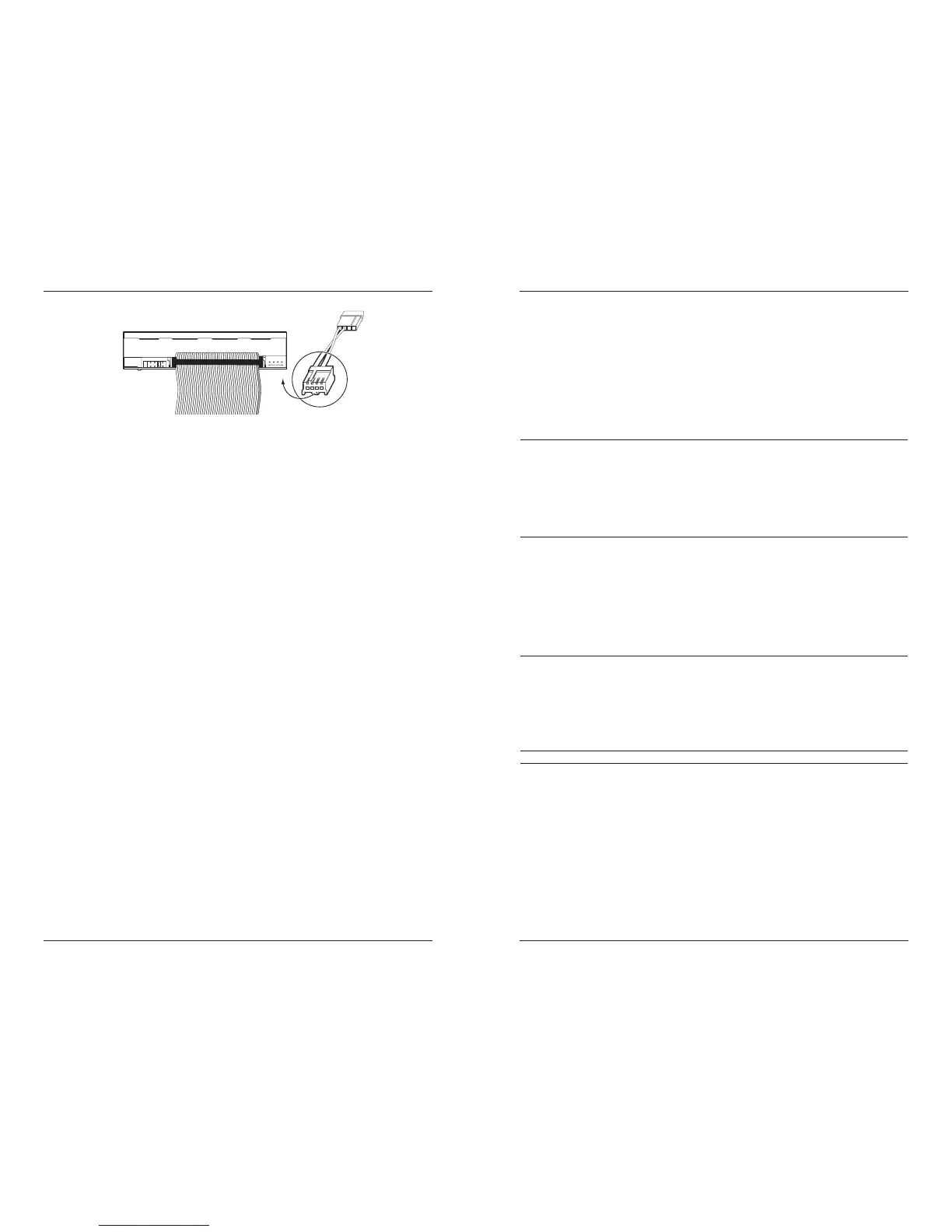
14) Once you have made sure the proper connections are in place,
you can safely plug your SuperDisk drive into an available power
supply. Reinstall the case cover and reconnect power. The activity
indicator (green LED) lights briefly.


 To Next Page