EasyManua.ls Logo

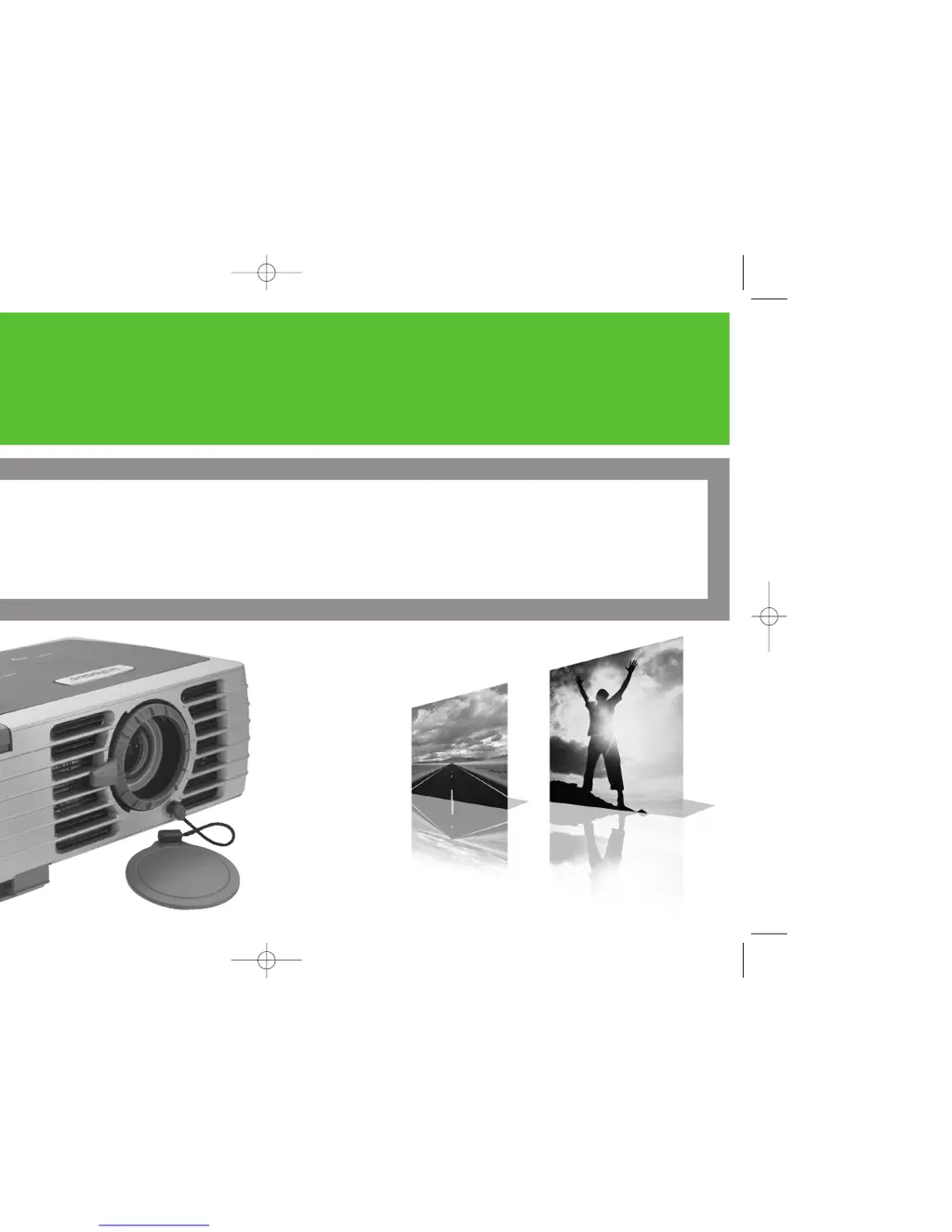
InFocus LP 120 - User Manual

InFocus LP 120
46 pages
Print Icon
To Next Page IconTo Next Page
Loading...
LP
®
120
PERSONAL PROJECTION. PERFECTED.
USER’S GUIDE
6163IFS_LP120 UG.qxd 4/28/03 3:59 PM Page 1

Other manuals for InFocus LP 120

Questions and Answers

  • V
    Victoria ButlerAug 19, 2025
    What to do if InFocus LP 120 says 'Signal out of range'?
    • P
      Pamela CookAug 19, 2025
      If your InFocus Projector displays 'Signal out of range' instead of a computer image, try adjusting the computer refresh rate. This can be found in Control Panel>Display>Settings>Advanced>Adapter (location varies by operating system). Setting a different resolution on your computer may also help.
  • S
    Samantha Conway DDSAug 21, 2025
    What to do if InFocus LP 120 Projector says 'Replace lamp'?
    • M
      Micheal ClineAug 21, 2025
      If your InFocus Projector's lamp won’t turn on and the Interactive Display says “Replace lamp”, then the lamp must be replaced.
  • W
    Wendy FowlerAug 23, 2025
    How to fix reversed image on InFocus LP 120?
    • R
      Robert MackAug 25, 2025
      If your InFocus Projector's image is reversed from left to right, turn off Rear in Settings>System menu.
  • C
    careyluisAug 26, 2025
    How to make image sharper on InFocus LP 120 Projector?
    • C
      Crystal OrtizAug 26, 2025
      If the image on your InFocus Projector is not sharp, adjust the Sharpness in the Picture>Advanced menu.
  • S
    Stephen DavisAug 28, 2025
    How to fix InFocus Projector no startup screen?
    • B
      Brandon Jimenez IIAug 28, 2025
      If your InFocus Projector doesn't show a startup screen, ensure the power cable is properly plugged in and press the power button. Also, remember to remove the lens cap.
  • O
    ohensleyAug 30, 2025
    Why projected colors don’t match source on InFocus Projector?
    • B
      Bryan MillerAug 30, 2025
      If the projected colors from your InFocus Projector don’t match the source, you can adjust the color temperature, color space, color control, brightness, and contrast within the Picture and Advanced menus. For video sources, you can also adjust color and tint.
  • H
    Heather NielsenSep 1, 2025
    How to center image on InFocus LP 120 Projector screen?
    • P
      perezcandaceSep 1, 2025
      If the image from your InFocus Projector is not centered on the screen, try these adjustments: * Move the projector. * Adjust the zoom. * Adjust the height zoom. * Adjust the horizontal or vertical position in Picture>Advanced menu.
  • P
    Paul BradshawSep 3, 2025
    Why is the image fuzzy or cropped on my InFocus LP 120 Projector?
    • T
      todd30Sep 3, 2025
      If your InFocus Projector's image is fuzzy or cropped, set your computer’s display resolution to the native resolution of the projector (Start>Settings>Control Panel>Display>Settings tab, select 1024x768). If you're using a laptop, disable the laptop monitor or turn on dual-display mode.
  • A
    Alexandra VaughnSep 5, 2025
    What to do if InFocus LP 120 Projector says 'Lamp did not strike'?
    • J
      Jennifer MillerSep 5, 2025
      If the InFocus Projector's lamp won’t turn on, and the Interactive Display shows “Lamp did not strike”, ensure that the vents aren’t blocked and allow the projector to cool for one minute.
  • S
    sandrawalkerSep 7, 2025
    How to fix video image “torn” on InFocus LP 120 Projector?
    • J
      Jay RodriguezSep 8, 2025
      To correct a video image that appears “torn” and fragmented on your InFocus Projector, change the Video Standard in Picture>Advanced menu.

Summary

Important Operating Considerations

Connecting a Computer

Required Computer Connections

Details on connecting the projector to a computer via VGA and power.

Displaying a Computer Image

First-Time Projector Setup (Windows 98)

Adjusting the Image

Connecting a Video Device

Standard Video Connections

Steps for connecting video sources using S-video and audio cables.

Displaying a Video Image

Shutting Down the Projector

Troubleshooting Your Setup

LED Behavior and Meaning

Explains LED colors and blinking patterns for troubleshooting.

Optimizing Computer Images

Optimizing Video Images

Using the Menus

Picture Menu Settings

Advanced Menu Settings

Settings Menu Overview

Replacing the Projection Lamp

Red LED Behavior and Projector Errors

InFocus LP 120 Specifications

Display IconDisplay
native resolution1024 x 768
display technologyDLP 0.7" XGA 12° DMD DDR
brightness1000 max ANSI lumens
Projection Specifications IconProjection Specifications
contrast ratio2000:1 full on/full off
projection lensZoom lens with manual focus and manual zoom adjust
throw ratio1.8 – 2.1:1 (typical)
minimum projection distance1.5 m
maximum projection distance5.0 m
image size (diagonal)0.9 m to greater than 3.5 m
Power and Consumption IconPower and Consumption
power consumption150 watts
power supply100V – 240V at 50 – 60 Hz
lamp120W UHP / 2000 (typical)
lamp warranty90 days or 500 hours, whichever comes first
Operating Environment IconOperating Environment
operating temperature5° – 40° C at sea level
operating temperature imperial41° – 104° F
audible noise36dB
Weight and Dimensions IconWeight and Dimensions
dimensions2.05" (H) x 3.69" (L) x 9.75" (W)
dimensions metric5.21 cm (H) x 9.37 cm (L) x 24.77 cm (W)
weight0.9 kg

Related product manuals