User’s Manual
Inim Cloud Fire 15
4.2 Registration of a control panel to the Inim Cloud user account
After logging in to the relevant Inim Cloud service user account, a user can request the registration of a new control
panel in addition to those the user can access via the web interface.
The control panel that a user wants to register to their account must first be registered to the Cloud service by an
installer.
1. Access the Inim Cloud service as a user.
2. By clicking on the profile management button, you access a page where you can set the
parameters of the account and the registered control panels.
In the lower section, below the list of control panels, you have the “New INIM system” section.
3. The Add button will allow you start the registration process. The Cloud service will send an OTP (One Time
Password) number consisting of 6 digits to the user. This number has a limited time duration of 15 minutes.
4. Enter your user code at the control panel you want to register
Note: In order to be able to register control panels to your Inim Cloud user account, you must have a user
code (level 2) and a “superuser” code, or higher.
5. Access the “System Status” section, then “Cloud”, then the “Enroll” option.
6. Enter the OTP password and wait for the outcome of the registration.
The outcome of the procedure will be shown with one of the following messages:
• “Account created!”: the control panel has been successfully registered to Cloud
• “Communicat.Error”: generic communication error.
The possible causes may be:
- no Internet connection
- date of manufacture of the control panel is earlier than dd/mm/yyyy
- date/time of control panel different, ahead of or behind the exact date/time by more than 15 minutes
• “Already enrolled”: the control panel is already registered to Cloud
• “Bad/expired OTP”: the entered password is incorrect or expired
• “Panel notEnabled”: the control panel cannot be registered to Cloud.
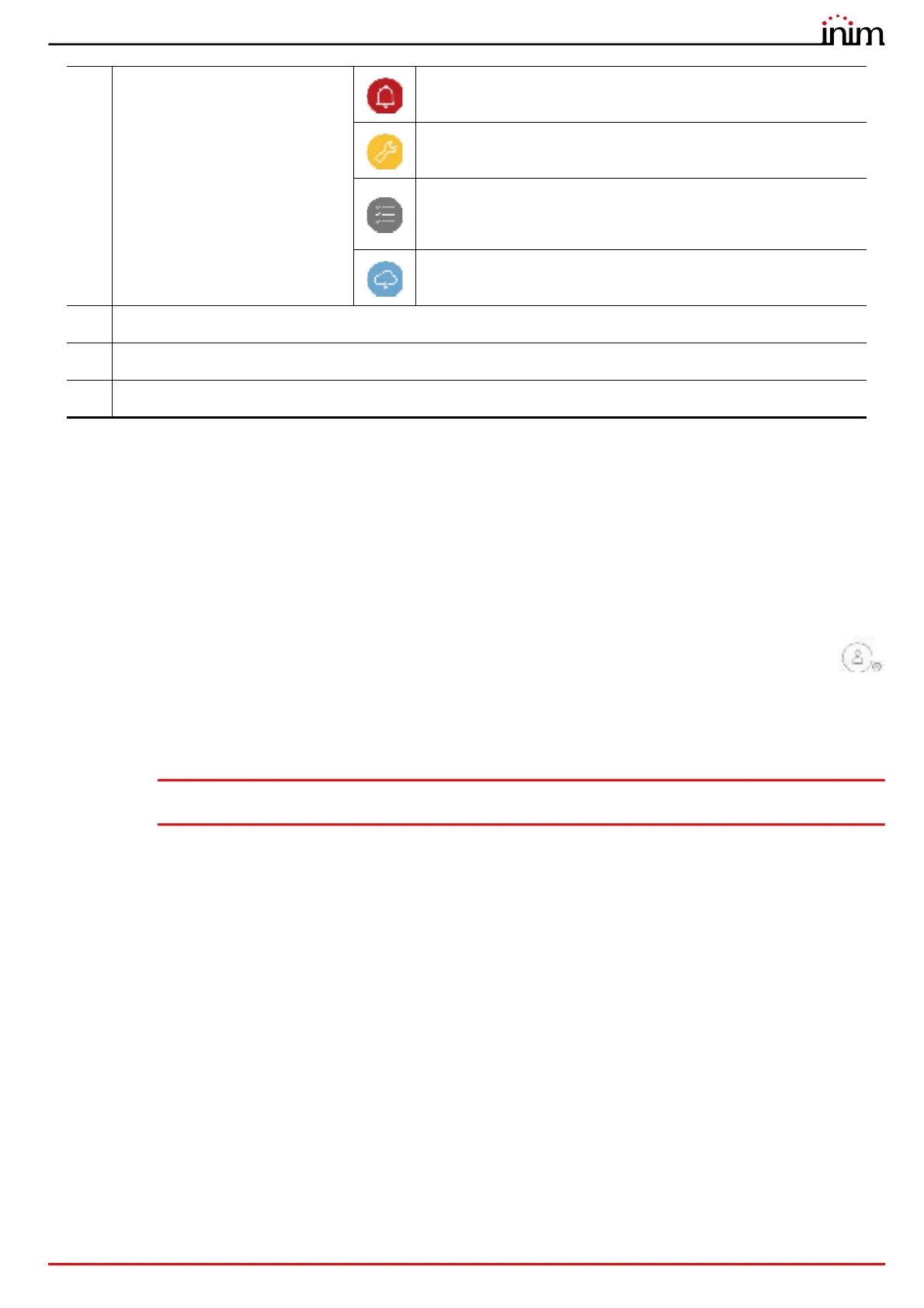
[C]
Buttons for quick viewing
These are always present and
overlaid show the number of
unsigned events present in the
System Register.
Alarms
This button opens a window listing the last 4 alarm or tamper events.
Faults
The button opens a window listing the last 4 fault events.
Other events
This button opens a window listing the last 4 control panel events in
addition to alarms and faults.
Cloud events
This button opens a window listing the last 4 cloud events.
[D]
Buttons for user profile management
[E]
Section for visualization of all ongoing signalling
[F]
Text section relating to the button pressed



 To Next Page