User’s Manual
Viewing the system 17
Inim Cloud: This function is available via:
Home select one of the available control panels
5.2 Visualization of the events log
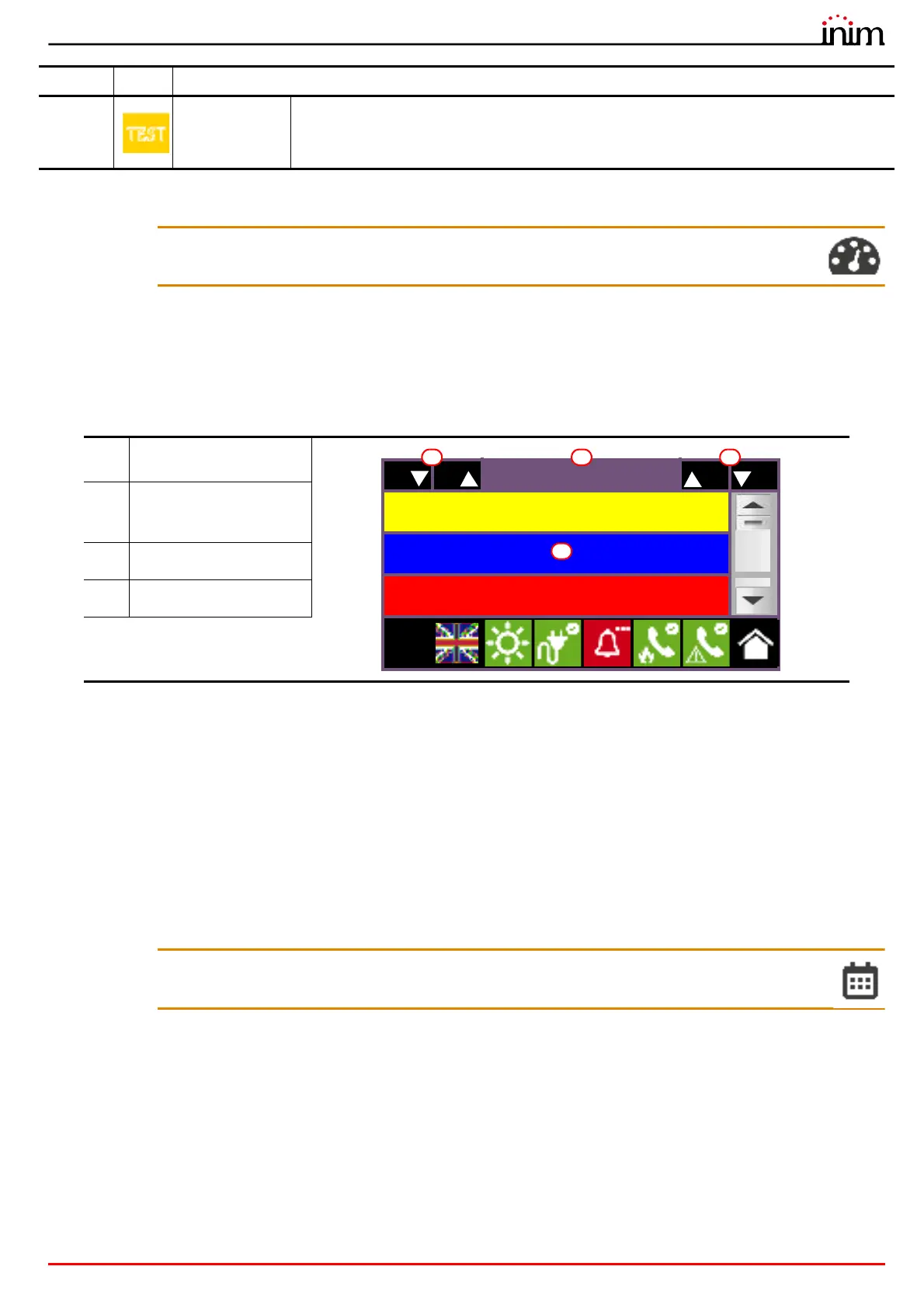
The Log button (paragraph 3.3), accessible at level 1, accesses a section which contains all the events saved to the
system memory.
Each line in the list [D] represents an event which has been saved to the log.
For each event, the event report shows the date and time of its occurrence, the control panel on which it occurred (in
the case of several control panels in a network), the description of the event and other related details. It is possible to
distinguish the event type by the background colour of the line:
• White, indicates events relating to normal operating status
• Red, indicates events relating to alarm status
• Yellow, indicates events relating to fault status
• Blue, event selected by tapping on the screen
In the case of an event generated by a detection zone, you will access the management page of the zone itself (refer
to paragraph 6.2 Device management).
Inim Cloud: This function is available via the fast viewing buttons (paragraph 4.1 - [C]) or via:
System Management > Events Log
8 Test
These signals indicate that at least one of the system elements is in test status.
This condition, to be applied during maintenance operations, maintains parts of the system in
non-operative status, therefore, putting the premises in danger as the protection level of the
system is reduced.
[A]
Keys for scrolling the
events in the log
[B]
Number of the selected
event out of the total
events
[C]
Scrolling keys (100 events)
[D]
Events list
Priority Icon Category
100 100
149/150
1/01/2023 6:21:00 PM
Zone 1
L1
Open input
PREVIDIA MICRO
1/01/2023 6:22:00 PM
User Code
RECOGNIZED CODE
PREVIDIA MICRO
01/01/23 18:23 EVACUATE
PREVIDIA MICRO
L:1
C AB
D



 To Next Page