User’s Manual
Using the system 23
Inim Cloud: Access to the points of the system and some of these functions are available via:
System management > select one of the available control panels > Zones
6.3 Management of the remote communicator
Previdia Micro allows you to view and manage a remote communicator. “Remote communicator” defines the remote
notification functions performed by the PREVIDIA-C-DIAL communicator module, via the telephone line or 3G line, by
the TCP-IP digital communicator on-board the control panel, or by any external communication device connected to
the control panel or to the optional PREVIDIA-C-COM board.
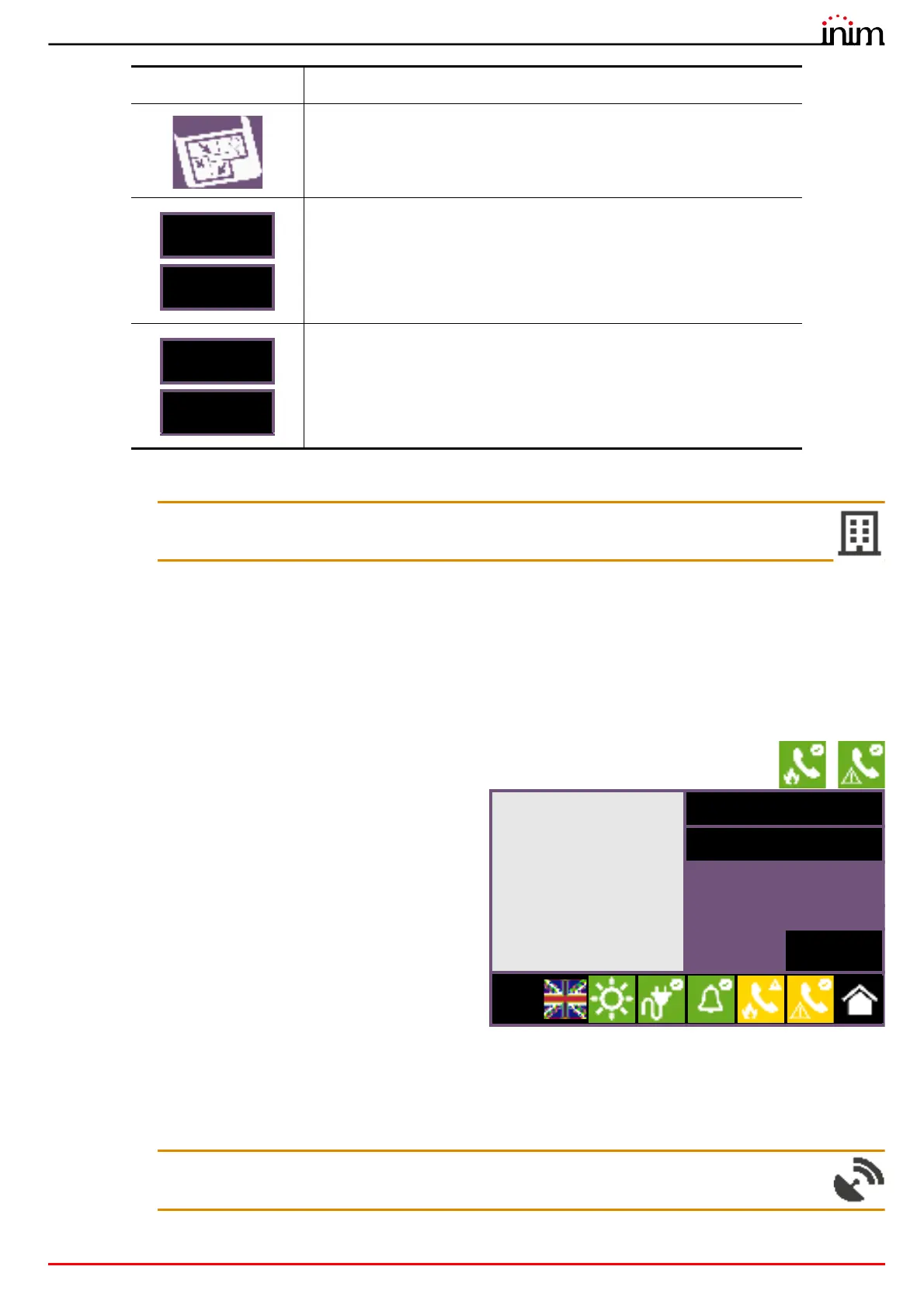
In the “Communicator“ section, which can be reach by selecting the icons related to the alarm or fault
communicator on the status bar, you can view the status and manage the remote communicator.
The left side of the section reached shows the description of
any faults in progress.
On the right side are the function keys relating to the remote
communicator. Activation or access to these depends on the
access level of the user.
• Disable/Enable alarm calls, button to disable/enable
remote communications generated by alarm signals.
• Disable/Enable fault calls, button to disable/enable remote
communications generated by fault signals.
• Disable/Enable other calls, button to disable/enable
remote communications generated by signals other than
alarm or fault signals.
• Stop alarm calls, button to cancel the queue of remote
communications generated by alarm signals.
• Stop fault calls, button to cancel the queue of remote communications generated by fault signals.
• Disable/Enable other calls, button to cancel the queue of remote communications generated by signals other than
alarm or fault signals.
• Stop all calls: button to cancel all remote communications in the queue.
Inim Cloud: This function is available via:
Manage System > select one of the available control panels > Dialler
If appropriately set up, this button will open a window showing an image of
the layout of the partition where the device is installed, with a point
indicating the location of the device itself.
A single tap on the screen will close the window.
Button to bypass/unbypass the zone the selected device belongs to or the
terminal the device is connected to.
Button for manual switching on/off of the device output.
Button Function
GSM module fault
Disable calls
Stop calls
Esc
L:2



 To Next Page