18 Viewing the system
Fire alarm and extinguishing system
5.3 Visualization of the system status
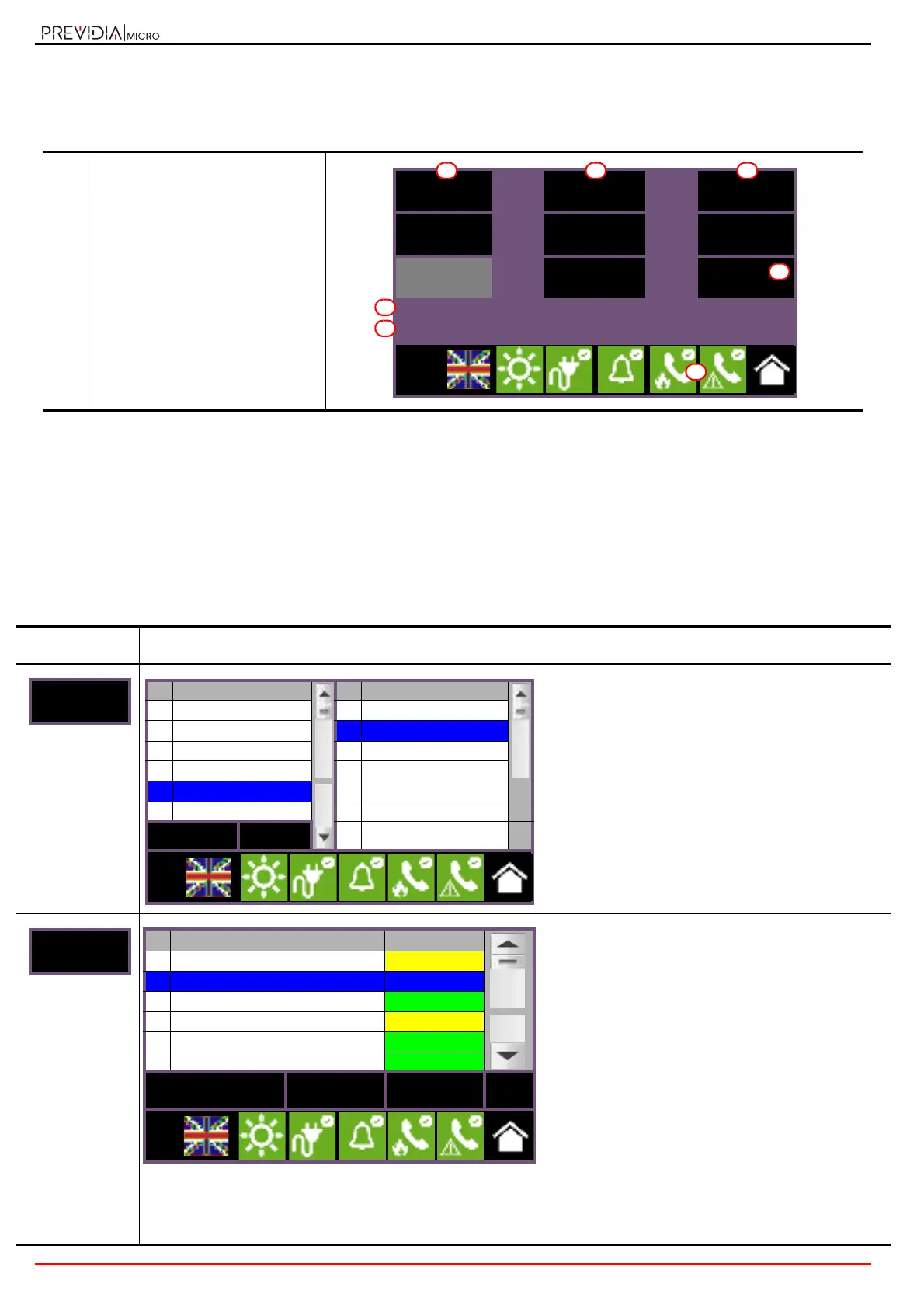
The System status button (paragraph 3.3 - [A], accessible at level 1) accesses a section which allows you to view the
status of the various system elements.
The Control panel access button allows you to select one of the Previdia control panels configured in the network to
which the control panel you are accessing belongs. Once the control panel has been selected, the system status screen
and the access buttons [A] will make reference to the selected control panel, indicated by the string below [C]. If the
selected control panel is different from the one in use, the information provided by the alarm counter [B] and by the
Revision button [D] will no longer be available.
A superior access level (2 or 3) allows the user to work on the elements being viewed and carry out operations such as
enable, disable, activation or test. Access to these functions is reserved to persons with supervisor level access who have
been instructed in system management and who have knowledge of the system parts.
The buttons for viewing purposes [A] give access to the following sections:
[A]
Access buttons to view the status
of the system elements
[B]
Indicator of the number of alarms
logged by the control panel in use
[C]
Description of the control panel
being viewed
[D]
Button for displaying the firmware
revision of the control panel in use
[E]
Buttons for visualization and
management of the
communicator (paragraph 6.3),
Button Display Section
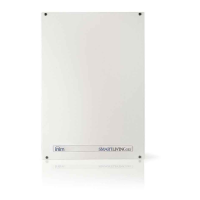
Section for the selection of the control panel whose
parts you wish to view.
It is possible to select a cluster (group of control panels
connected through a LAN network) and a single
control panel or repeater from the selected group.
The status of the selected control panel is displayed
after the OK button is pressed.
Section for the viewing of the zones of the selected
control panel.
The section is divided into pages that show a
maximum of 100 zones, navigable by means of the
arrow scroll buttons at the bottom. The status of
each zone is shown and made distinctive by colour:
• Green, zone in standby
• Yellow, zone in fault status, in test status or bypassed
• Red, zone in alarm status
• Blue, selected zone
• Gray, zone not-configured
By selecting a zone, it is possible for a user with
access level 2 to put a zone in test status or to
change its bypassed/unbypassed status (refer to the
Disable and Test buttons).
The
View
button allows access to zone
management (
paragraph 6.2 - Device
management
).
Control
panel
Group I/O Line
Zone Timers
Extinguishing
Point Hornet
Revisions
Alarm counter 23
Panel: Previdia Micro
L:1
D
A
B
A
C
A
E
No. Network No. Control panel
0 This cluster 0 This panel
1
Cluster A 1 Control panel A
2 Cluster B 2 Repeater
4
Cluster C 3 Previdia Micro
5 Cluster D 4 Previdia Max
6 5
Esc OK
6
L:1
No. Zone Status
1 Zone 1 In Test
2 Zone 2 Standby
3 Zone 3 Standby
4
Zone 4 Fault
5 Zone 5 Standby
6
Zone 6 Standby
Disable Test View Esc
L:2



 To Next Page