inVoca User Guide - Page 31
ADVANCED FUNCTIONS
inVoca offers a number of advanced functions that bring out its full
power. These include:
Button Macros — In addition to invoking the macro by speaking the
appropriate command, you may play macros by first pressing the
appropriate macro button. In the set-up procedure described earlier,
every macro is assigned to a button as well as a voice command.
However, inVoca makes the decision as to which button it will assign
to each macro.
If you wish to control what button is assigned to each macro, you may
manually assign macros to specific buttons, then assign a voice
command to the specific macro, rather than have inVoca
automatically assign the button. This method of operation is called
"Button Macros."
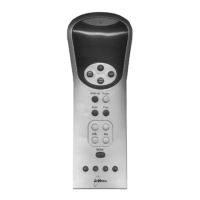
inVoca can store up to four Button Macros. The four macro buttons
are called by the [F1] - [F4] buttons.
Setting Up a Button Macro
• Press the [Learn/M] (Learn Macro) button.
• The LED will flash once.
• Select one of the four macros by pressing your choice of [F1] -
[F4].
• The LED will flash twice.
• Press the button sequence that you want to program.
• NOTE: The remote will transmit IR commands while you do
this so you can see the effect. The LED will light as it normally
does when you press buttons.
• End the macro by pressing the [PROG] key.
For example to program Macro F4 to go to channel 24 using your
cable box:
inVoca User Guide - Page 32
Press LED flashes Comment
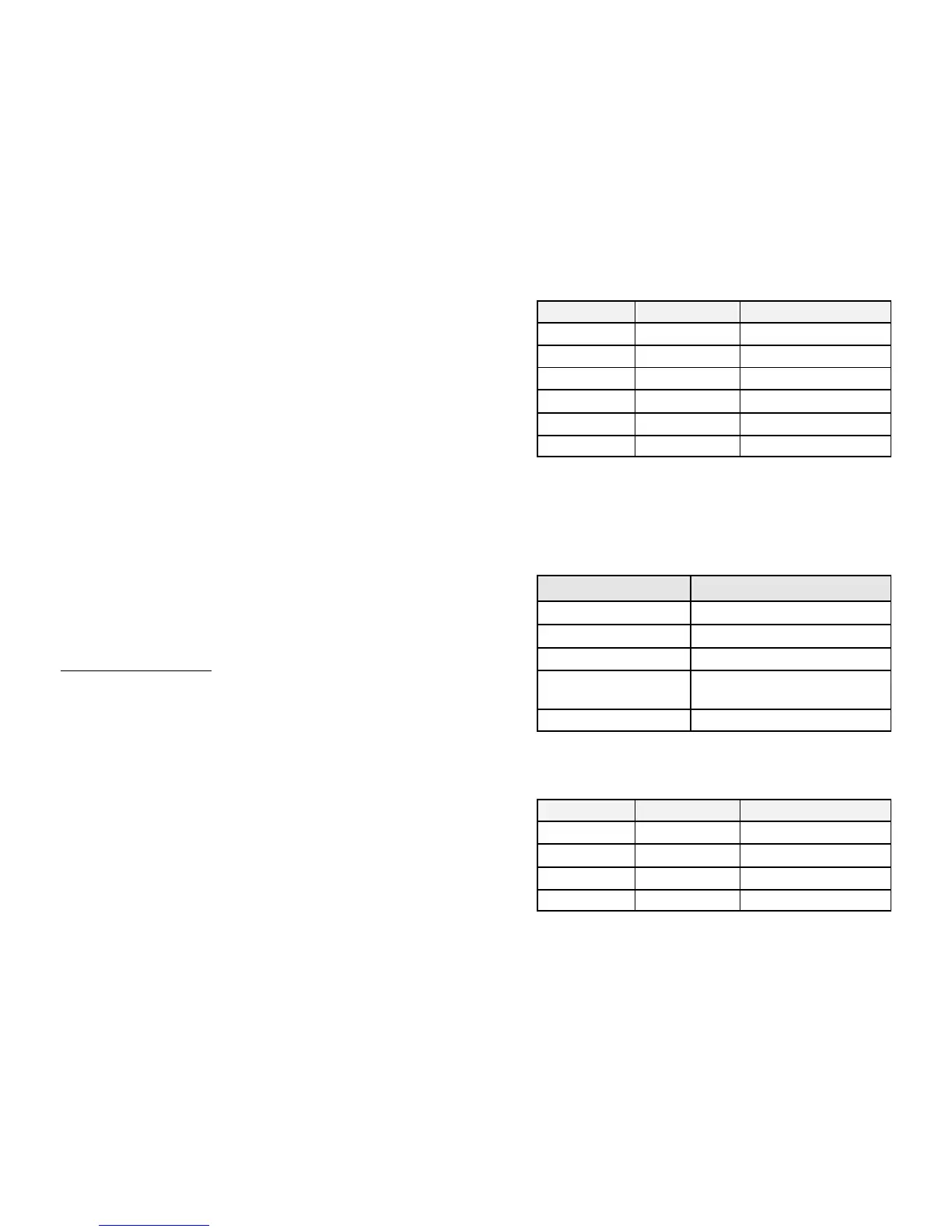
[Learn/M][Learn/M]
1 Starts the sequence
[F4][F4]
2 Selects Macro 4
[CBL][CBL]
1 Selects the cable box
[2][2]
1
[4][4]
1 Channel 24
[PROG][PROG]
3 End of Macro
When programming macros manually, you simply assign the voice
command to the specified macro key. For example, if button [F4]
has already been assigned to channel 24 (as above), and you now wish
to invoke this with the command "Home Box Office," the voice
training sequence is:
You Do This inVoca Response
Press the [Train] button "Say a word." LED will light green.
Say "Home Box Office" "repeat."
Say "Home Box Office" "Press a button."
Press [F4] "Button accepted. Press another
button."
Press the [Train] button. "Macro assigned."
Following is an example of creating a multi-string button macro to
have button F1 cycle through favorite channels 2, 4, and 12:
Press LED flashes Comment
[Learn/M][Learn/M]
1 Starts the sequence
[F1][F1]
2
[0][0]
1
[2][2]
1


 To Next Page