Using the Scan Tool
VIEWING ENHANCED DTCs
3040c 39
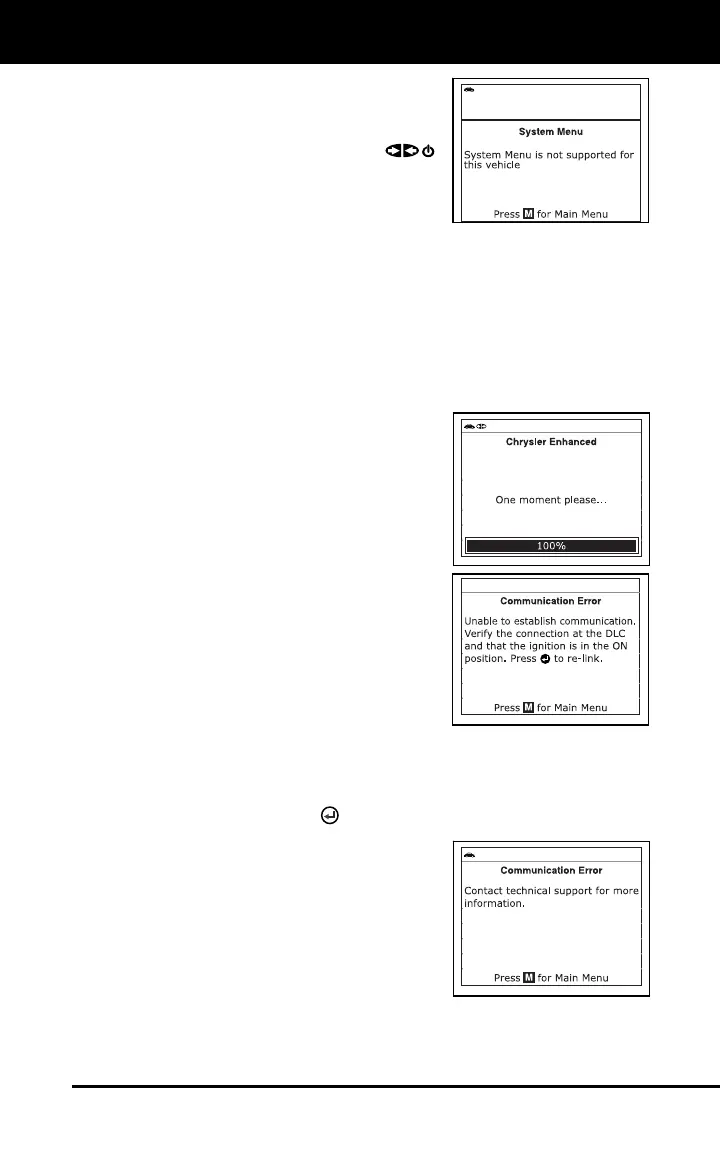
If enhanced communication is not
supported by the vehicle under test,
an advisory message displays.
Press the POWER/LINK
button to re-link to the vehicle’s
computer. Enhanced functionality is
not available for your vehicle.
Refer to the appropriate paragraph to view enhanced DTCs for your
vehicle:
Chrysler/Jeep Enhanced DTCs .............page 39
Ford/Mazda Enhanced DTCs ................page 41
GM/Isuzu Enhanced DTCs ....................page 43
Honda/Acura Enhanced DTCs ..............page 45
Toyota/Lexus Enhanced DTCs..............page 47
Chrysler/Jeep Enhanced DTCs
When OEM Enhanced is chosen from the
Main Menu, (and Chrysler is selected when
prompted), the Scan Tool retrieves OEM en-
hanced DTCs from the vehicle’s computer.
1. A “One moment please” message
displays while the Scan Tool retrieves
the selected DTCs.
If the Scan Tool fails to link to the
vehicle’s computer, a “Communication
Error” message shows on the Scan
Tool’s display.
- Ensure your vehicle is OBD2
compliant. See VEHICLES
COVERED on page 4 for vehicle
compliance verification information.
- Verify the connection at the DLC, and verify the ignition is ON.
- Turn the ignition OFF, wait 5 seconds, then back ON to reset
the computer.
- Press the ENTER
button to continue.
If the Scan Tool cannot link to the
vehicle’s computer after three
attempts, the message “Contact
Technical Support” displays.
- Press the M button to return to the
Main Menu.
- Turn the ignition off, and discon-
nect the Scan Tool.
- Contact Technical Support for assistance.



 To Next Page