Additional Functions
ADJUSTMENTS AND SETTINGS
3040c 73
2. When you have finished viewing the LED meanings, press the M
button to return to the Main Menu.
ADJUSTMENTS AND SETTINGS
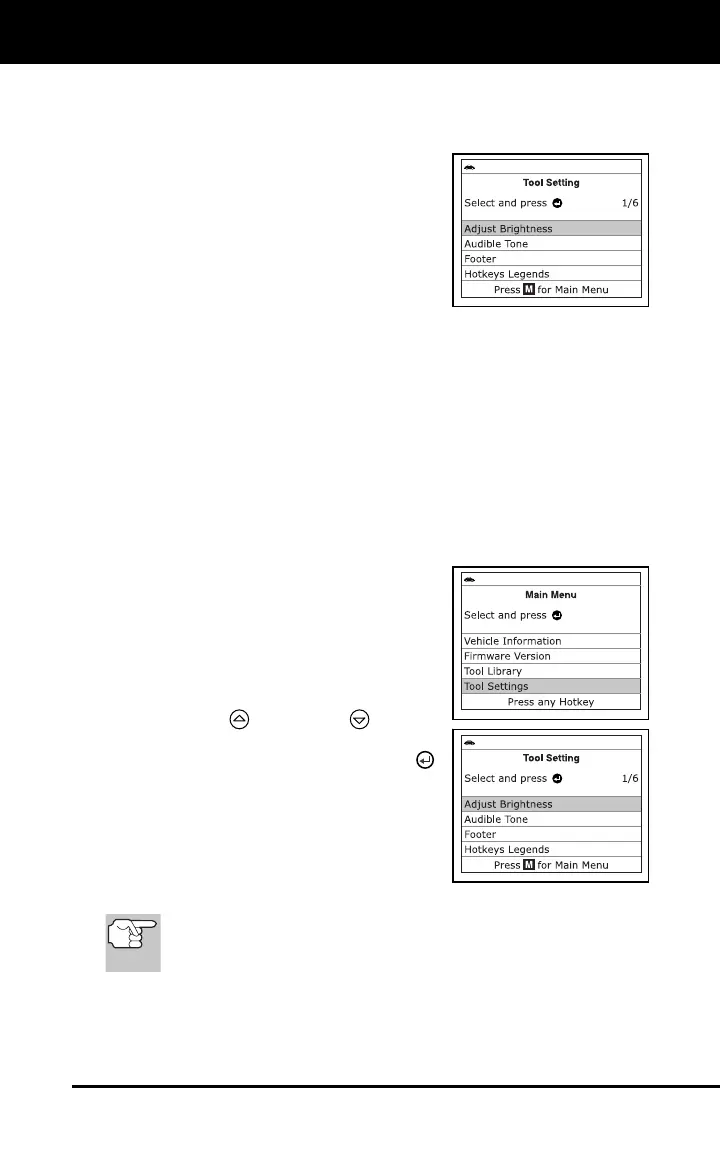
You can access the Adjustments and Settings
MENU while the Scan Tool is in “Live Data”
mode. The Scan Tool lets you make several
adjustments and settings to configure the
Scan Tool for your particular needs. The fol-
lowing adjustments and settings are available:
Footer: Turns the navigational “footers” at the bottom of most
display screens “on” and “off.”
Adjust Brightness: Adjusts the brightness of the display screen.
Audible Tone: Turns the Scan Tool’s audible tone “on” and “off.”
When turned “on,” a tone sounds each time a button is pressed.
Select Language: Sets the display language for the Scan Tool to
English, French or Spanish.
Unit of Measurement: Sets the Unit of Measurement for the Scan
Tool’s display to USA or Metric.
Hotkeys Legends: Shows functional descriptions for the diagnostic
tool’s hotkeys.
Accessing the Adjustments and Settings
Menu
1. While linked to the vehicle, press and
release the M button.
The “Main Menu” displays.
2. Use the UP
and DOWN buttons,
as necessary, to highlight Tool
Settings, then press the ENTER
button.
The Tool Setting Menu displays.
3. Make adjustments and settings as
described in the following paragraphs.
Disabling Navigational Footers
Navigational “footers” are shown at the bottom of most display
screens. They show which hotkey to press to return to the
topmost menu for the current function.



 To Next Page