Additional Functions
VIEWING THE FIRMWARE VERSION - THE TOOL LIBRARY
70 3040c
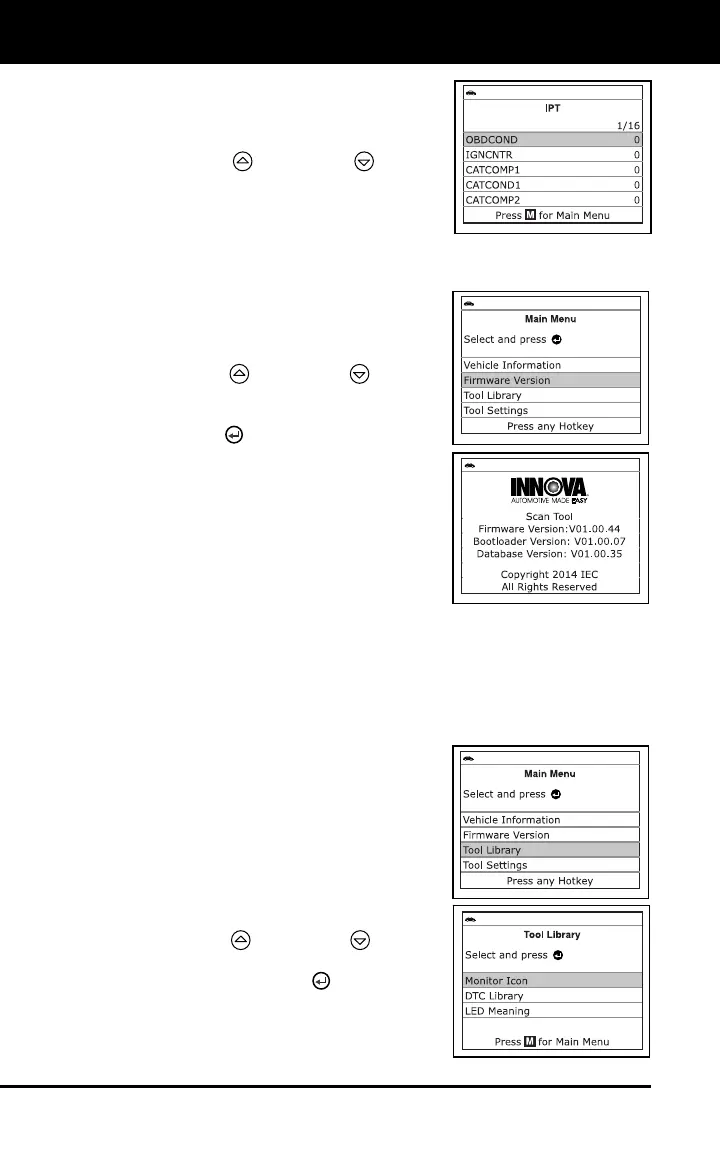
4. When the retrieval process is completed,
In-use Performance Tracking statistics for
monitors supported by the vehicle under
test are shown on the Scan Tool’s display.
Use the UP
and DOWN buttons,
as necessary, to view the entire list.
5. When you have finished viewing the
statistics, press the M button to exit.
VIEWING THE FIRMWARE VERSION
1. While linked to a vehicle, press and
release the M button.
The Main Menu displays.
2. Use the UP
and DOWN buttons,
as necessary, to highlight Firmware
Version in the Main Menu, then press
the ENTER
button.
The Firmware Version screen displays.
The screen shows the diagnostic
tool’s current firmware version,
bootloader version and database
version.
3. Press the M button to return to the Main
Menu.
THE TOOL LIBRARY
The Tool Library contains valuable reference information for the Scan
Tool. The following functions are available:
Monitor Icon – Shows the full names for the I/M MONITOR
STATUS icons shown on the diagnostic tool’s display.
DTC Library – Provides access to a
library of OBD2 DTC definitions.
LED Meaning – Provides descriptions
of the meaning of the Scan Tool
SYSTEM STATUS LEDs.
1. While linked to the vehicle, press the M
button.
The Main Menu displays.
2. Use the UP
and DOWN buttons,
as necessary, to highlight Tool Library,
then press the ENTER
button.
The Tool Library menu displays.



 To Next Page