Additional Functions
THE TOOL LIBRARY
3040c 71
Viewing Monitor Icon Descriptions
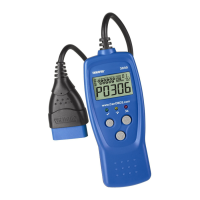
The I/M MONITOR STATUS icons on the Scan Tool’s LCD display
provide an indication of the “Completed / Not Complete” status for all I/M
Monitors supported by the vehicle under test. The Monitor Icon function
displays the full name for each Monitor icon.
1. From the Tool Library menu, use the UP
and DOWN buttons, as
necessary, to highlight Monitor Icon,
then press the ENTER
button.
The Monitor Icon screen displays.
The screen shows a list of the 15
Monitor icons, along with the full
name for each icon. Use the UP
and DOWN buttons, as
necessary, to scroll the list.
2. When you have finished viewing the Monitor icon descriptions, press
the M
button to return to the Main Menu.
Using the DTC Library
1. From the Tool Library menu, use the UP
and DOWN buttons, as
necessary, to highlight DTC Library,
then press the ENTER
button.
The Enter DTC screen displays. The
screen shows the code “P0001”,
with the “P” highlighted.
2. Use the UP
and DOWN buttons,
as necessary, to scroll to the desired
DTC type (P=Powertrain, U=Network,
B=Body, C=Chassis), then press the
DTC button.
The selected character displays “solid”,
and the next character is highlighted.
3. Select the remaining characters in the
DTC in the same way, pressing the
DTC button to confirm each character.
When you have selected all the DTC
characters, press the ENTER
button
to view the DTC definition.
The Select Manufacturer screen
displays.
4. Use the UP
and DOWN buttons, as necessary, to highlight
the desired vehicle manufacturer, then press the DTC button.



 To Next Page