Additional Functions
THE TOOL LIBRARY
72 3040c
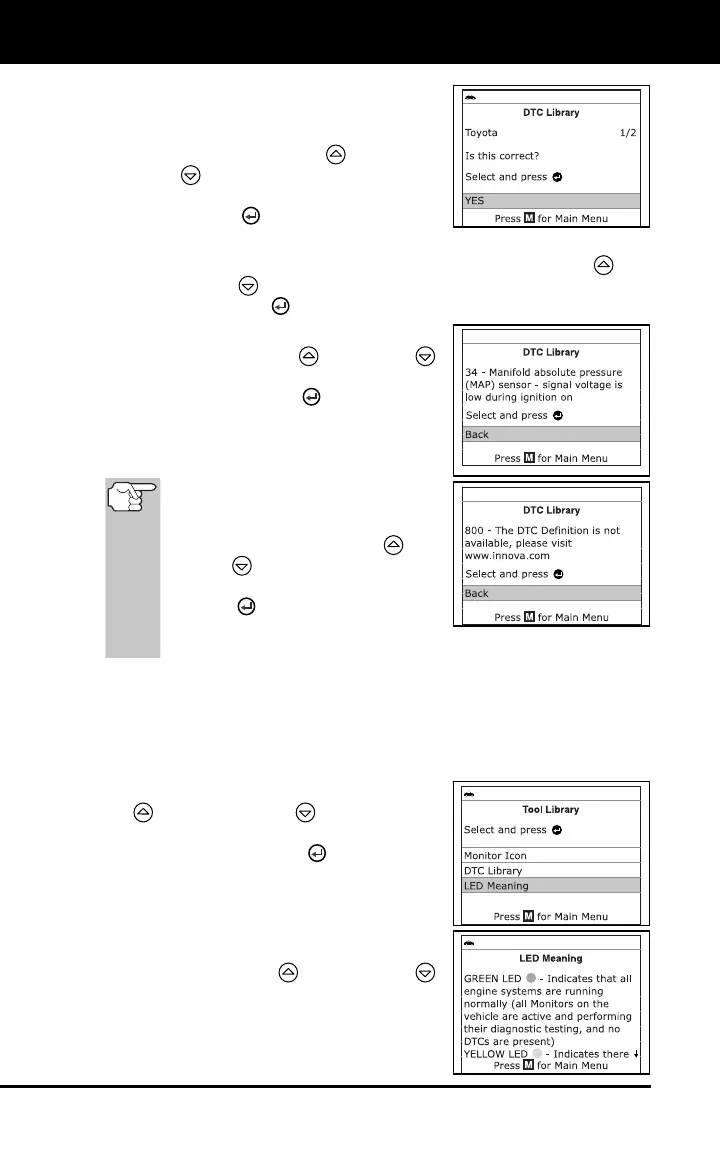
A confirmation message shows on
the LCD display.
- If the correct manufacturer is not
shown, use the UP
and DOWN
buttons, as necessary, to
highlight No, then press the
ENTER
button to return to the
list of vehicle manufacturers.
- If the correct manufacturer is shown, use the UP
and
DOWN
buttons, as necessary, to highlight Yes, then press
the ENTER
button to view the DTC definition.
5. When you have finished viewing the DTC
definition, use the UP
and DOWN
buttons, as necessary, to highlight Back,
then press the ENTER
button to return
to the Enter DTC screen and enter
additional DTCs; or, press the M button to
return to the Main Menu.
If a definition for the DTC you
entered is not available, an advisory
message shows on the diagnostic
tool’s display. Use the UP
and
DOWN
buttons, as necessary, to
highlight Back, then press the
ENTER
button to return to the
Enter DTC screen and enter additio-
nal DTCs; or, press the M
button to return to the Main Menu.
Viewing the LED Meaning
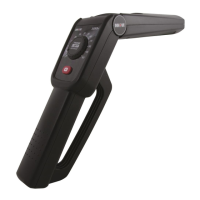
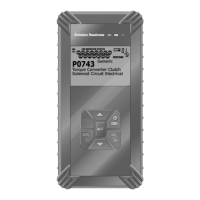
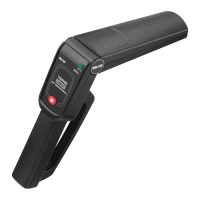
The SYSTEM STATUS LEDs on the Scan Tool provide a visual
indication of the I/M Readiness status of the vehicle under test. The
LED Meaning function provides a description of the meanings of the
green, yellow and red SYSTEM STATUS LEDs.
1. From the Tool Library menu, use the UP
and DOWN buttons, as
necessary, to highlight LED Meaning,
then press the ENTER
button.
The LED Meaning screen displays.
The screen provides a description of
the meanings of the green, yellow
and red SYSTEM STATUS LEDs.
Use the UP
and DOWN
buttons, as necessary, to scroll the
display.



 To Next Page