Copyright 2018, InnovaPrep LLC Patented https://www.innovaprep.com/patents
5 NAVIGATING THE MENU
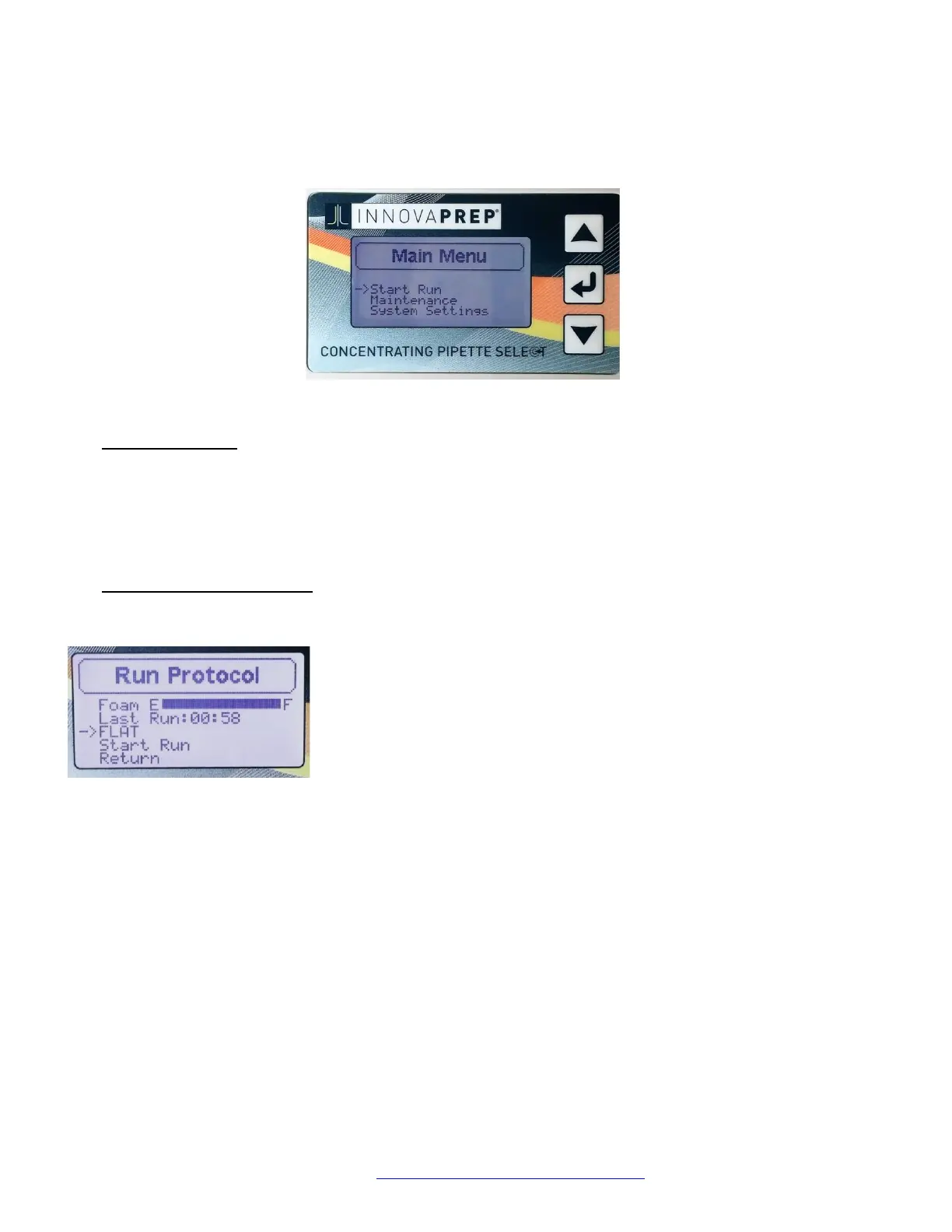
This Section will guide you through the instrument's LCD menu instrument on the Control Panel. The three keys on the
right side of the Control Manual (symbols for Up ( ▲ ), Down ( ▼ ), and Enter (
⏎
), as shown in Figure 5.1) are used to
navigate the menu.
5.1 THE MAIN MENU
When the instrument is first turned on, a Welcome screen will be displayed as soon as the unit boots up (about 5 seconds).
Press Enter (
⏎
) to continue to the Main Menu screen.
The Main Menu consists of three selections: Start Run, Maintenance, and Instrument Settings.
5.2 THE RUN PROTOCOL MENU
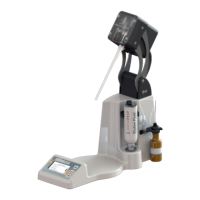
Selecting Start Run from the Main Menu will display the Run Protocol screen. This screen displays:
Foam Volume Gauge (E = empty / F = full)
Last Run process time (mm:ss)
Name of the selected concentration run protocol (defaults to FLAT)
Start Run
Return
• Selecting the named protocol (FLAT) will navigate to the Protocol Setup screen where another protocol can be
selected, created (see Section 8.5 Creating and Saving a Concentration Run Protocol), or deleted. There are three
protocol options that have been preprogrammed by the factory named FLAT, HOLLOW, and ULTRA. These have
been named according to the three main types of CPTs available for use with the instrument: FLAT for use with
the flat CPTs (items CC08000 and CC08001), HOLLOW for use with the hollow fiber tips (items CC08018, CC08022,
CC08020), and ULTRA for use with the ultrafilter tips (item CC08003). See Table 2.1 CPT Selection Guide for a full
description.
• Selecting Start Run on the Run Protocols screen will immediately start the sampling process using the sample
protocol notated above.
• Return will lead back to the Main Menu.
⏎
)
FIGURE 5.1 MAIN MENU DISPLAY
FIGURE 5.2 RUN PROTOCOL
DISPLAY


 To Next Page