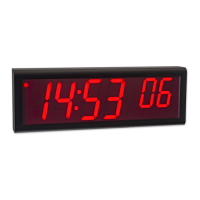
OnTime Clock
Installation and User Guide
Firmware Version 2
All claims based on information publicly available at time of printing. All other product or service names mentioned
in this document may be trademarks of the companies with which they are associated.
© 2017 Inova Solutions | All rights reserved | page 29
If the clock IP Addressing is via DHCP, the DNS servers are typically
already automatically configured (do not over configure!)
The process for specifying a time server on the clock is the same for both hostname and
IP Address.
1. Log into the OnTime Clock.
2. At the prompt, type sntp –h to specify the primary time server or type sntp –e to
specify the secondary time server.
3. Press the spacebar. (You need a space between the command and the time server
hostname/IP Address.)
4. Enter the hostname or IP Address of the time server.
5. Press the Enter key to submit the time server configuration.
It is always a good idea to test the synchronization between the clock and the time
server(s). To do that, perform these steps:
1. At the clock telnet prompt, type: sntp -s (Be sure there is a space between ‘sntp’
and ‘-s’)
2. Press the Enter key.
The clock displays SNTP settings and immediately attempts synchronization with the
primary time server (if the primary is unavailable and the secondary is defined, it will
try the secondary after about 90 seconds).
By default the primary time server is set to ntp.inovasolutions.com and the secondary
is not set. In general, the primary server setting should be changed to an internal time
server under IT control, or possibly to a time server pool address on the internet. There
is more information on NTP, SNTP, and time server selection online at Inova OnTime
Support.
7.4. Setting the Time Zone
Coordinated Universal Time (UTC) is a time standard based on the time at zero degrees
longitude (also known as Greenwich Mean Time or GMT). Time zones around the
world are expressed as positive or negative offsets from UTC. The default time zone
setting for the clock is UTC -5 (aka GMT -5), which is the time zone for Eastern Time
(US & Canada). You can change this setting with the following command:
timezone –N [or] timezone N
where N is the time zone offset from UTC, -12:45 to 12:45.
Note: If you’re not sure what time zone offset to use, check the time zone value used on
a Windows PC on your network; double-click the time in the Windows service tray (in
the lower-right corner of your screen) and choose the Time Zone tab.


 To Next Page