EasyManua.ls Logo

Insignia NS-19E310A13 - User Manual

Insignia NS-19E310A13
63 pages
Print Icon
To Next Page IconTo Next Page
Loading...
NS-19E310A13
User Guide
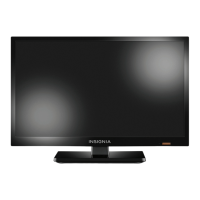
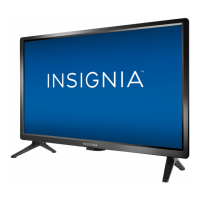
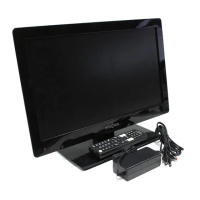
19" LED TV
Before using your new product, please read these instructions to prevent any damage.

Table of Contents

Other manuals for Insignia NS-19E310A13

Questions and Answers

  • M
    Mr. Mark StuartSep 1, 2025
    Why is there audio noise coming from my Insignia LED TV?
    • M
      margaretleonardSep 1, 2025
      If you are hearing audio noise from your Insignia LED TV, it may be due to interference from other devices such as a surround sound receiver, external speakers, fans, or hair dryers. Try turning off one device at a time to determine which device is causing the interference. After you have determined which device is causing interference, move it further from the TV to eliminate the interference.
  • H
    harrelldavidSep 13, 2025
    What to do if Insignia NS-19E310A13 says no signal?
    • M
      Mark WestSep 13, 2025
      If your Insignia LED TV displays a 'No signal' error message, press the INPUT button and select the correct input for your device or service. If you're using a cable or satellite box, use its remote to change channels and ensure you've selected the correct input on the TV to view channels from that box.
  • S
    Susan WalkerAug 31, 2025
    Why are there dotted lines on my Insignia NS-19E310A13 screen?
    • D
      Denise GlennAug 31, 2025
      If you're seeing dotted lines or stripes on the screen of your Insignia LED TV, ensure the antenna or cable TV is connected correctly and securely. If you're using an antenna, the digital channel signal may be low; consider adjusting the antenna or using a highly directional outdoor antenna or a set-top antenna with a built-in amplifier. Also, make sure that the video cables are connected securely to your TV, and if necessary, try a new set. Other devices, such as surround sound receivers, external speakers, fans, or hair dryers, may be causing interference. Try turning off one device at a time to determine which is causing the issue, and then move it further from the TV.
  • A
    Andrew HardingSep 15, 2025
    How to stop audio noise on Insignia NS-19E310A13 LED TV?
    • K
      Kimberly GordonSep 16, 2025
      Audio noise from your Insignia LED TV can be caused by interference from other devices. Devices like surround sound receivers, external speakers, fans, or hair dryers may be the cause. Try turning off these devices one at a time to identify the source of the interference. Once identified, move the interfering device further away from the TV.
  • K
    klutzSep 15, 2025
    Why are some channels not showing up on my Insignia LED TV?
    • J
      Jennifer AdamsSep 15, 2025
      If one or more channels aren't displaying on your Insignia LED TV, first ensure the channels aren't blocked in parental control settings. Also, check if the channels are hidden or have been deleted from the channel list; you can manually tune to them using the number buttons or add them back to the list. If using a cable or satellite box, use its remote to change channels and make sure the correct input is selected. For antenna users, a low digital channel signal might be the issue.
  • M
    Michael MillerSep 23, 2025
    How do I fix double images on my Insignia NS-19E310A13?
    • B
      Bethany LynchSep 23, 2025
      To resolve double images on your Insignia LED TV, use a highly directional outdoor antenna, cable TV, or satellite TV.
  • S
    Steve AllenAug 27, 2025
    Why does my Insignia LED TV have picture but no sound?
    • S
      Shirley MathewsAug 27, 2025
      If you have good picture but no sound on your Insignia LED TV, first, increase the volume and ensure the sound isn't muted. Check if headphones are connected, as this will disable the TV speakers. Also, ensure the correct audio mode is selected and that all audio cables are properly connected to the TV. Finally, make sure the antenna or cable TV is securely connected.
  • A
    Anita RodriguezAug 27, 2025
    What to do if my Insignia LED TV says no signal?
    • B
      Brittany JonesAug 27, 2025
      If your Insignia LED TV displays a 'No Signal' error, first, press the INPUT button and select the correct input for your device. If you're using a cable or satellite box, use its remote to change channels. Ensure you've selected the correct input to view channels from the cable or satellite box.
  • J
    jimeneztimothyAug 26, 2025
    Why does my Insignia NS-19E310A13 LED TV keep turning off by itself?
    • S
      Shelby AndrewsAug 26, 2025
      If your Insignia LED TV keeps turning off, ensure that the sleep timer is not activated.
  • P
    Peggy CherryAug 25, 2025
    What to do if buttons on Insignia NS-19E310A13 LED TV don't work?
    • C
      christensenphillipAug 26, 2025
      If the control buttons on your Insignia LED TV do not work, first make sure that the Button Lock option is set to Off. If that doesn't work, unplug the power cord, wait a few seconds, then plug the cord back in and turn on your TV.

Summary

CHILD SAFETY

Tune Into Safety

Provides essential safety tips for TV placement and child interaction.

Wall Mounting Safety

Offers guidance and precautions for safely mounting the TV on a wall.

Important Safety Instructions

Operational Precautions

Damage Requiring Service

Lists conditions under which the TV requires professional servicing.

Remote Control Operation

Making Connections Overview

Choosing the Right Connection Type

Guides users on selecting the best connection type for optimal video quality.

Connecting Power

Connecting Cable or Satellite Box

Connecting DVD or Blu-ray Player

Using HDMI Connection

Details how to connect a DVD or Blu-ray player via HDMI for best quality.

Connecting Composite and Coaxial Sources

Connecting Antenna or Cable TV (No Box)

Connecting a VCR

Connecting Camcorder or Game Console

Connecting a Computer

Using VGA Connection

Details how to connect a computer to the TV using a VGA cable.

Using a USB Flash Drive

Audio Connections

Connecting Home Theater System

Guides on connecting a home theater system for enhanced audio.

Using Digital Audio

Details connecting a home theater system using digital audio output.

Connecting Multiple Audio Devices

Using Analog Audio

Explains connecting a home theater system using analog audio.

Basic TV Operation and Setup

Using the Remote Control

Covers remote control installation, aiming, and general usage.

First-Time TV Setup Wizard

Guides users through initial TV setup including language and channels.

TV Channel and Information Features

Selecting Channels

Explains how to tune to specific channels using the remote.

Picture Adjustment

Adjusting TV Picture Settings

Guides on adjusting picture modes, brightness, contrast, color, and tint.

Adjusting Computer Picture Settings

Explains how to adjust picture settings when using a computer input.

Sound Adjustment

Adjusting Sound Settings

Covers sound modes, balance, bass, and treble adjustments.

Channel Management and Audio Features

Changing Channel Settings

Explains how to manage channel lists and settings.

Setting Up Favorite Channels

Checking Digital Signal Strength

Aspect Ratio and Parental Controls

Setting Parental Controls

Guides on setting up parental controls to restrict content.

Setting or Changing Password

Details the process for setting or changing the parental control password.

Locking Control Buttons

Blocking Unrated TV

Setting Parental Control Levels

Closed Captioning Features

Customizing Digital Caption Styles

Time and Menu Settings

Setting the Sleep Timer

System Settings and INlink

Browsing Photos on USB Drive

Troubleshooting Guide

Video and Audio Problems

Addresses common issues related to picture and sound.

Picture and Sound Issues

Details specific picture quality and sound problems and their solutions.

Remote Control Troubleshooting

General Troubleshooting

Product Specifications

Remote Control Programming

One-Year Limited Warranty

Insignia NS-19E310A13 Specifications

General IconGeneral
Screen Size19 inches
Display TypeLED
Resolution1366 x 768
Aspect Ratio16:9
Refresh Rate60 Hz
HDMI Ports1
USB Port1
Component Video Input1
Composite Video Input1
Power Consumption30W
InputsHDMI, USB, Composite
Sound Output10W (2 x 5W)

Related product manuals