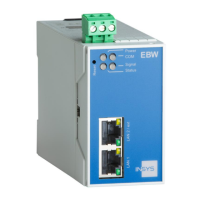
Configuring the EBW-E100
The device is connected to the PC.
The power supply of the device is enabled.
You have the required access rights to change the IP address of the
network card to which the device is connected.
1. Change the IP address of the network card to which the device is
connected to an address that starts with 192.168.1.
As an alternative, you may also configure your network card to
"Automatic address allocation". The integrated DHCP server of the
EBW-E100 will then allocate an address from the according address
range to your network card.
Do not use the address 192.168.1.1; this is the factory default IP
address of the device. For example, use 192.168.1.2 as IP address for
the network card in your PC.
2. Open a web browser and enter the URL "http://192.168.1.1" into the
address bar.
The browser loads the start page of the EBW-E100.
If you see the message in your browser window that the page with
this address cannot be found, follow the following steps: Check,
whether the device is supplied with power. If yes, most probably a
wrong IP address is configured in the device. In this case, reset your
device to the factory defaults by pressing the reset key three times for
a short time and repeat step 2.
A dialogue will prompt you to enter a user name and password for
authentication.
3. Enter the user name "insys" and the password "icom".
This user name and this password are set as factory defaults. If the
login to the web interface does not work with this data, reset your
device to default settings;
Press the reset key three times within two seconds and repeat these
instructions beginning at step 2.
You should now see the start page of the web interface.
The EBW-E100 is installed successfully and ready for configuration.


 To Next Page