E
Switc
in
Su
tit
e
Some video materials ma
have subtitles in 1 or more
languages. For commerciall
available discs, the
supported languages can be
ound on the disc case.
Fo
ow t
e steps
e
ow to switc
t
e su
tit
e
anguage
uring p
a
ac
.
BD-V
During p
ay
ac
, press [Su
tit
e]
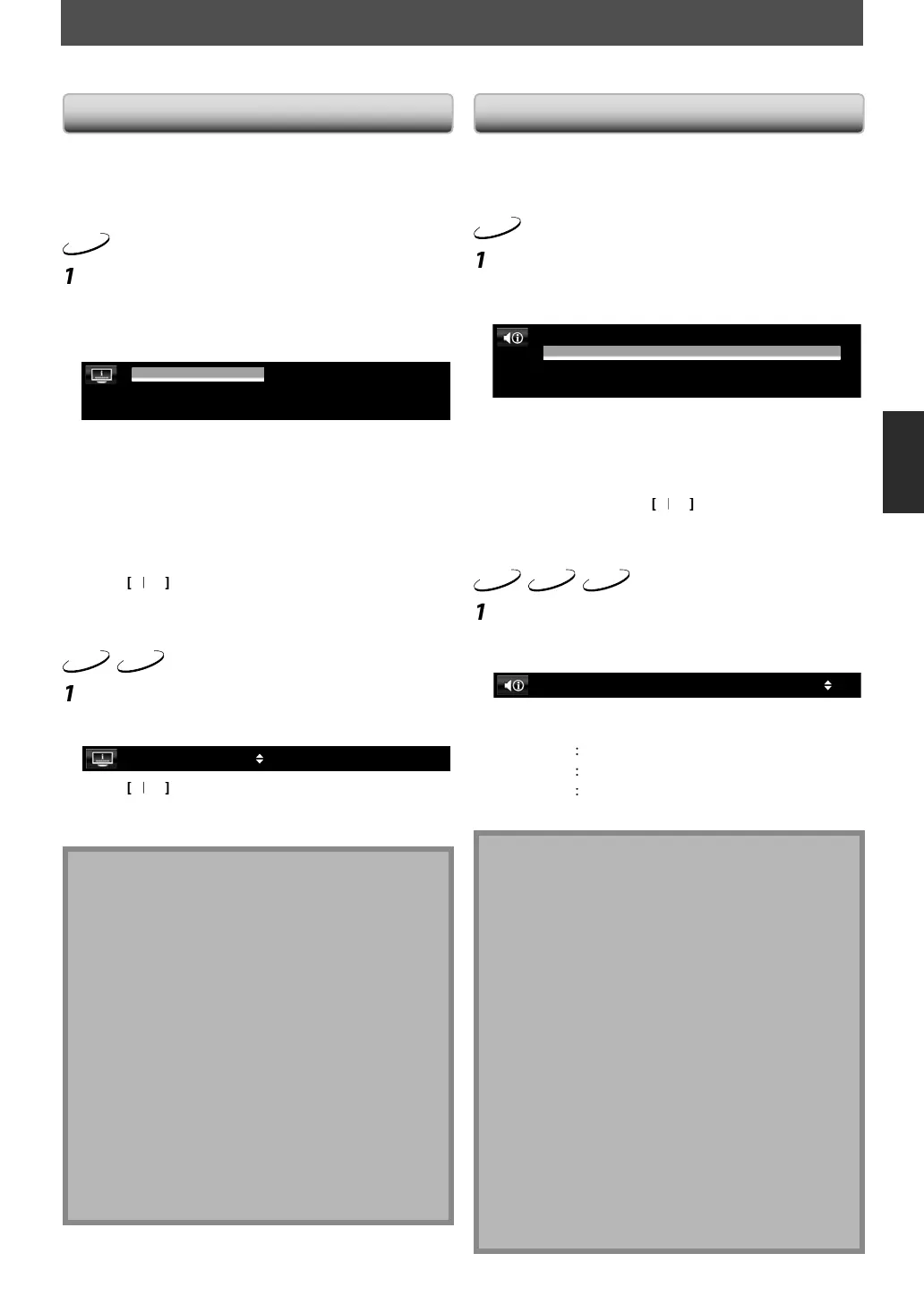
Use
] to se
ect “Primary Su
tit
e”,
“Secon
ary Su
tit
e” or “Su
tit
e Sty
e”,
t
en press [Enter].
/ 11
/ 11
2
2
2
/25
ENG
ENG
Primary Subtitle
Secondary Subtitle
Subtitle Style
Primar
Subtitle”
h
i
l
f
r
h
rimar
video.
”Secon
ar
Su
tit
e”
h
i
l
r
h
econ
ar
vi
eo.
Su
tit
e Sty
e” :Sets style o
the subtitle
Use
] to se
ect
our
esire
su
tit
e
or st
le.
wi
w
n
rr
n
i
setting and “O
”.
Press
Subtitle
to exit
DVD-V
AVCHD
During p
ay
ac
, press [Su
tit
e]
Use
] to se
ect your
esire
su
tit
e
1 ENG / 4
•
wi
h
w
n
rr
n
i
l
settin
and “Off”.
Press [Su
tit
e] to exit
N
ome
iscs wi
on
y a
ow you to c
ange t
e
ubtitles
rom the disc menu or pop-up menu. Press
Top Menu
Pop Up Menu
Menu
to displa
the
isc menu or
o
-u
menu.
I
4-digit-language code appears in the subtitle
menu, re
er to “LANGUAGE CODE” on page 61.
• If the disc has no subtitle language or subtitle st
le,
“Not Available” will be displa
ed on the TV screen.
• During pla
back o
the secondar
video, the primar
u
tit
e setting is not avai
a
e except w
en t
ere is
no subtitle
or the secondary video.
econ
ary su
tit
e setting is on
y avai
a
e
uring
playback o
the secondary video.
• If
ou choose a language that has a 3-letter-language
ode, the code will be displa
ed ever
time
ou
hange the subtitle language setting. If
ou choose
an
other Languages, “---” will be displa
ed instead
(refer to pa
e 61).
SPECIAL SETTINGS
ou can select the format of audio and video as you prefer depending on the contents of the disc you are playing back.
Switc
in
Au
io Soun
trac
When pla
ing back video material recorded with 2 or
ore soundtracks
these are o
ten in di
erent audio
languages or audio
ormats), you can switch them during
ay
ac
.
BD-V
ring p
ay
ac
, press [A
io
se
o se
ect “Primary” or
Secon
ary”
io to set, t
en press [
nte
.
/ 3
/ 3
Primary
1 ENG
Secondary
1 ENG
Multi-ch
Multi-ch
Dolby D
Dolby D+
Pr
mary” :Sets the audio
or the primar
video.
Secon
ary” : Sets the audio
or the secondary video.
e
] to se
ect
our
esire
au
io
re
m
nne
For “Secon
ary”, use
to switc
etween
current audio setting and “O
”.
ess
A
i
to exit
DVD-V
CD
AVCHD
During p
a
ac
, press [
i
Use
] to select
our desired audio
tre
m ch
nnel
/ 3Dolby D 3/2.1ch 48k
1 ENG
e.
.) DVD-video
For audio CD, you can select
ollowing options.
Stere
”
Both ri
ht and left channels are active (stereo)
L-
”
Only left channel is active.
R-c
”
On
y rig
t c
anne
is active.
Press
i
to ex
t
N
e secon
ar
au
io wi
not
e output w
en t
e
econ
ar
vi
eo is not
isp
a
e
or w
en “BD Au
io
o
e” is set to “HD Au
io Out
ut”.(For some BD,
econdar
audio will be output even when secondar
ideo is o
.
e soun
mo
e cannot
e c
ange
uring
layback o
discs not recorded in multiple audio.
ome discs allow to chan
e audio lan
ua
e settin
on
he disc menu. (Operation varies dependin
on the
iscs. Refer to the manual accompan
ing the disc.)
Au
io
may not wor
on some
iscs wit
mu
tip
e
u
io streams or c
anne
s (e.g. DVD w
ic
a
ow to
han
e audio settin
on the disc menu).
•
f
ou select a language that has a 3-letter-language code,
he code will be displa
ed ever
time
ou change the
udio language setting. If
ou select an
other languages,
---” will be displa
ed instead (refer to page
1
4-di
it-lan
ua
e code appears in the subtitle
enu, refer to “LANGUAGE CODE” on pa
e 61.
the disc has no audio language, “Not Available” will
e
isp
aye
on t
e TV screen.
or DTS-CD (5.1 music disc), “DTS” will be displa
ed.
Selectin
audio streams or channels is not available.)
E5SF0UDDBS50.2ENv2.indd35E5SF0UDDBS50.2ENv2.indd35 2010/08/0515:17:102010/08/0515:17:10



 To Next Page