1
Put the Adapter in the Computer
NOTE
: If you are replacing an existing adapter with the PRO/100+ adapter in
Windows* 95, see the section
Removing an Existing Adapter in
Windows 95
later in this guide.
1 Shut down Windows (if it’s running) by clicking the Start button, and then
clicking Shut Down.
2 Turn off the computer and unplug the power cord. Then remove its cover.
WARNING
: Turn off and unplug power to the computer before removing its
cover. Failure to do so could shock you and may damage the adapter or
computer.
3 Remove the cover bracket from a PCI busmaster adapter slot. Most
computers have busmaster-enabled slots. If you have configuration
problems, see your computer’s documentation to determine if the PCI slots
are busmaster-enabled.
4 If you want to enable the Wake On LAN* feature, see the section Connect
the Wake On LAN Power Cable later in this guide before completing the
rest of these steps.
5 Choose an empty bus mastering PCI slot and remove its backplate by
unscrewing the screw which secures it.
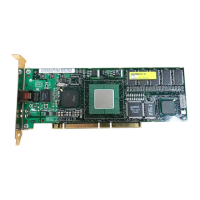
6 Insert the PRO/100+ adapter into a PCI slot and push it into the slot until
it’s firmly seated. Then secure the adapter bracket with the screw you
removed in step 5.
7 Replace the computer cover and plug in the power cord.
PC-3919
P100se~2.fm Page 1 Tuesday, January 5, 1999 10:03 AM




 To Next Page