6
Connecting the LAN
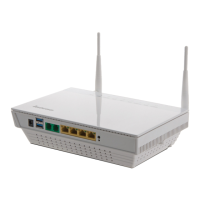
1. Connect a RJ45 network LAN cable
between the DG150v2 network ports
(LAN 1–4) and the network port on
the back or side of your computer.
If you have more computers,
use LAN2, LAN3, LAN4.
2. Finally, plug the power adapter into an
electrical outlet and contact into the
modem.
3. Start the computer.
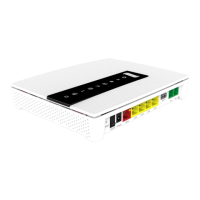
4. The colored lights will blink for roughly
30 seconds. If you have connected your
modem properly, the Status, WAN and
Internet lights will be a fixed green color.
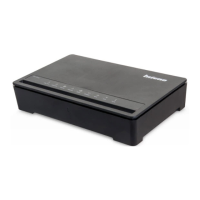
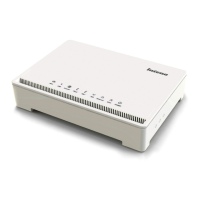
See picture labeled “Front”. You have
now connected the DG150v2.
Connecting the
Wireless Local
Area Network (WiFi)
1. Make sure that the WiFi is active,
Wireless LED should be green.
2. For wireless connection first perform a
search for available wireless networks
using the WiFi client.
3. Compare the list with the SSID which is
shown on a sticker (labeled ”Network
Name”) on the under side of
the DG150v2.
4. Connect by double clicking on the
correct SSID and then providing the
encryption code which is shown on the
sticker labeled ”WiFi-Key” on the under
side of the DG150v2.
Description of
the front panel
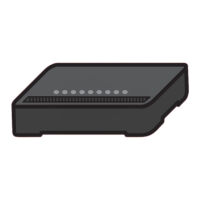
Graphics on the front panel
1. DSL WAN indicator
On (green) – connected to the
DSL network
Off – not connected to the DSL network
Blinking (green) – Syncing DSL
2. GbE WAN indicator
On (green) – WAN connected,
1000 Mps
On (yellow) – WAN connected, 100 Mps
Off – WAN not connected
3. Internet indicator
On (green) – Contact with DNS server
Off – No contact with DNS server
4. Ethernet indicator
On (green) – LAN connected
Off – LAN not connected
5. Status indicator
On (green) – CPE start-up ok
On (red) – CPE start-up problem
(contact your operator)
Off – Power off
6. Wireless indicator
On – (green) WiFi activated
Off – WiFi not active
Blinking (green) – some software ver-
sions indicate network traffic by blinking
and some do not - blinking does not
indicate problems
7. WPS indicator
Blinking (green) – WPS in service
Off – WPS disabled
g
f
DG150v2
Multi WAN Residential Gateway


 To Next Page