OPERATION
Deleting Files from Memory
If you no longer wish to keep one or more photo and/or audio files in the frame’s internal
memory, you can delete selected the files from memory.
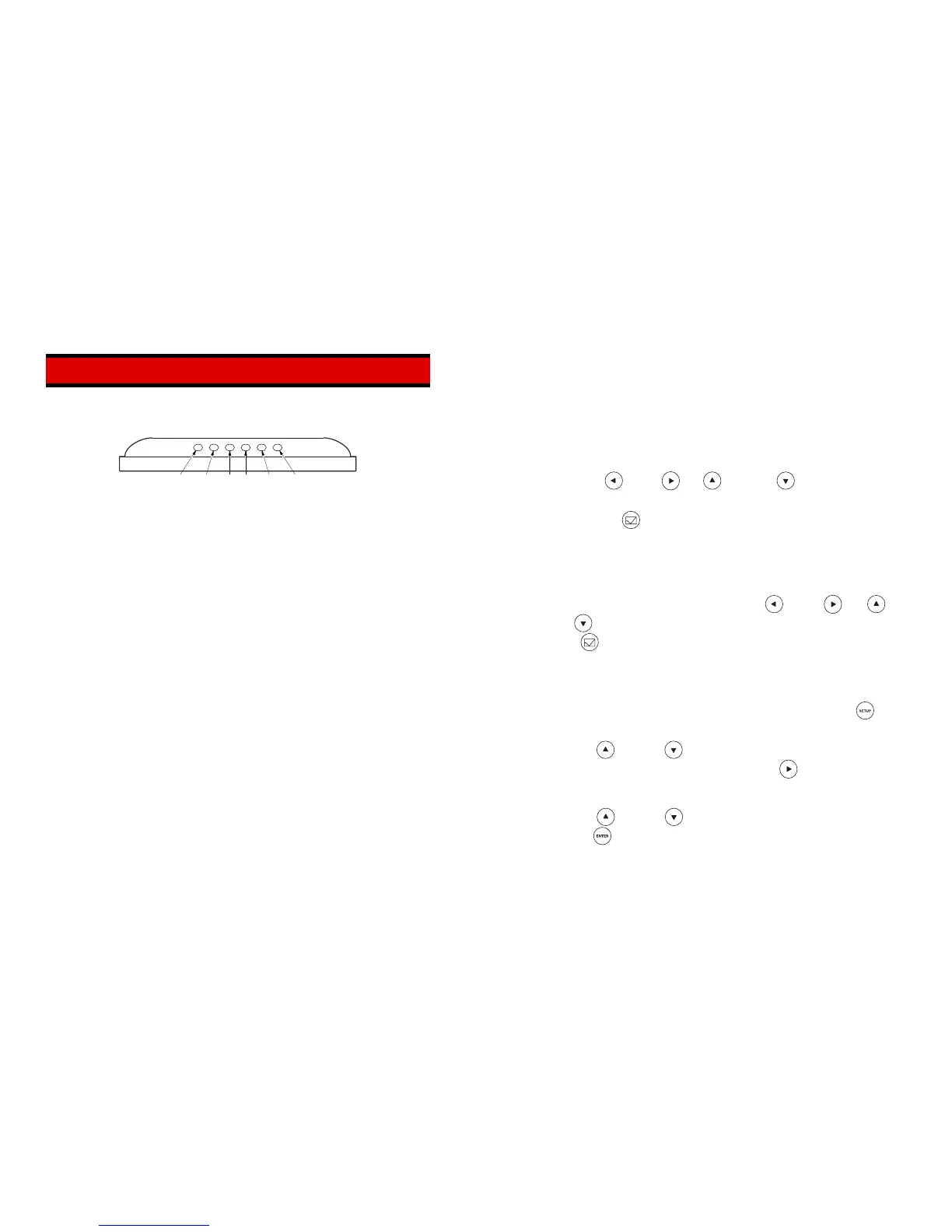
FRAME CONTROLS
1. Access the “thumbnails” display for the computer’s internal memory.
• If you wish to delete audio files, access the audio “directory” for the computer’s
internal memory.
4 32 156
UP DOWN ENTER LEFT RIGHT EXIT
1. EXIT button
• When in “Single Photo” or “Slideshow” display mode, returns the frame to the
“thumbnails” display.
• When in “Setup” mode, exits the Setup menu.
2. RIGHT button
• When viewing the “thumbnails” screen or in “Single Photo” display mode, scrolls
forward through the available photos.
• When in “Setup” mode, displays the submenu for the currently selected option.
3. LEFT button
• When viewing the “thumbnails” screen or in “Single Photo” display mode, scrolls
backward through the available photos.
• When in “Setup” mode, closes the submenu for the currently selected option.
4. ENTER button
• When viewing the “thumbnails” screen, returns to the “Single Photo” display mode.
• When in display mode, toggles the frame between “Single Photo” display and
“Slideshow” display.
• When in “Setup” mode, confirms the current menu selection.
5. DOWN button
• When viewing the “thumbnails” screen, scrolls down through the available photos.
• When in “Setup” mode, scrolls forwards through the available menu options.
2. Use the LEFT , RIGHT , UP and DOWN buttons as appropriate to
highlight the first photo or audio file you wish to delete.
3. Press the SELECT
button to select the photo/audio file.
• If you selected a photo, a checkmark displays in the upper right corner of the
“thumbnail.”
• If you selected an audio file, a checkmark displays to the right of the file name.
, RIGHT , UP
4. To unselect a photo or audio file, use the LEFT
and
DOWN buttons as appropriate to highlight a selected photo/file, then press the
SELECT button.
• The checkmark is removed.
5. Repeat steps 2 through 4 to select or unselect additional photos or audio files.
6. When all the desired photos/files have been selected, press the SETUP
button
to display the Setup Menu.
7. Use the UP or DOWN button to highlight Delete jpg file (for photos) or
Delete mp3 file (for audio files), then press the RIGHT button.
• A confirmation message displays.
or DOWN
8. Use the UP
button to highlight the desired option, then press
the ENTER button.


 To Next Page