21
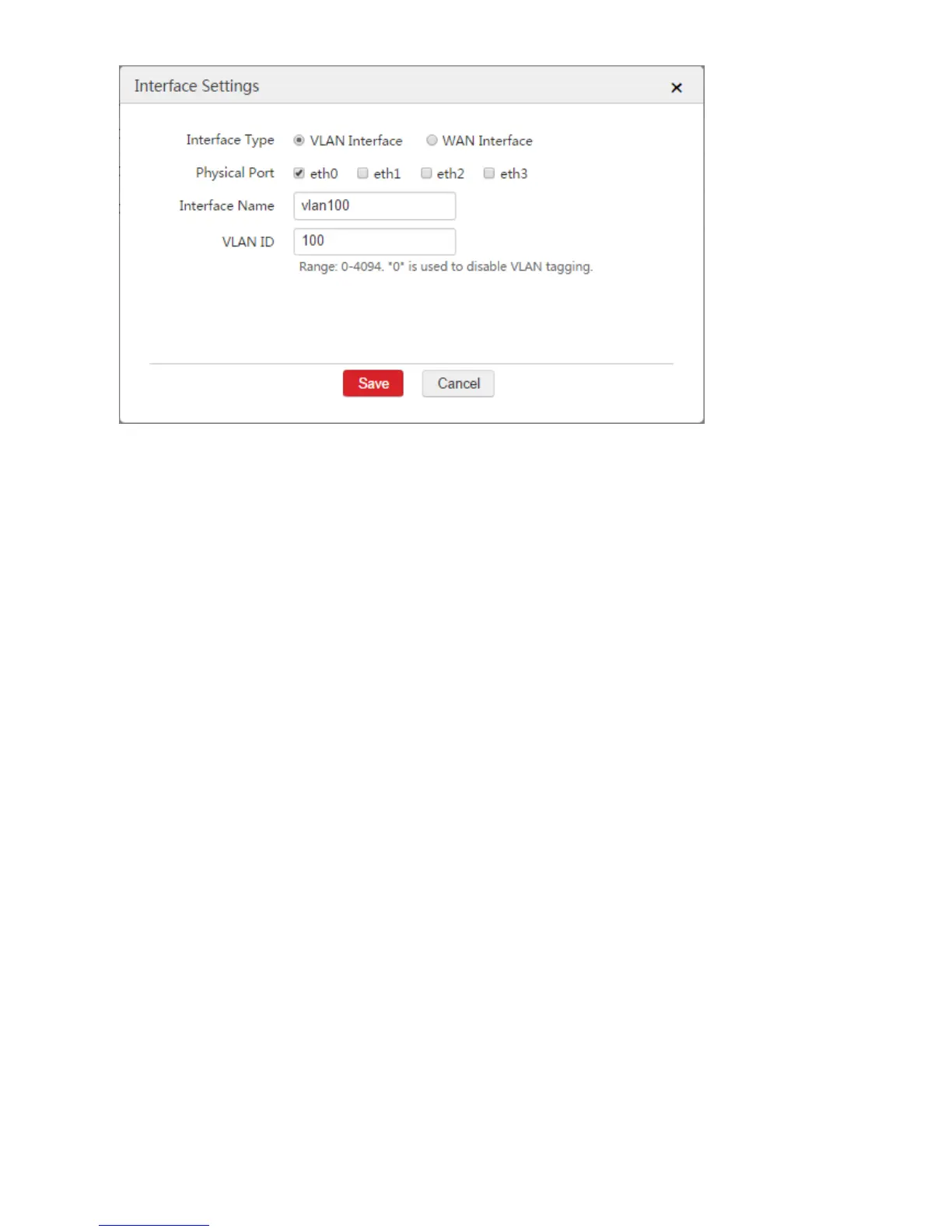
Step 2: Configure Interface and DHCP Server
1. Log in to the web UI of the AC and go to Network Setting > Network Setting > Interface and
DHCP Server.
2. Click Add.
3. Configure the parameters in the window.
VLAN Interface: Select the configured VLAN interface from Step 1, which is "vlan100".
IP Address: Set an IP address for the VLAN interface, such as "192.168.100.1".
Subnet Mask: You can keep the default value.
DHCP Server: Select "Enable".
Assign IP to: Select "User".
Remark: Set a name for the DHCP server, such as "user".
Gateway: In this example, enter the LAN IP address of the router: 192.168.100.50.
Primary DNS: Set a correct DNS server address or a DNS proxy server address. In this example, it
is "192.168.100.50".
Start IP: Set a start IP address of the DHCP address pool, such as "192.168.100.100".
End IP: Set an end IP address of the DHCP address pool, such as "192.168.200.100".
4. Click Save.



 To Next Page