29
If the AC cannot connect to the internet, choose Network Setting > Network Setting > WAN Interface
Settings and try modifying the WAN Interface Settings.
DHCP
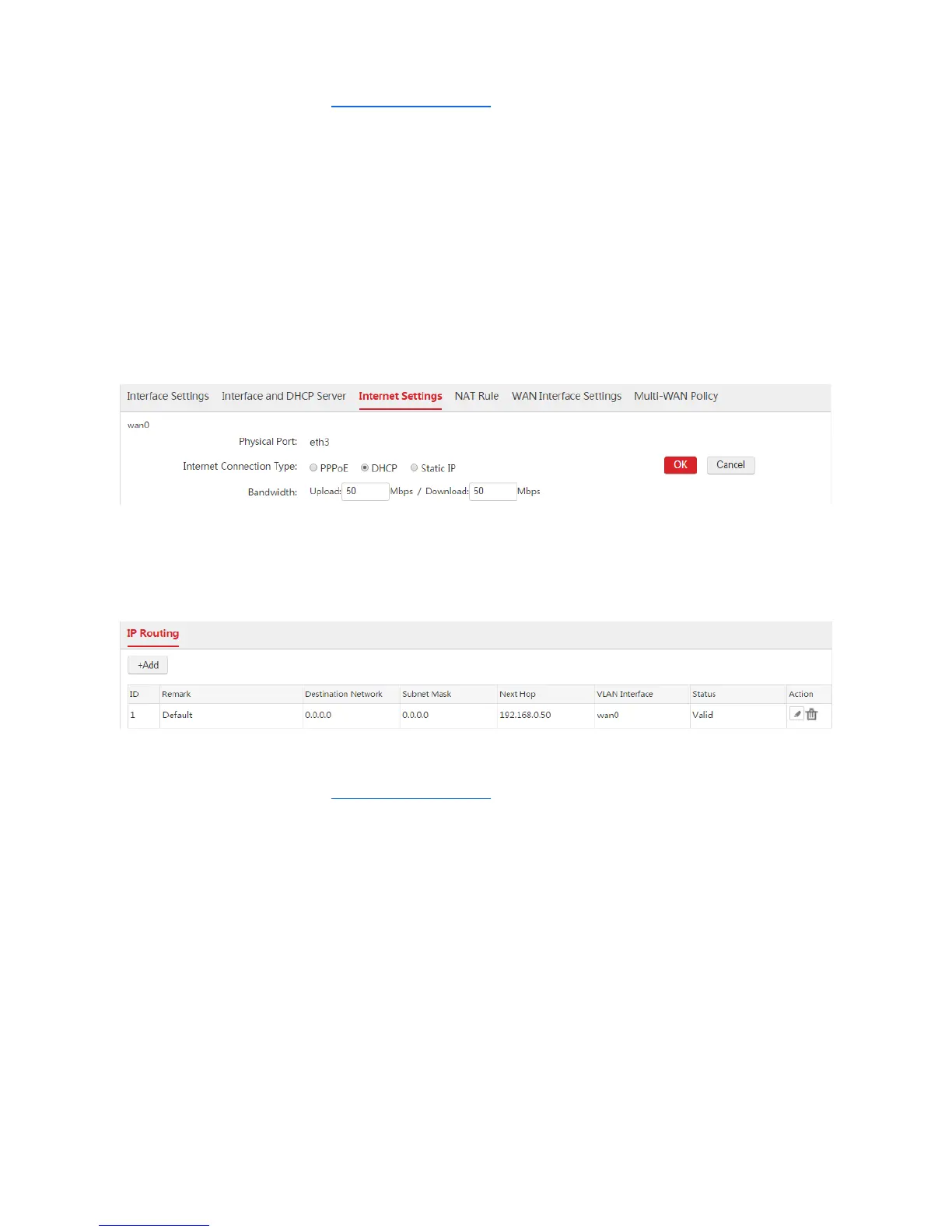
1. Choose Network Setting > Network Setting > Internet Settings and find the WAN interface to be
configured.
2. Internet Connection Type: Select "DHCP".
3. Bandwidth: Enter the bandwidth provided by your ISP. If you are uncertain, contace your ISP.
4. Click OK.
5. Click Connect.
Wait a moment. When the Internet Connection Status is displayed as "Connected", the AC is
successfully connected to the internet. Besides, the AC generates a default route. You can choose
Network Setting > IP Routing to view the route. See the following figure.
If the AC cannot connect to the internet, choose Network Setting > Network Setting > WAN Interface
Settings and try modifying the WAN Interface Settings.
Static IP
1. Choose Network Setting > Network Setting > Internet Settings and find the WAN interface to be
configured.
2. Internet Connection Type: Select "Static IP".
3. Bandwidth: Enter the bandwidth provided by your ISP. If you are uncertain, contace your ISP.
4. IP Address/Subnet Mask/Gateway/Primary DNS/Secondary DNS: Enter the fixed IP addresses
provided by your ISP.
5. Click OK.
6. Click Connect.



 To Next Page