63
Step 2: Configure Interface and DHCP Server
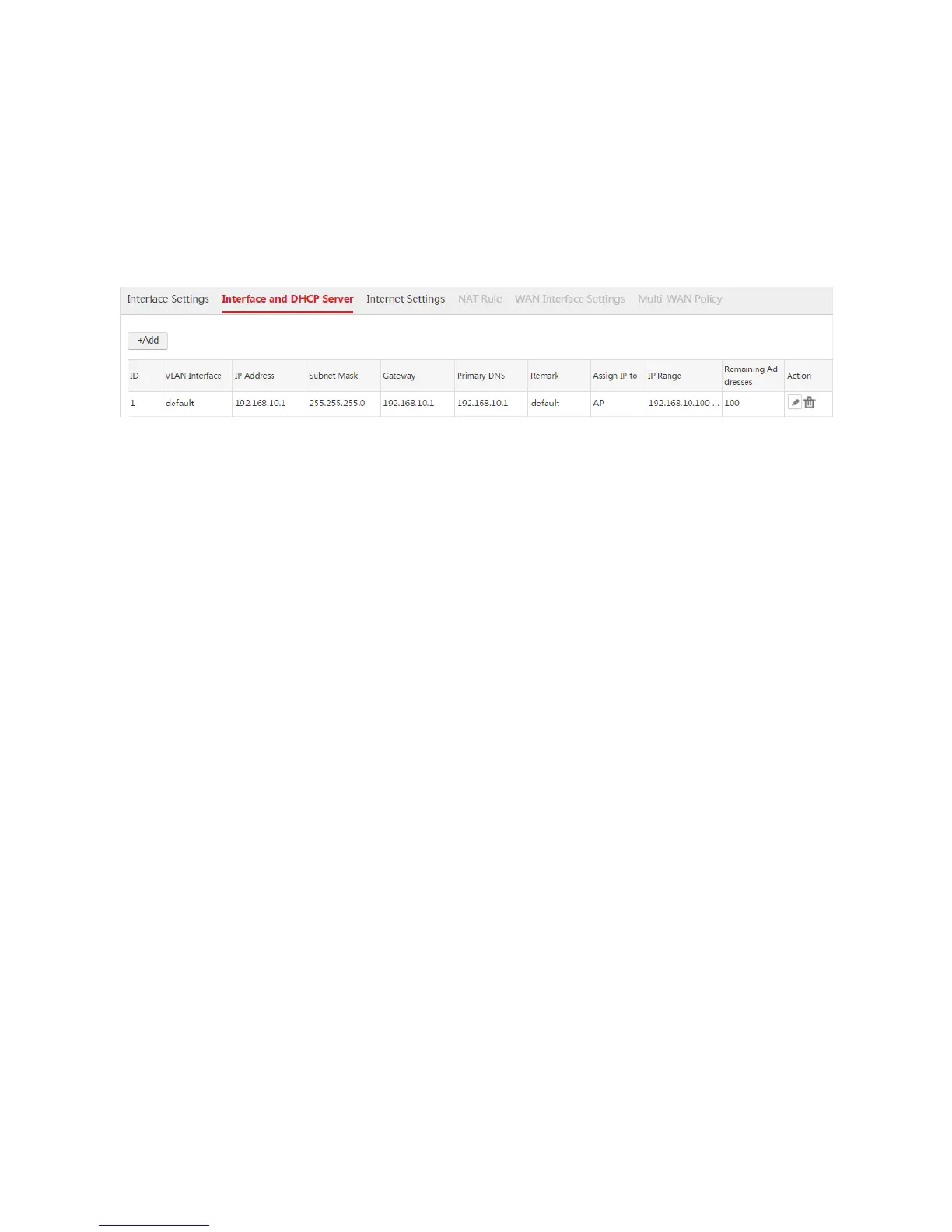
Choose Network Setting > Network Setting > Interface and DHCP Server and create four DHCP
servers used to communicate with the APs, the users, Route1, and Router2 respectively.
1. Configure the DHCP server used to communicate with the APs
As the AC provides a default DHCP server used to assign IP addresses to APs, so we can use the
default DHCP server.
2. Configure the DHCP server used to communicate with the users
1) Click Add.
2) Configure the parameters in the window.
VLAN Interface: Select the configured VLAN interface from Step 1, which is "default".
IP Address: Set an IP address for the VLAN interface, such as "192.168.6.1".
Subnet Mask: You can keep the default value.
DHCP Server: Select "Enable".
Assign IP to: Select "User".
Remark: Set a name for the DHCP server, such as "user".
Gateway: Enter the IP address of the VLAN interface, which is "192.168.6.1".
Primary DNS: Enter the DNS server address or DNS proxy server address, which is
"192.168.200.100" in this example.
Start IP: Enter the start IP address of the DHCP address pool, such as "192.168.6.100".
End IP: Enter the end IP address of the DHCP address pool, such as "192.168.6.200".
3) Click Save.



 To Next Page