IV. Configure IP Routing
Step 1: Configure VLAN Interface
1. Configure the VLAN interface used to communicate with Router1.
1) Log in to the web UI of the AC and go to Network Setting > Network Setting > Interface
Settings.
2) Click Add.
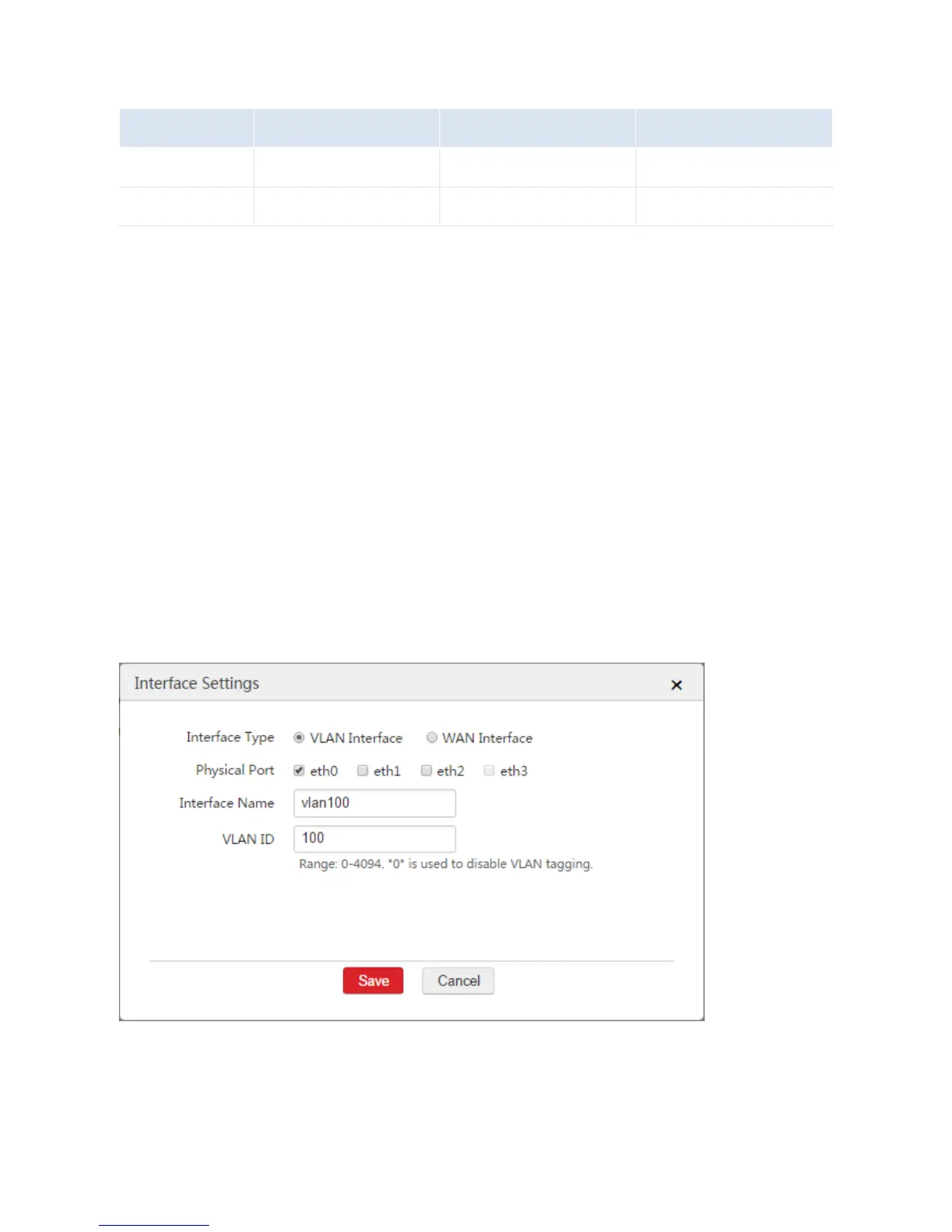
3) Configure the parameters in the window.
Interface Type: Select "VLAN Interface".
Physical Port: Select the physical port connected to the switch, which is "eth0" in this example.
Interface Name: Set a name for the VLAN interface, such as "vlan100".
VLAN ID: Enter the VLAN ID of the LAN network of Router1 , which is "100" in this example.
4) Click Save.
2. Configure the VLAN interface used to communicate with Router2
1) Log in to the web UI of the AC and go to Network Setting > Network Setting > Interface
Settings.



 To Next Page