C
HAPTER
4
| Basic Management Tasks
Setting the System Clock
– 113 –
WEB INTERFACE
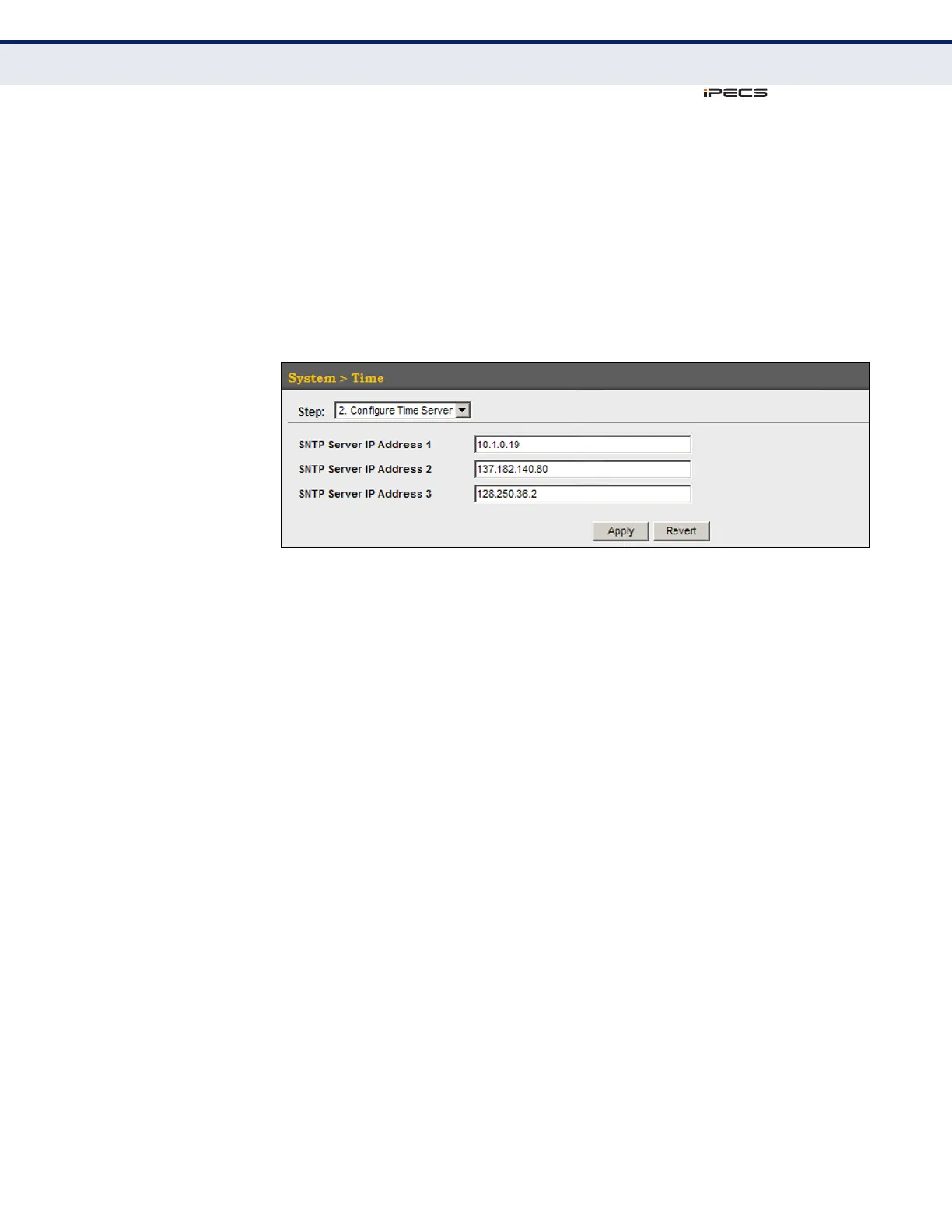
To set the SNTP time servers:
1. Click System, then Time.
2. Select Configure Time Server from the Action list.
3. Enter the IP address of up to three time servers.
4. Click Apply.
Figure 15: Specifying SNTP Time Servers
SETTING THE TIME
ZONE
Use the System > Time (Configure Time Server) page to set the time zone.
SNTP uses Coordinated Universal Time (or UTC, formerly Greenwich Mean
Time, or GMT) based on the time at the Earth’s prime meridian, zero
degrees longitude, which passes through Greenwich, England. To display a
time corresponding to your local time, you must indicate the number of
hours and minutes your time zone is east (before) or west (after) of UTC.
You can choose one of the 80 predefined time zone definitions, or your can
manually configure the parameters for your local time zone.
CLI REFERENCES
◆ "clock timezone" on page 581
◆ "clock timezone-predefined" on page 581
PARAMETERS
The following parameters are displayed in the web interface:
◆ Predefined Configuration – A drop-down box provides access to the
80 predefined time zone configurations. Each choice indicates it’s offset
from UTC and lists at least one major city or location covered by the
time zone.
◆ User-defined Configuration – Allows the user to define all
parameters of the local time zone.
■
Direction: Configures the time zone to be before (east of) or after
(west of) UTC.
■
Name – Assigns a name to the time zone. (Range: 1-29 characters)



 To Next Page