16
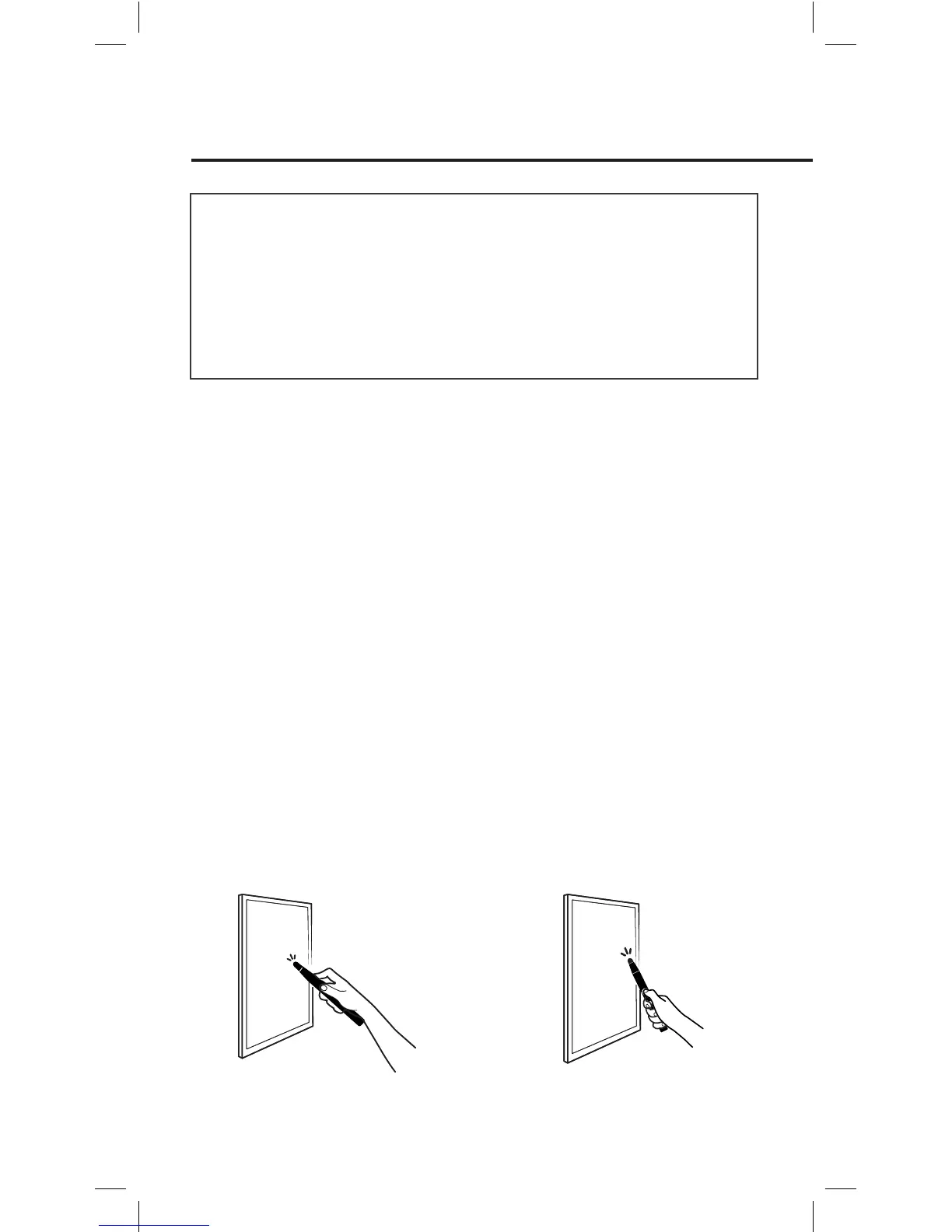
Tap the contact-sensitive Pen tip
onto the screen surface.
Press the green button.
There are two ways to use the Interactive Pen. Firstly, it can be used as
a mouse with any mouse-based software application. Secondly, when
paired with IPEVO Annotator, it can be used just like your regular
whiteboard marker (see Page 18~22).
Please do the following every time before you start using the
Interactive Pen:
1. Plug the Wireless Receiver into your computer’s USB port.
2. Turn on the Sensor Cam by pressing the Sensor Power Button located
on the Pen. Make sure the Pen is pointing at the Sensor Cam while
doing so.
3. Check that the LED indicator of the Sensor Cam shows a solid Green.
The Interactive Pen can behave like a mouse, transforming any surface
into a touchscreen when you use it with a mouse-based application. It
can be use to:
A. Control cursor movement
Control the computer’s cursor movement by using the Interactive Pen
to intuitively perform the actions you’d normally use your mouse to
perform. The mouse cursor will follow the Pen’s movement in real
time.
B. Perform left click
Tap the contact-sensitive Pen tip onto the screen surface, or press the
IPEVO button once to perform a left click.
Using IW2 Interactive Pen
Using the Interactive Pen as a Mouse


 To Next Page