#16
iStorage datAshur
®
BT Personal User Manual – v 1.7
www.istorage-uk.com
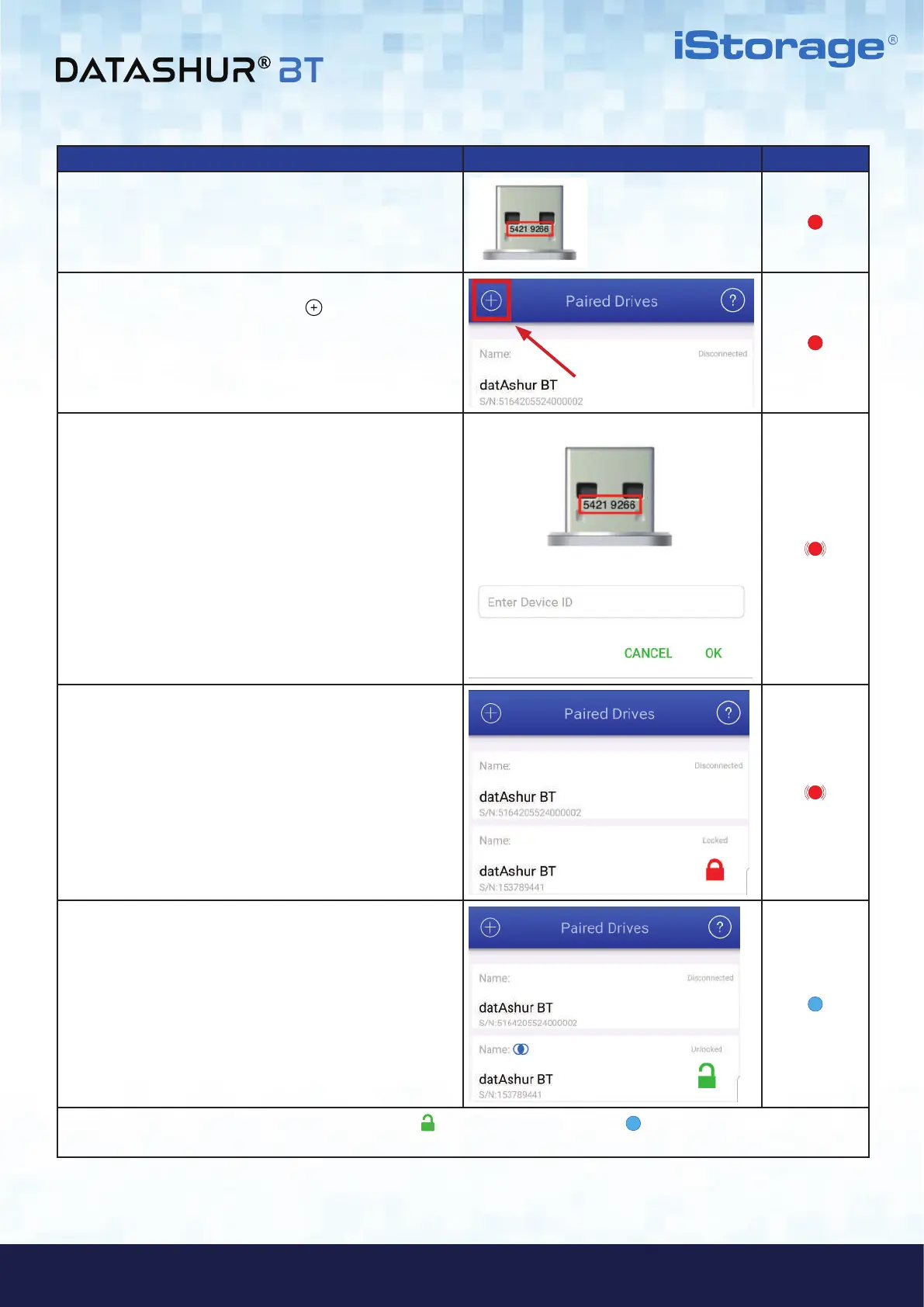
How to Add Additional Drives to Existing App App Drive LED
1. Make a note of the Device ID number printed on the
USB connector and connect the datAshur BT Drive to
a powered USB port.
2. Open the App and tap on the Add symbol located on
the top-left of screen.
Note: You will see your existing (paired) datAshur BT Drive
with the serial number beneath.
3. Enter the ‘Device ID’ number printed on the USB
connector and tap OK.
Note: If you have already noted down the Device ID number,
ignore the message to unplug your Drive and proceed to
enter the Device ID number.
4. Tap on the RED padlock after initialization is complete.
Note: The App will show both (or more) paired Drives. You
are able to unlock and use both Drives at the same time if
need be.
5. Enter your default Drive Password (11223344) and
tap the padlock to unlock your datAshur BT.
Important: For security reasons, please remember to
change the default Drive Password to your own unique
7-15 character Password immediately as described in
section 6 ‘How to change the Password’.
Your datAshur will unlock showing a GREEN padlock ( ) on the App and solid Blue ( ) LED on your datAshur BT and
will need to be formatted before it can be used, refer to section 27 (Windows) or section 28 (Mac OS).













 To Next Page