#19
www.istorage-uk.com
iStorage datAshur
®
BT Personal User Manual – v 1.7
26. How to create a Password after a Brute Force Attack or Reset
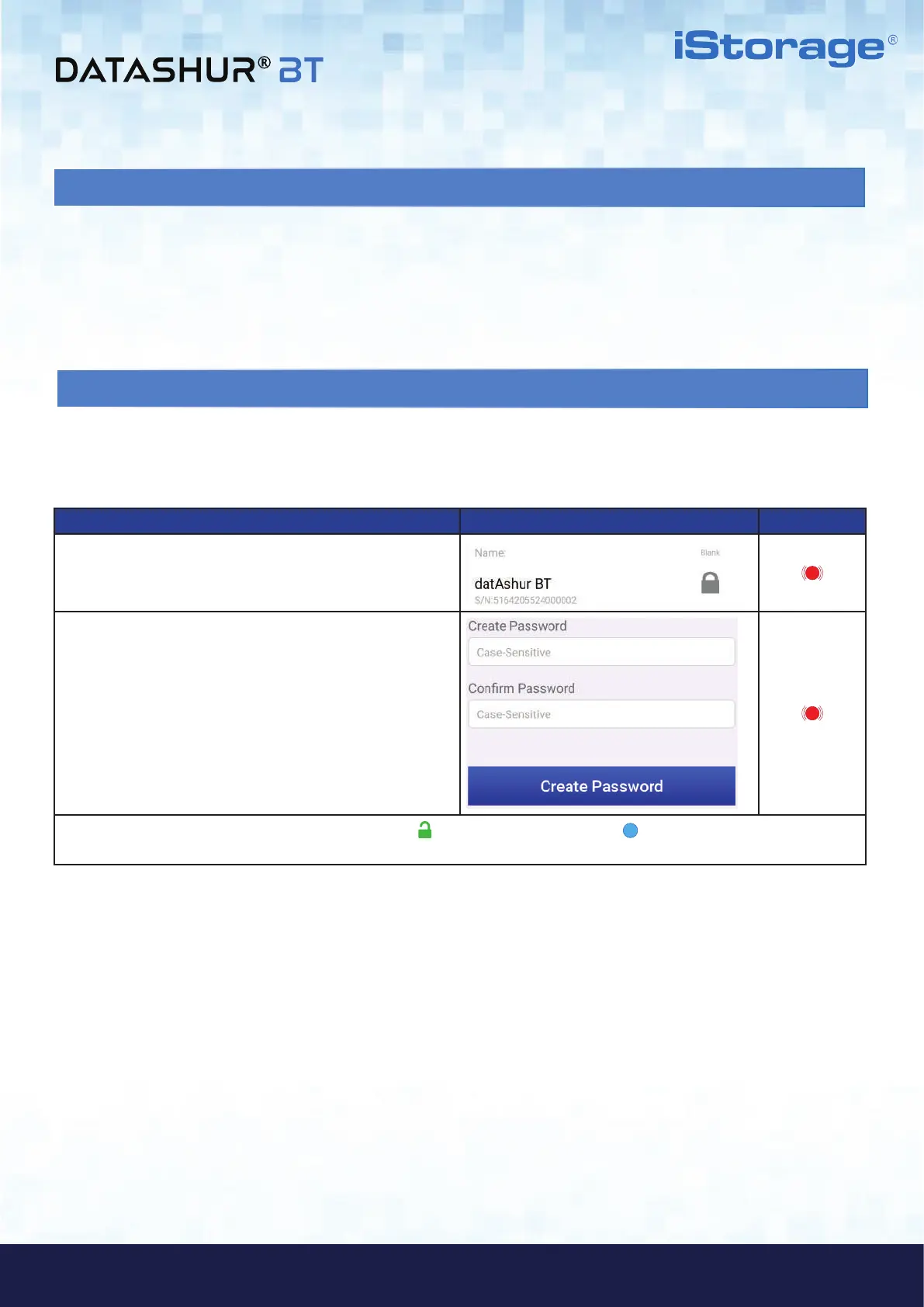
It will be necessary after a Brute Force attack or when your datAshur BT has been reset to Create a new Password before the
Drive can be used. To create a new password, proceed with the following steps.
How to create a new Password App Drive LED
1. Your datAshur BT appears as Blank indicating that the
Drive has been Reset or Brute Forced. To create a
new Password tap on the Padlock.
2. Create and Confirm your new Password and then tap
on Create Password.
Your datAshur will unlock showing a GREEN padlock ( ) on the App and solid Blue ( ) LED on your datAshur BT and
will need to be formatted before it can be used, refer to section 27 (Windows) or section 28 (Mac OS).
25. Brute Force Hacking Detection
If an incorrect password is entered 10 (ten) consecutive times, the datAshur BT’s brute force mechanism will trigger and the
encryption key, all data and credentials will be deleted and lost forever.
A new password must be created, see section 26 ‘How to create a password after a Brute Force Attack or Reset’, and your
datAshur BT will need to be formatted before it can be reused.













 To Next Page