User Guide
4.8 Camera Menu
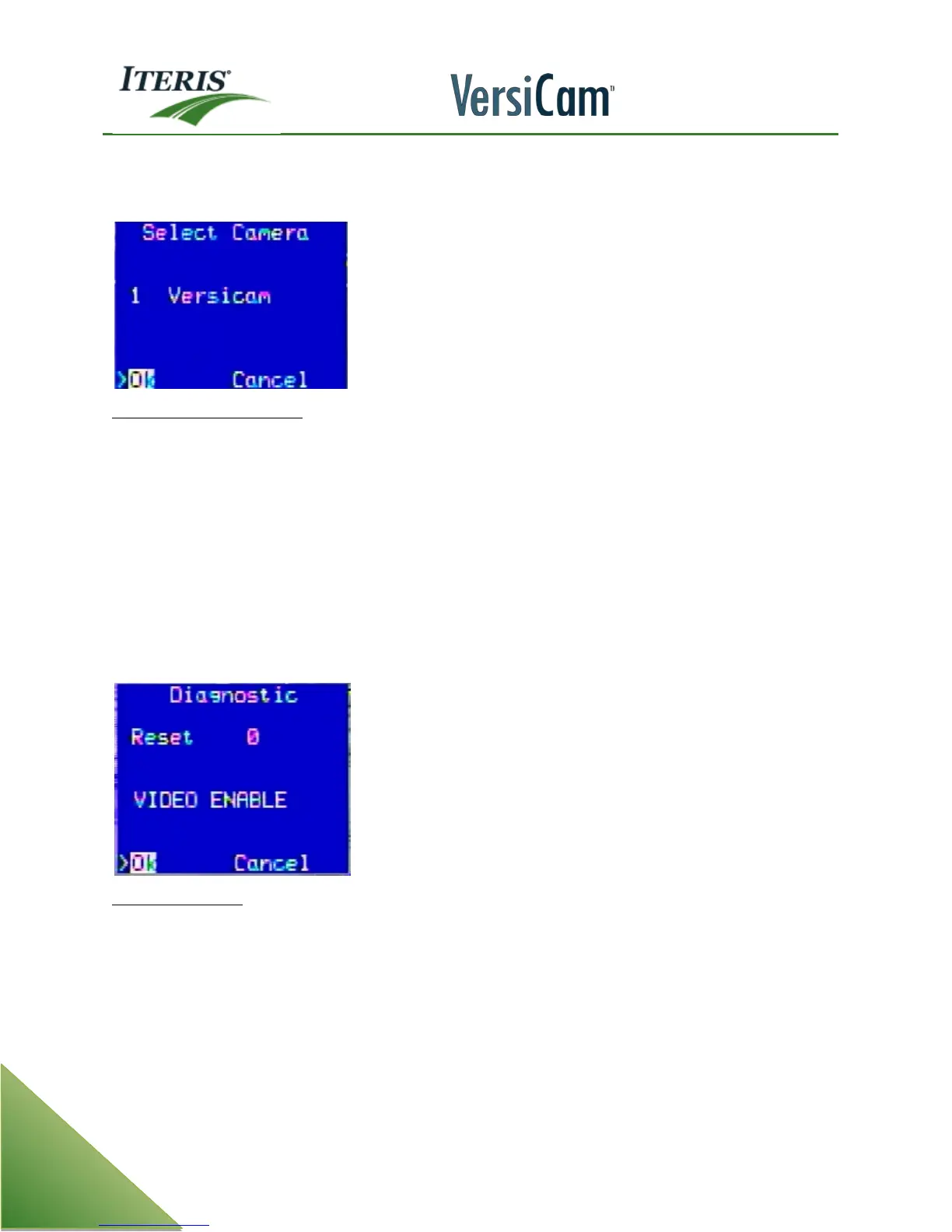
The "Camera" menu allows the user to change various camera specific settings on the system.
Camera Label Customization – The saved "Camera Label” is user customizable. The default designation is: "1
Camera, 2 Camera, 3 Camera, 4 Camera, however, this can easily be changed. Camera names can be up to 10
characters in length. To edit a camera name, move the cursor to the camera name that you want to change.
Click the right mouse button and the first character of the name will be highlighted. Now, by pressing the left
or right mouse button, scroll through a series of available ASCII characters. Moving the mouse to the right will
move the cursor to the next character position. Moving the mouse to the left will move the cursor to the left.
When you are finished customizing the camera name characters, either press both left and right mouse
buttons simultaneously, or press the mouse wheel button to save your changes and to exit out of the editing
mode.
4.9 Diagnostic Menu
The "Diagnostic" option menu includes the following functions and system information.
Reset Zone (Reset) - This option is rarely used. This option allows the user to force a single zone, referenced
by that zones detail number, to re-learn. Experience has shown that forcing the zone to re-learn, without
making zone size or placement adjustments, rarely solves operational challenges.
To reset a detection zone, enter the detail number by right or left clicking the mouse buttons. When the
desired zone number has been selected, exit and then Quit (Q) and save to the currently loaded
configuration. The selected zone will go into Learn Mode , placing a temporary call on the zones associated
output channel.


 To Next Page